> ## Documentation Index
> Fetch the complete documentation index at: https://metorial.com/docs/llms.txt
> Use this file to discover all available pages before exploring further.
# Create A Portal
> Create a branded portal and add the first integrations and skills your users can access.
A portal is the user-facing place where people discover approved integrations and skills. Build the portal first, then add resources and access rules.
**What you'll learn:**
* How to create a portal
* How to add access groups
* How to publish integrations and skills
* How to prepare the employee experience for testing
**Before you start:**
* Complete [Workforce Concepts](/workforce-concepts)
## Create The Portal
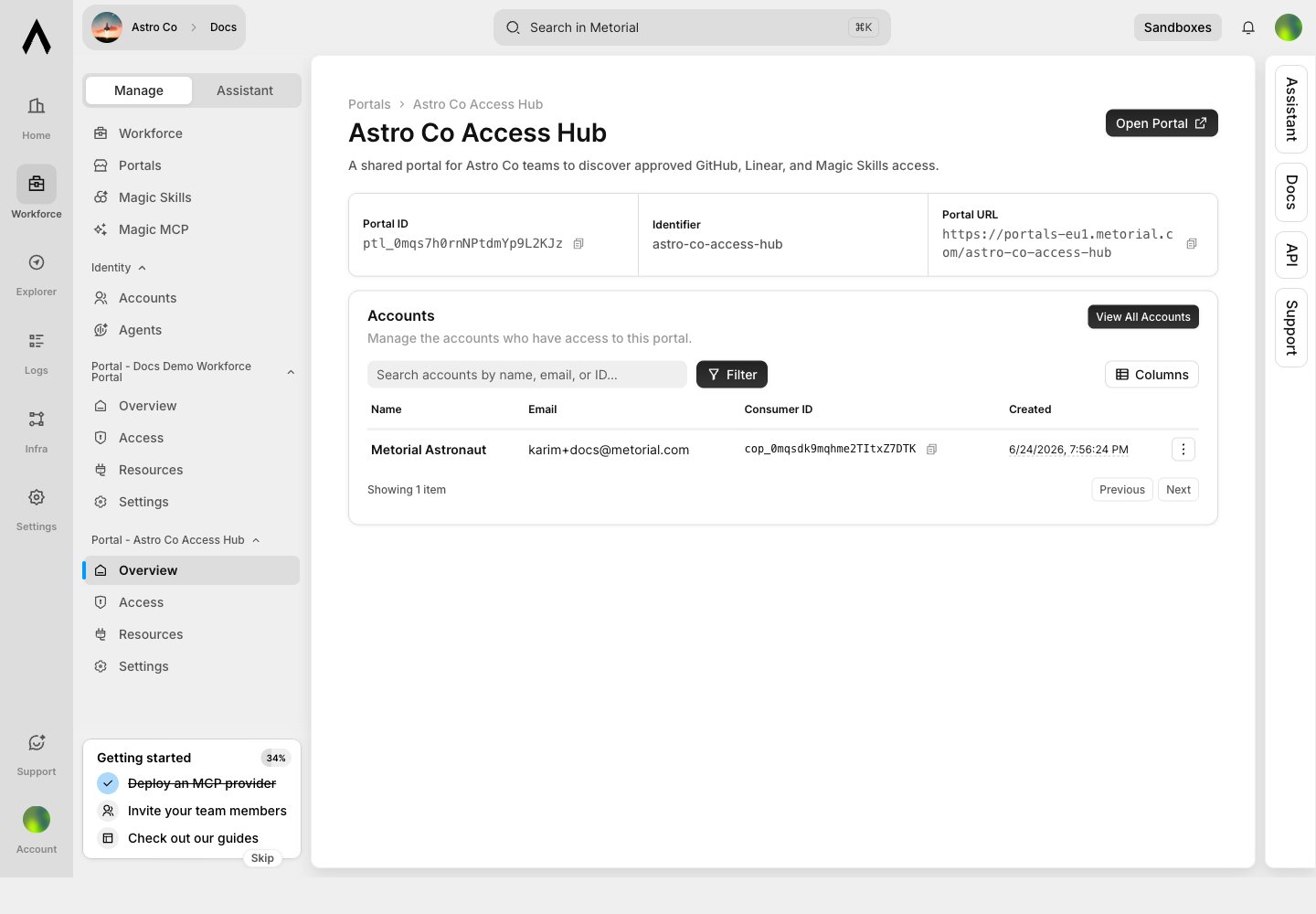
Open **Portals** from the Workforce area and create a portal with a clear name and description. Use a name your users will recognize, such as a company, department, or customer workspace.
 ## Add Access Groups
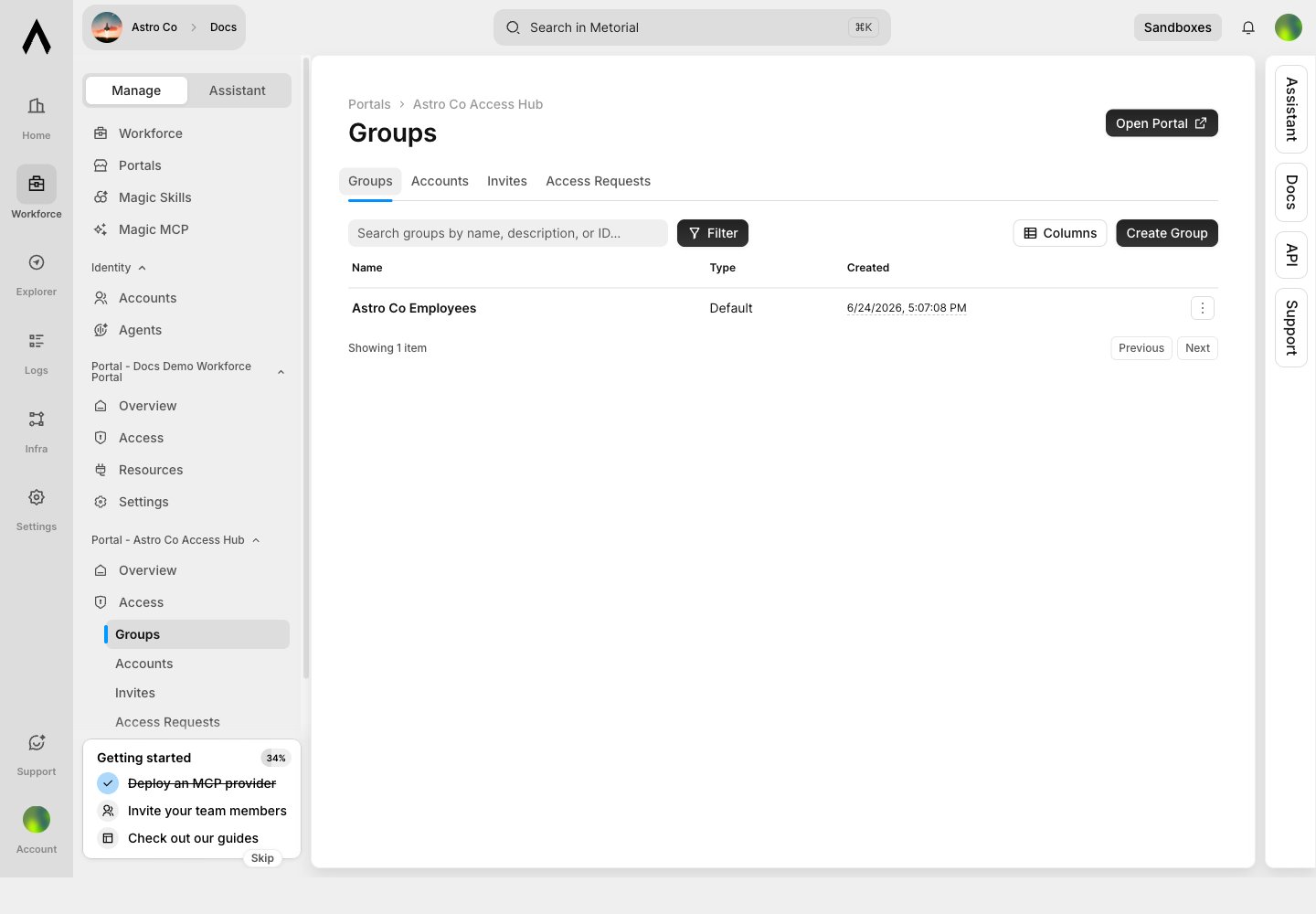
Use access groups to decide who can see each resource. You can assign groups to every account by default or map them from SSO group IDs.
## Add Access Groups
Use access groups to decide who can see each resource. You can assign groups to every account by default or map them from SSO group IDs.
 ## Publish Integrations
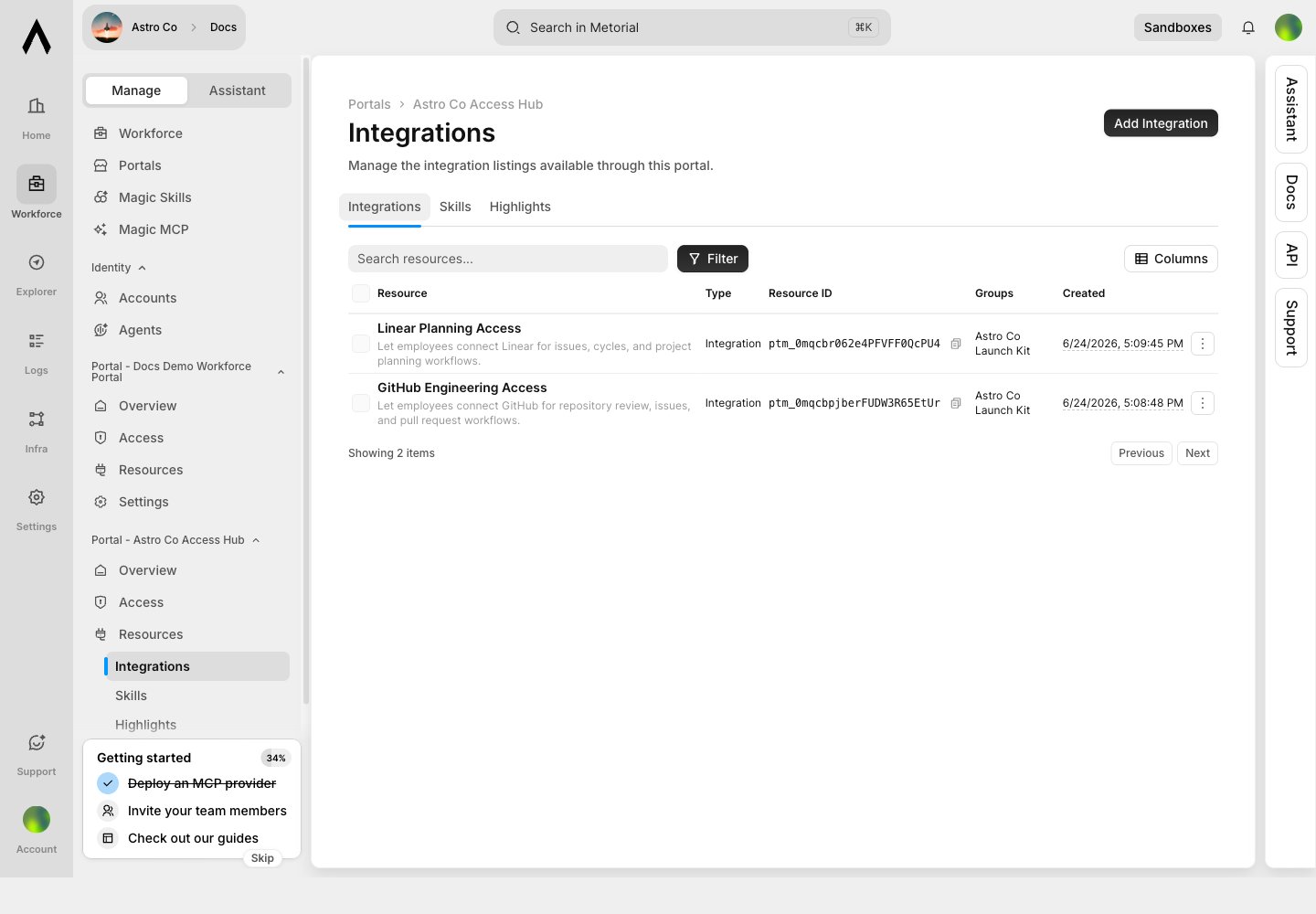
Add integrations to the portal so users can connect approved tools such as GitHub or Linear. Choose whether each integration is user-configured or pre-configured by an admin.
## Publish Integrations
Add integrations to the portal so users can connect approved tools such as GitHub or Linear. Choose whether each integration is user-configured or pre-configured by an admin.
 ## Publish Skills
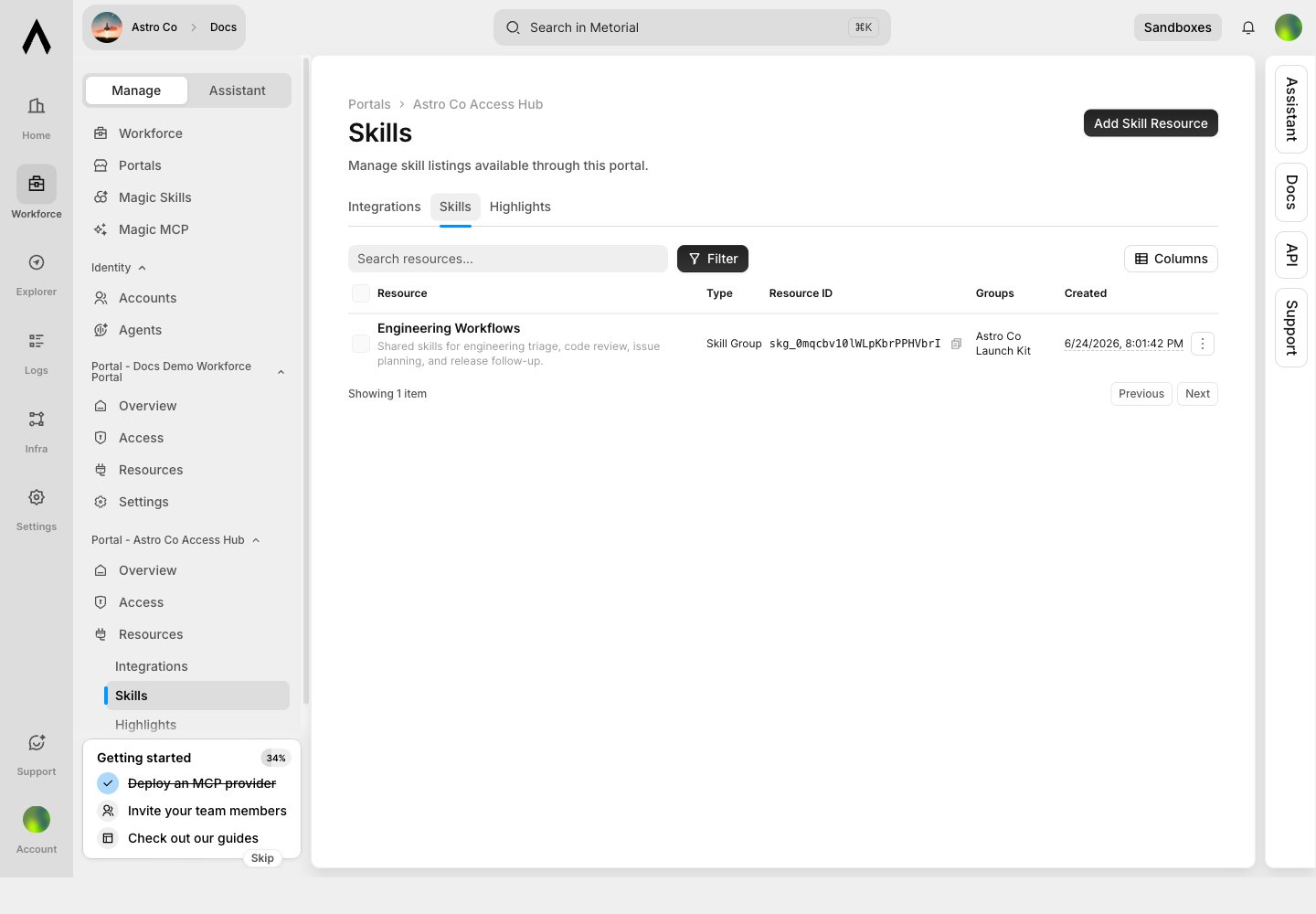
Add skills to package repeatable workflows for users. A skill can show which integrations it uses, so users understand what access powers the workflow.
## Publish Skills
Add skills to package repeatable workflows for users. A skill can show which integrations it uses, so users understand what access powers the workflow.
 ## Highlight Starter Resources
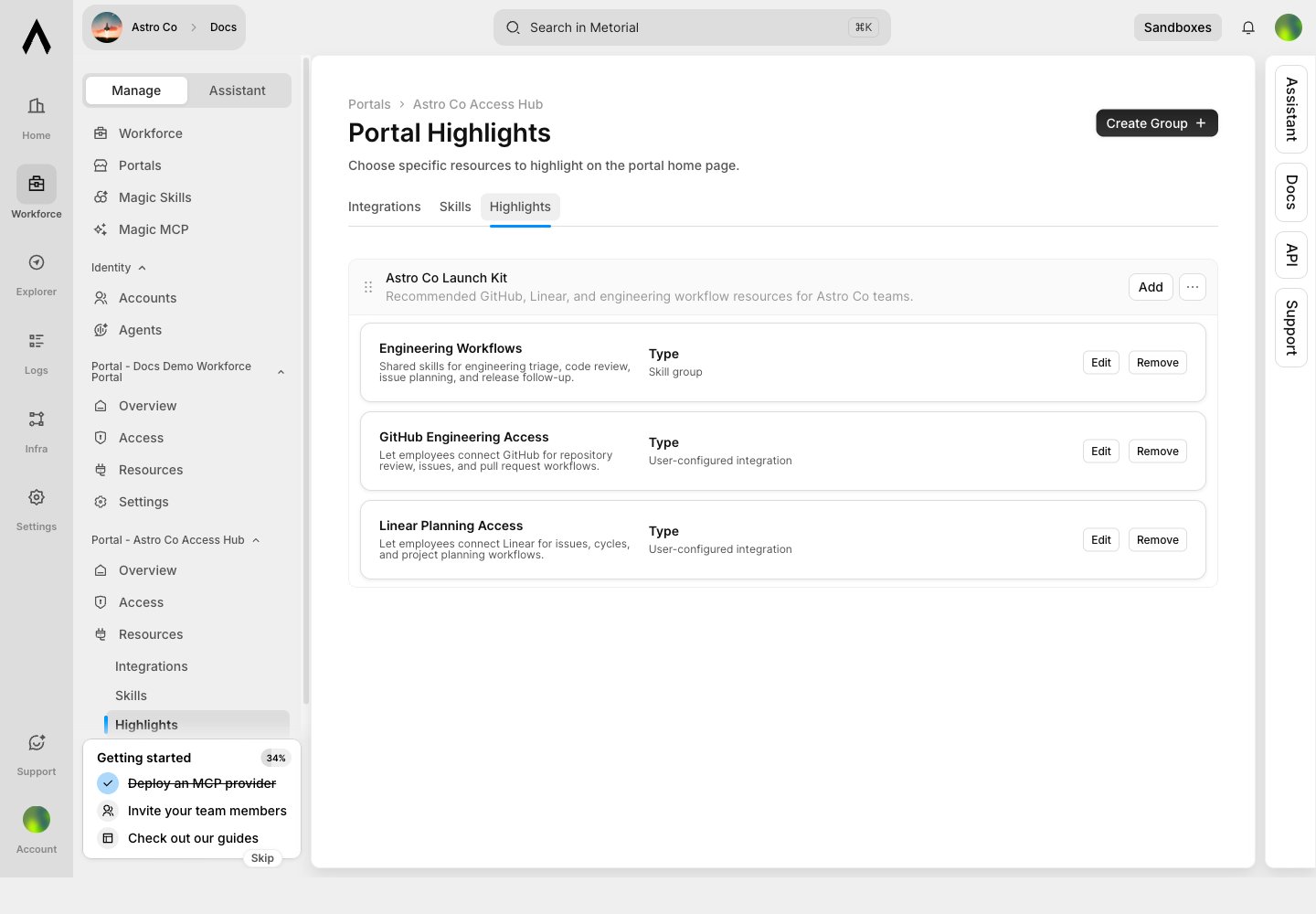
Highlights shape the portal home page. Use them for recommended starter kits, team workflows, or the resources new users should try first.
## Highlight Starter Resources
Highlights shape the portal home page. Use them for recommended starter kits, team workflows, or the resources new users should try first.
 ## What's Next?
Preview the portal from the user side and confirm that the right resources are visible.
Review the employee portal before sharing it with users.
## What's Next?
Preview the portal from the user side and confirm that the right resources are visible.
Review the employee portal before sharing it with users.