> ## Documentation Index
> Fetch the complete documentation index at: https://metorial.com/docs/llms.txt
> Use this file to discover all available pages before exploring further.
# Portals
> Portals are branded places where users discover and connect approved integrations, skills, and MCP access.
Portals turn a Workforce setup into a user-facing experience. Create a portal for a customer, partner, department, or internal team, then publish the integrations and skills that group should use.
**What you'll learn:**
* How admins build a portal
* How users experience a portal
* How access groups, integrations, skills, highlights, and authentication fit together
## Portal Journey
Admins create the portal and decide what appears inside it. Users open the portal, authenticate, and connect to the approved resources.
```mermaid theme={null}
flowchart LR
Admin["Admin"]
Portal["Portal"]
Groups["Access Groups"]
Integrations["Integrations"]
Skills["Skills"]
User["User"]
Admin --> Portal
Admin --> Groups
Groups --> Integrations
Groups --> Skills
Integrations --> Portal
Skills --> Portal
Portal --> User
```
## Create A Portal
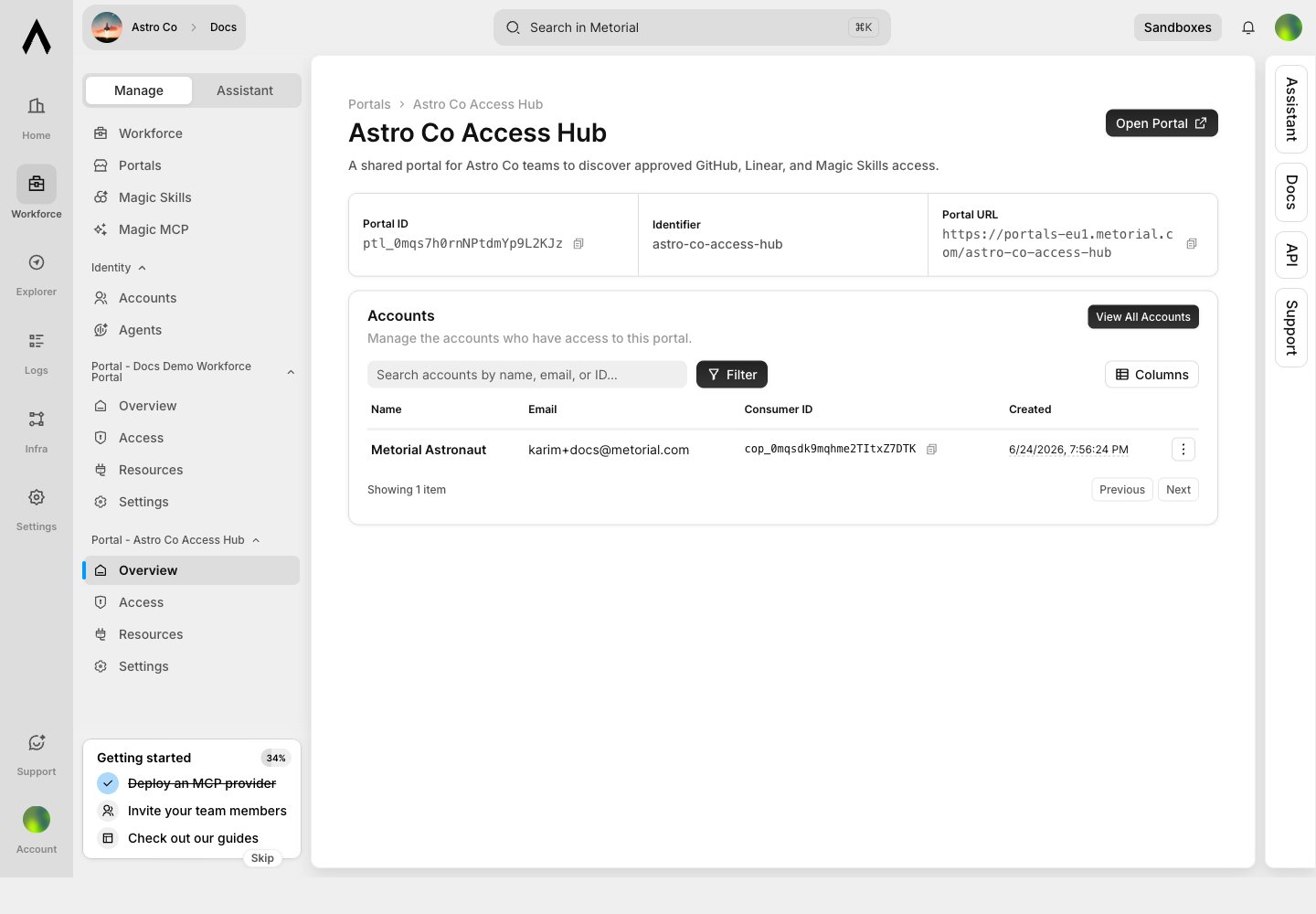
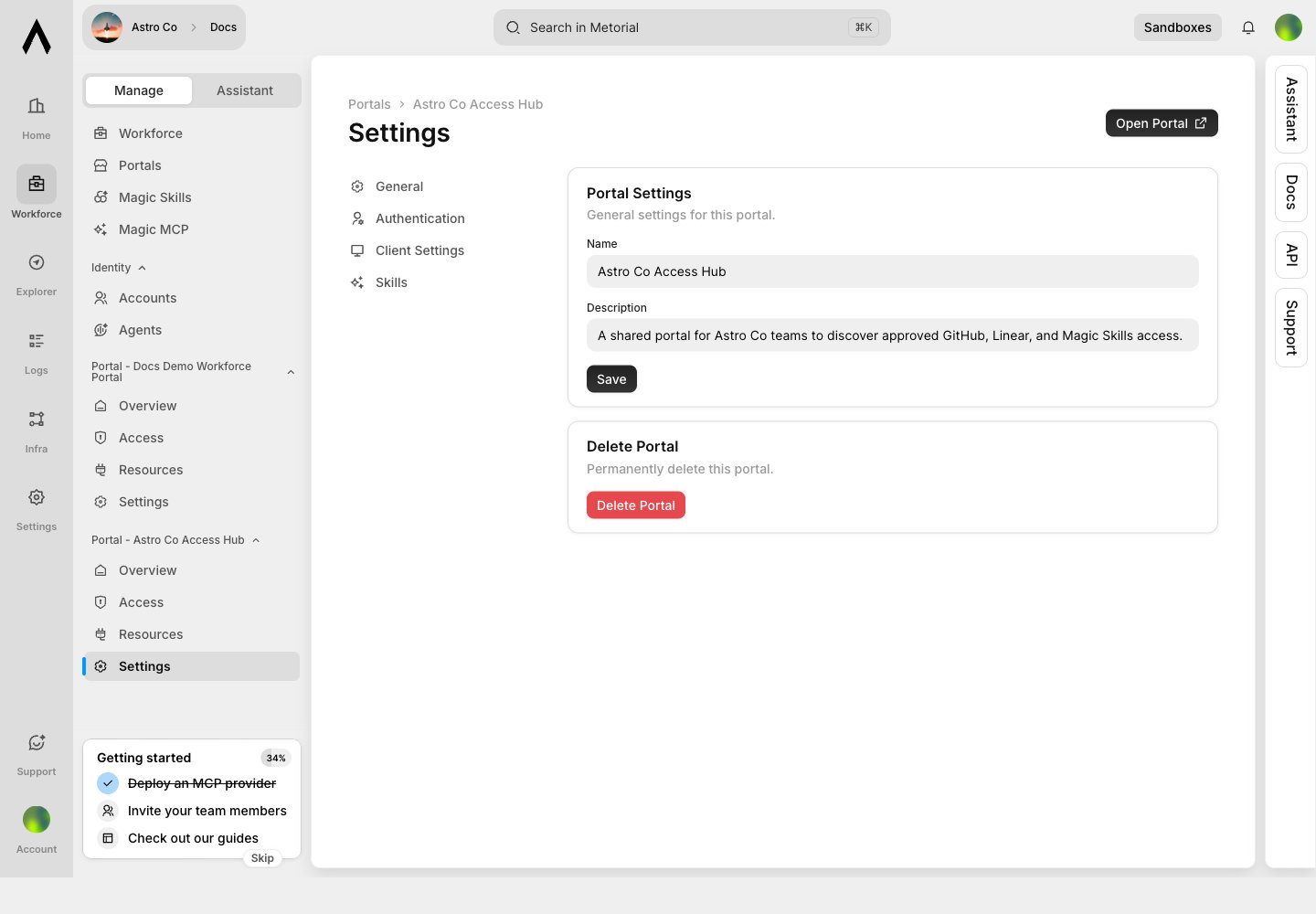
Open **Portals** from Workforce and create a portal with a clear name and description. Use the description to explain who the portal is for and what kind of work it supports.
 ## Add Access Groups
Access groups decide which users can see each portal resource. Groups can apply to every account by default or match SSO group IDs.
## Add Access Groups
Access groups decide which users can see each portal resource. Groups can apply to every account by default or match SSO group IDs.
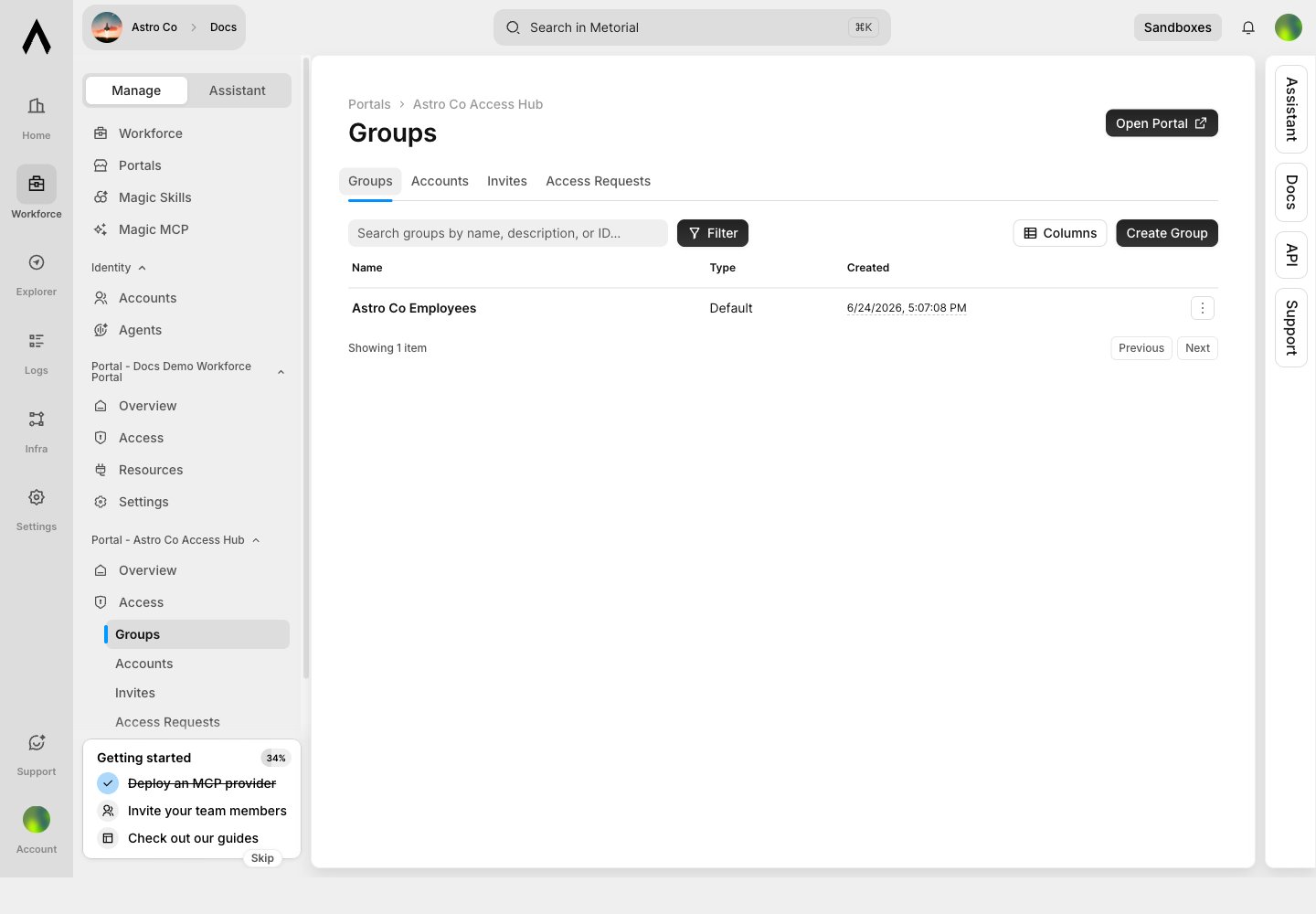 After adding a resource, open the resource and explicitly allow the groups that should see it.
## Add Integrations
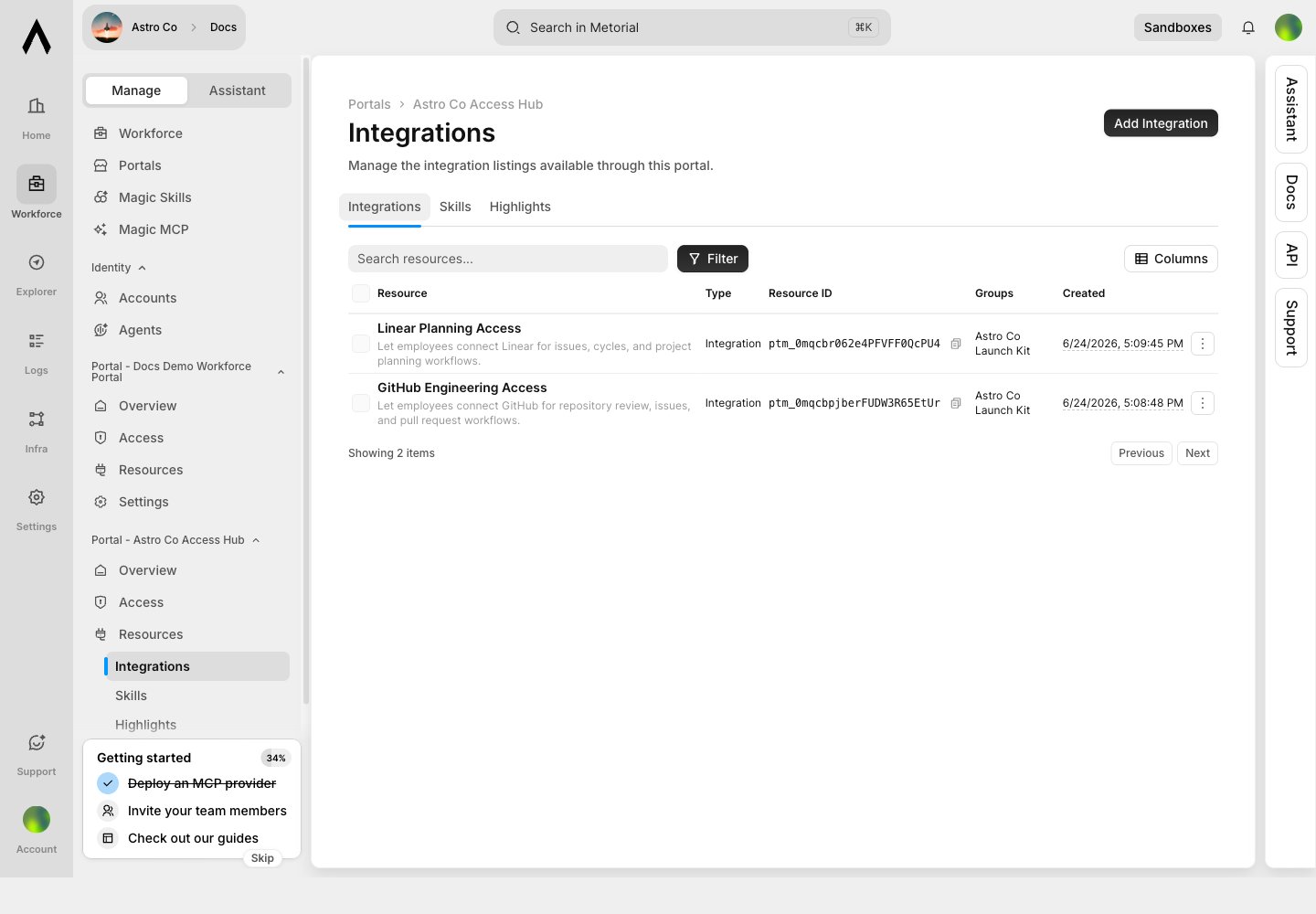
Publish integrations so users can connect approved tools. A portal integration can be:
| Listing type | Meaning |
| --------------- | ------------------------------------------------------------------ |
| User-configured | Each user connects the integration with their own credentials |
| Pre-configured | Administrators manage the shared credentials and provider settings |
After adding a resource, open the resource and explicitly allow the groups that should see it.
## Add Integrations
Publish integrations so users can connect approved tools. A portal integration can be:
| Listing type | Meaning |
| --------------- | ------------------------------------------------------------------ |
| User-configured | Each user connects the integration with their own credentials |
| Pre-configured | Administrators manage the shared credentials and provider settings |
 ## Add Skills
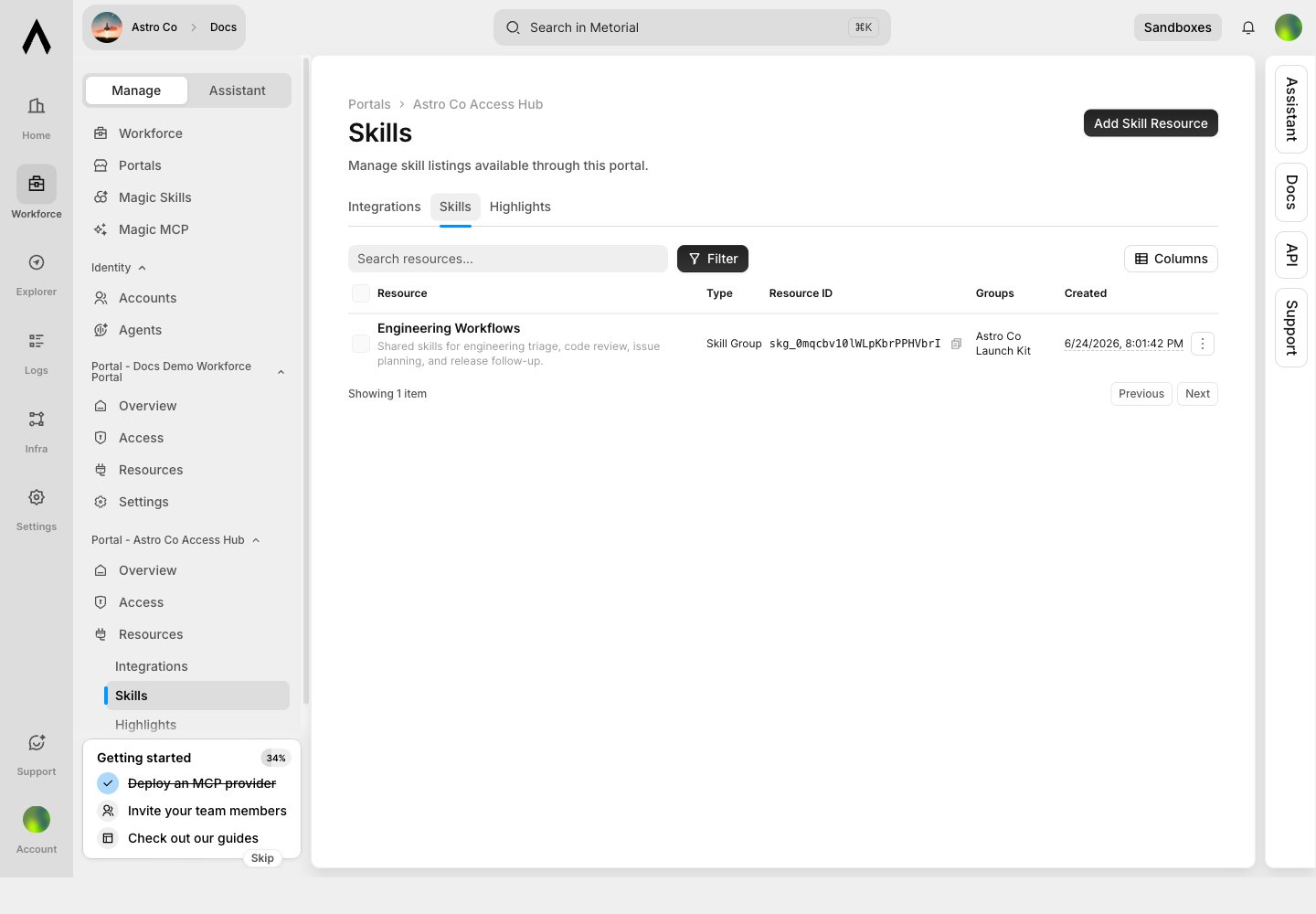
Publish skills so users can run approved workflows. Skills can show linked integrations, which helps users understand what access powers the workflow.
## Add Skills
Publish skills so users can run approved workflows. Skills can show linked integrations, which helps users understand what access powers the workflow.
 ## Highlight Starter Resources
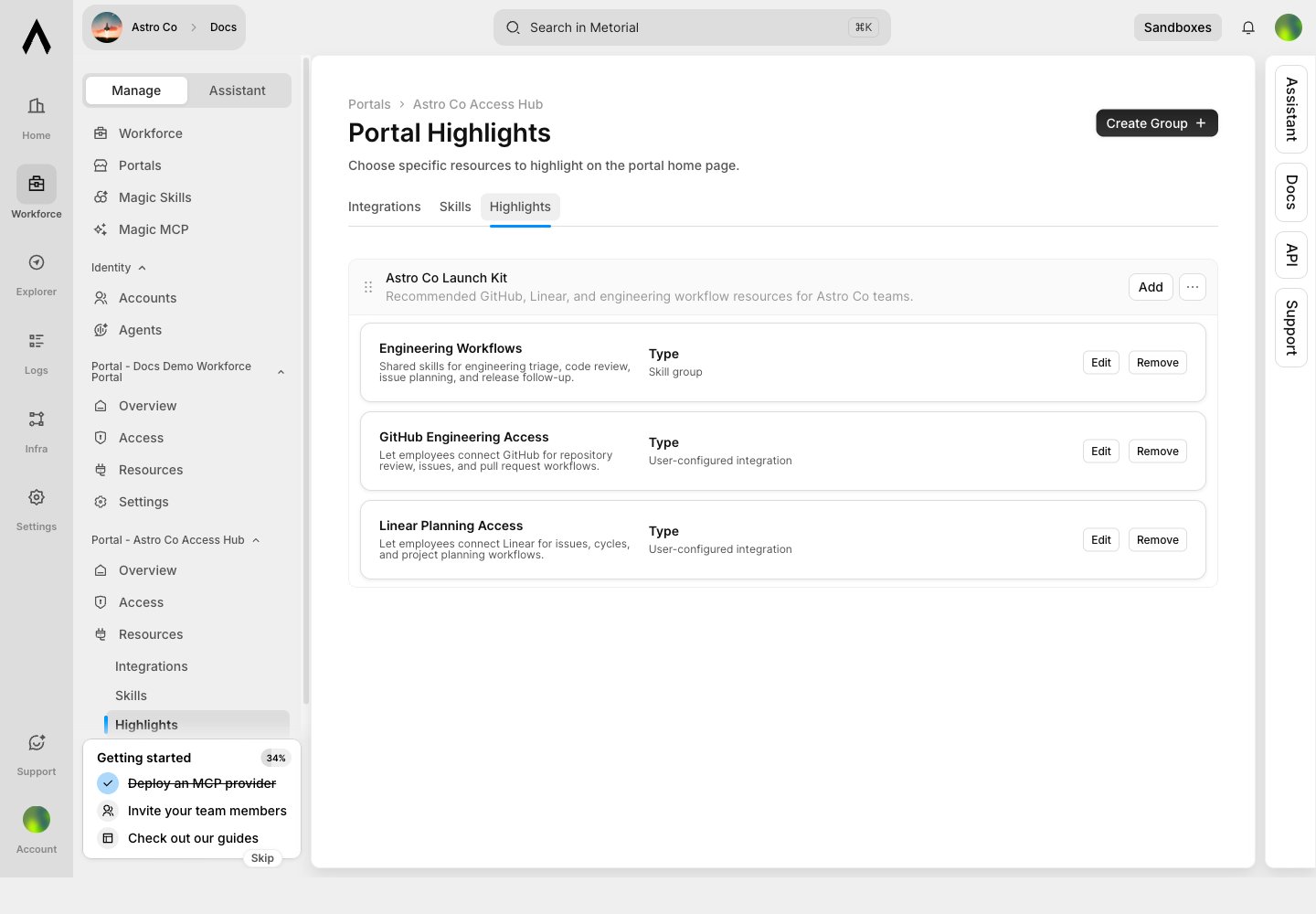
Highlights organize selected resources on the portal home page. Use them for recommended workflows, starter kits, or department-specific bundles.
## Highlight Starter Resources
Highlights organize selected resources on the portal home page. Use them for recommended workflows, starter kits, or department-specific bundles.
 ## Configure Authentication
Portal authentication controls who can enter the portal. Configure SSO tenants, email or domain allowlists, and session expiry settings.
## Configure Authentication
Portal authentication controls who can enter the portal. Configure SSO tenants, email or domain allowlists, and session expiry settings.
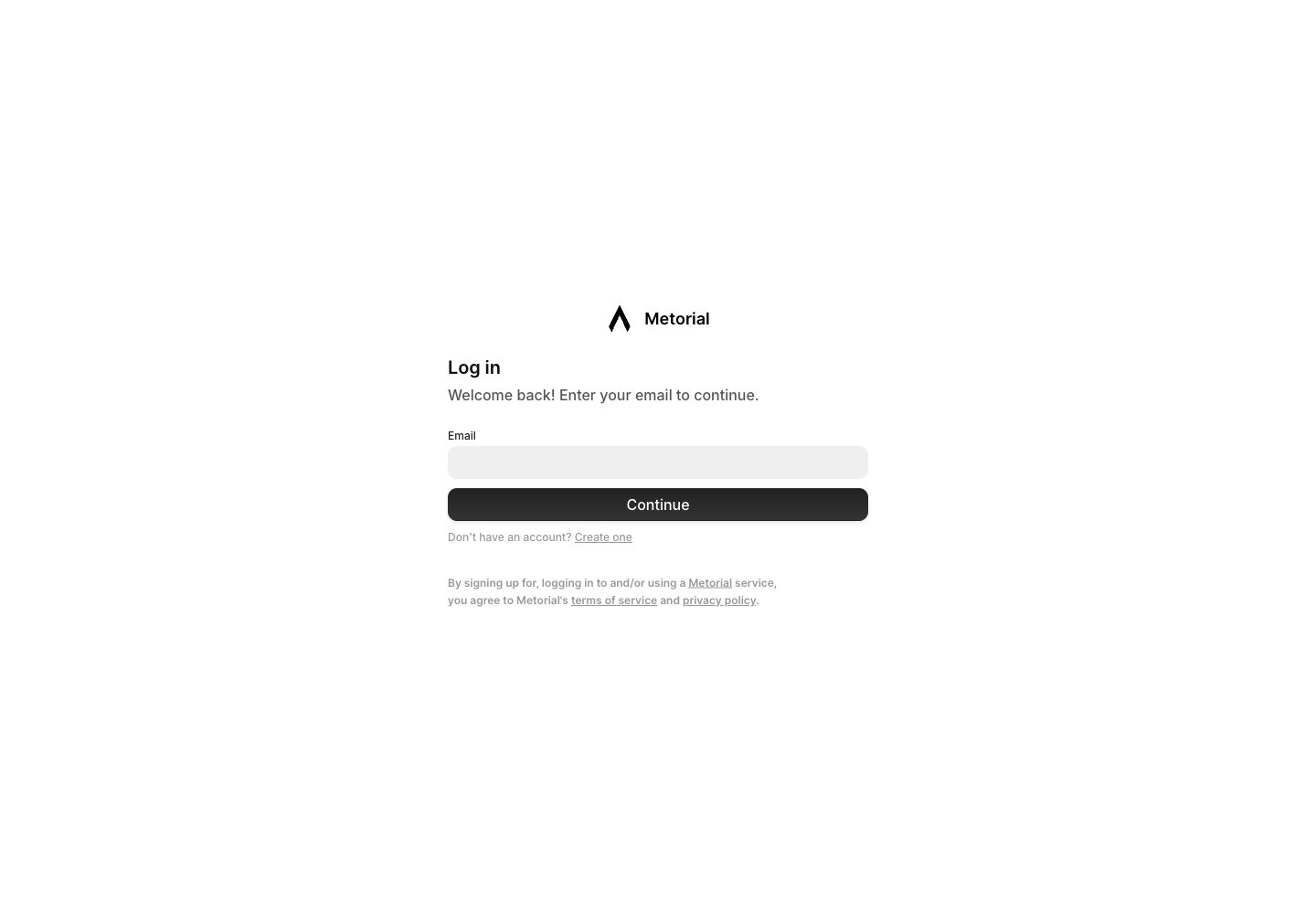
 Users authenticate before they see portal resources.
 ## Test The Employee Experience
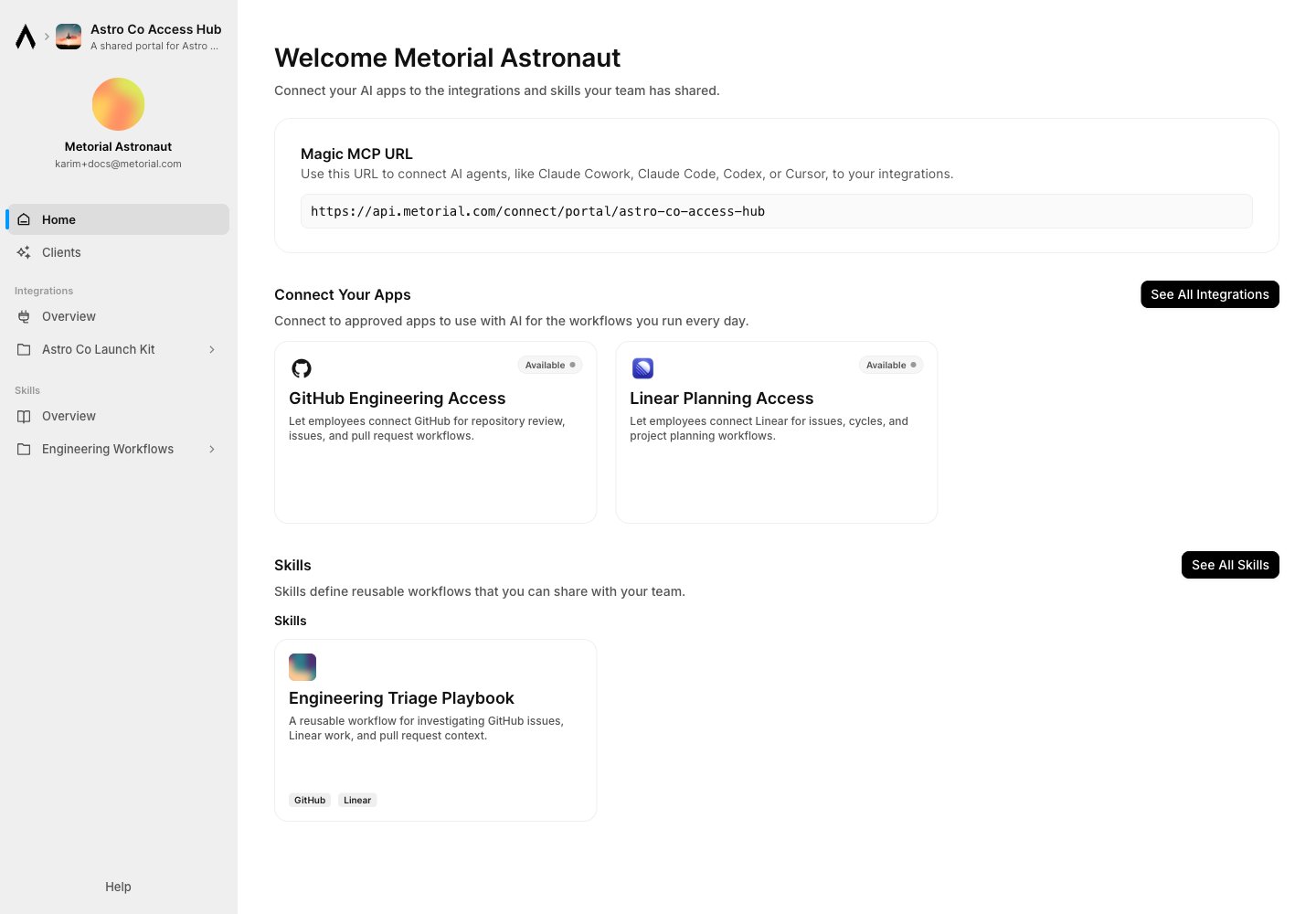
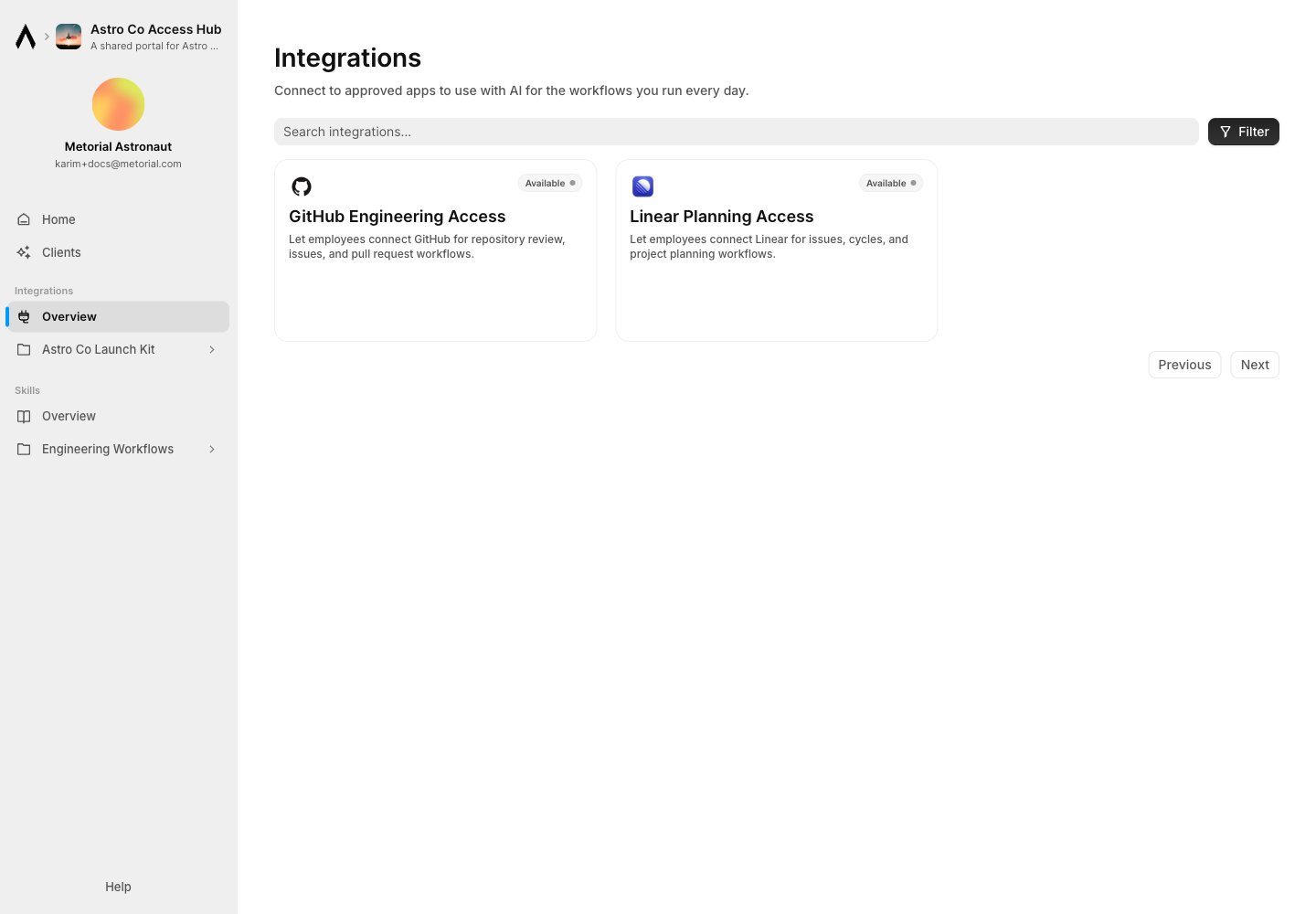
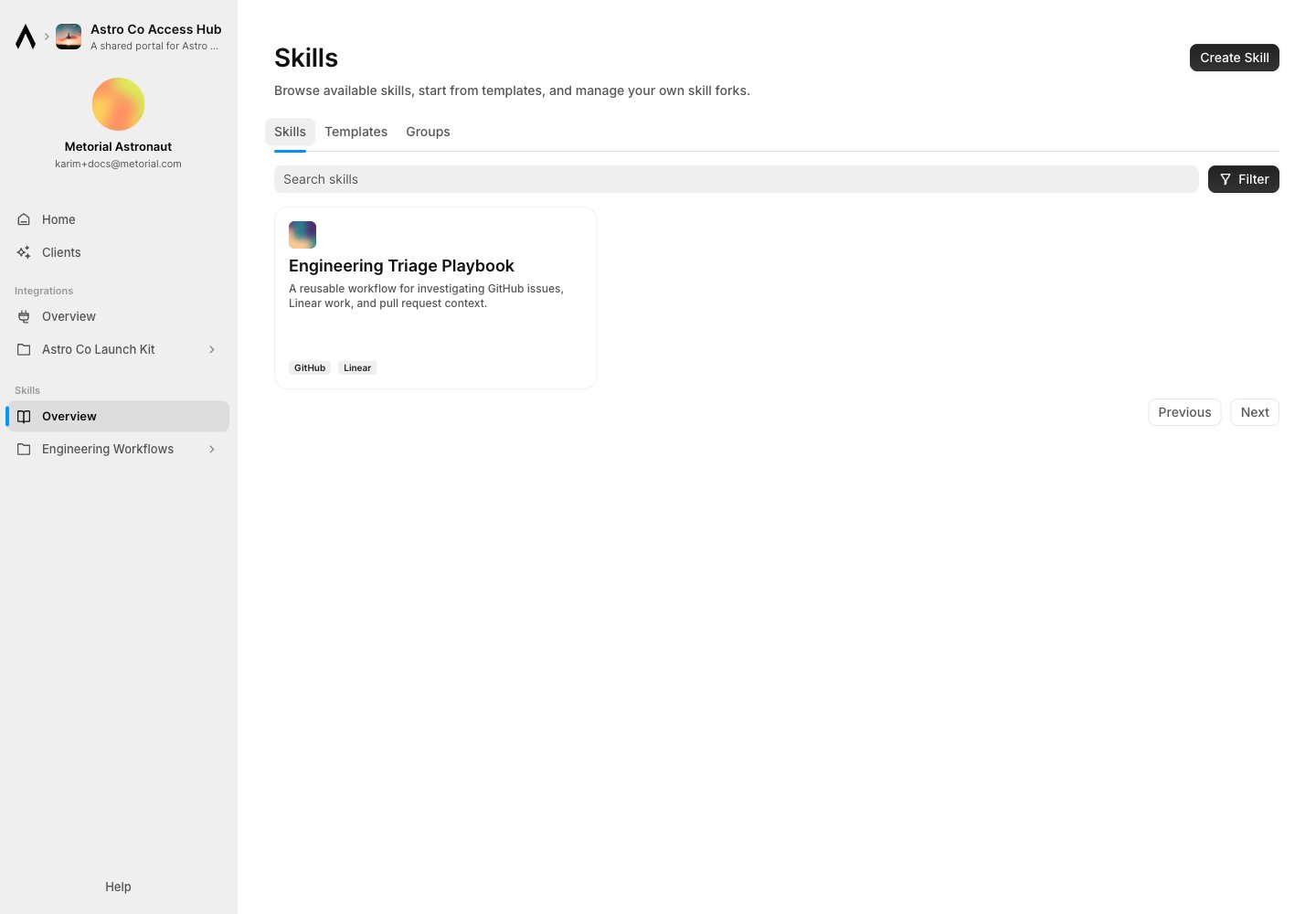
Open the portal as a user and check the home page, integrations view, and skills view.
## Test The Employee Experience
Open the portal as a user and check the home page, integrations view, and skills view.
 ## Magic MCP In Portals
Portals can expose portal-aware Magic MCP access. Use this when users should connect MCP clients through a branded, authenticated surface rather than a project-internal endpoint.
Use portal-connected Magic MCP when:
* access should be user-specific
* the connection should honor portal authentication
* users need a branded entry point
* resource listings and requests should wrap MCP access
## Related Pages
Follow the first portal setup path.
Publish reusable workflows through portals.
Understand the broader Workforce access model.
Configure the tools users can access.
## Magic MCP In Portals
Portals can expose portal-aware Magic MCP access. Use this when users should connect MCP clients through a branded, authenticated surface rather than a project-internal endpoint.
Use portal-connected Magic MCP when:
* access should be user-specific
* the connection should honor portal authentication
* users need a branded entry point
* resource listings and requests should wrap MCP access
## Related Pages
Follow the first portal setup path.
Publish reusable workflows through portals.
Understand the broader Workforce access model.
Configure the tools users can access.