Custom images
Build a machine image from your own Dockerfile.
A custom image boots machines with your tools, packages, and files already in place. You build it from a Dockerfile, and Metorial makes it available in every region.
What you'll learn
- How to build an image in the dashboard
- How images, versions, and builds relate
- How to build from the CLI or SDK
Before you start
- A Dockerfile that builds locally with
docker build - Run your first machine
How images work
An image is a named container for versions. Every build creates a new numbered version of the image, and new machines boot from the latest version that built successfully. A machine's image.version_id shows which version it runs.
An image stays pending until its first build succeeds. After that it's active, and you can create machines from it.
Build an image in the dashboard
Open machine images
In the dashboard, go to Developer, then Sandbox, then Machine Images.
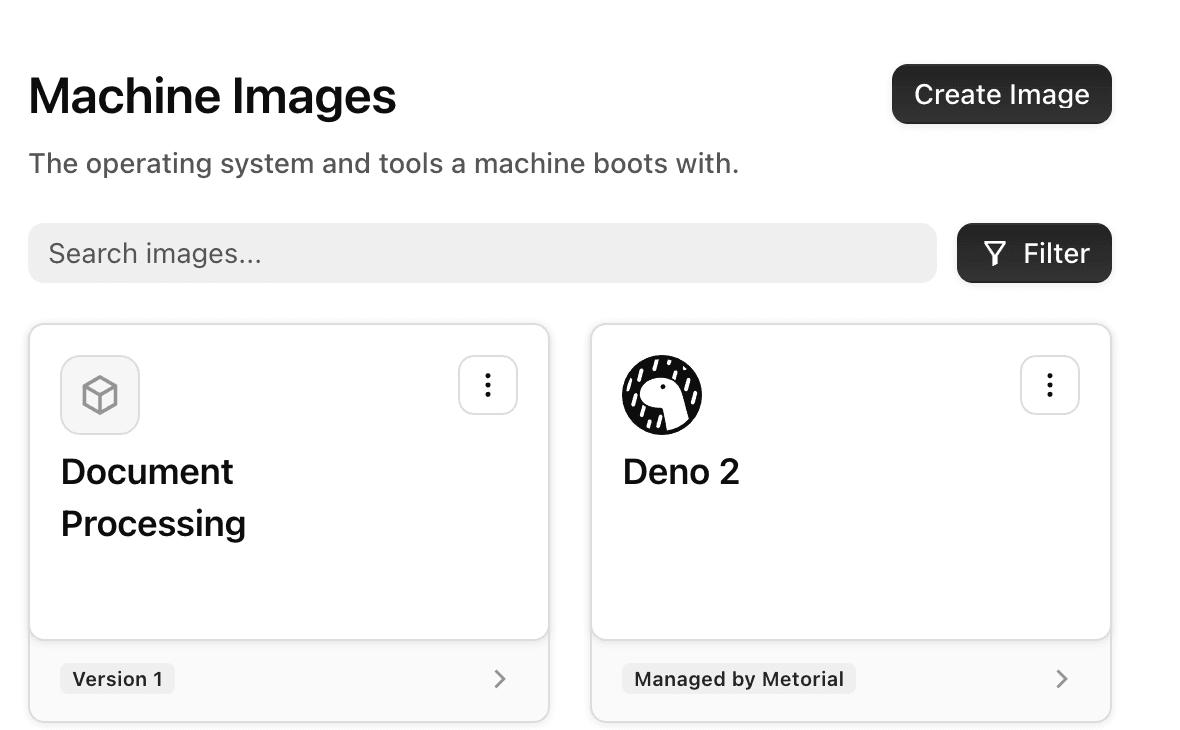
Create the image
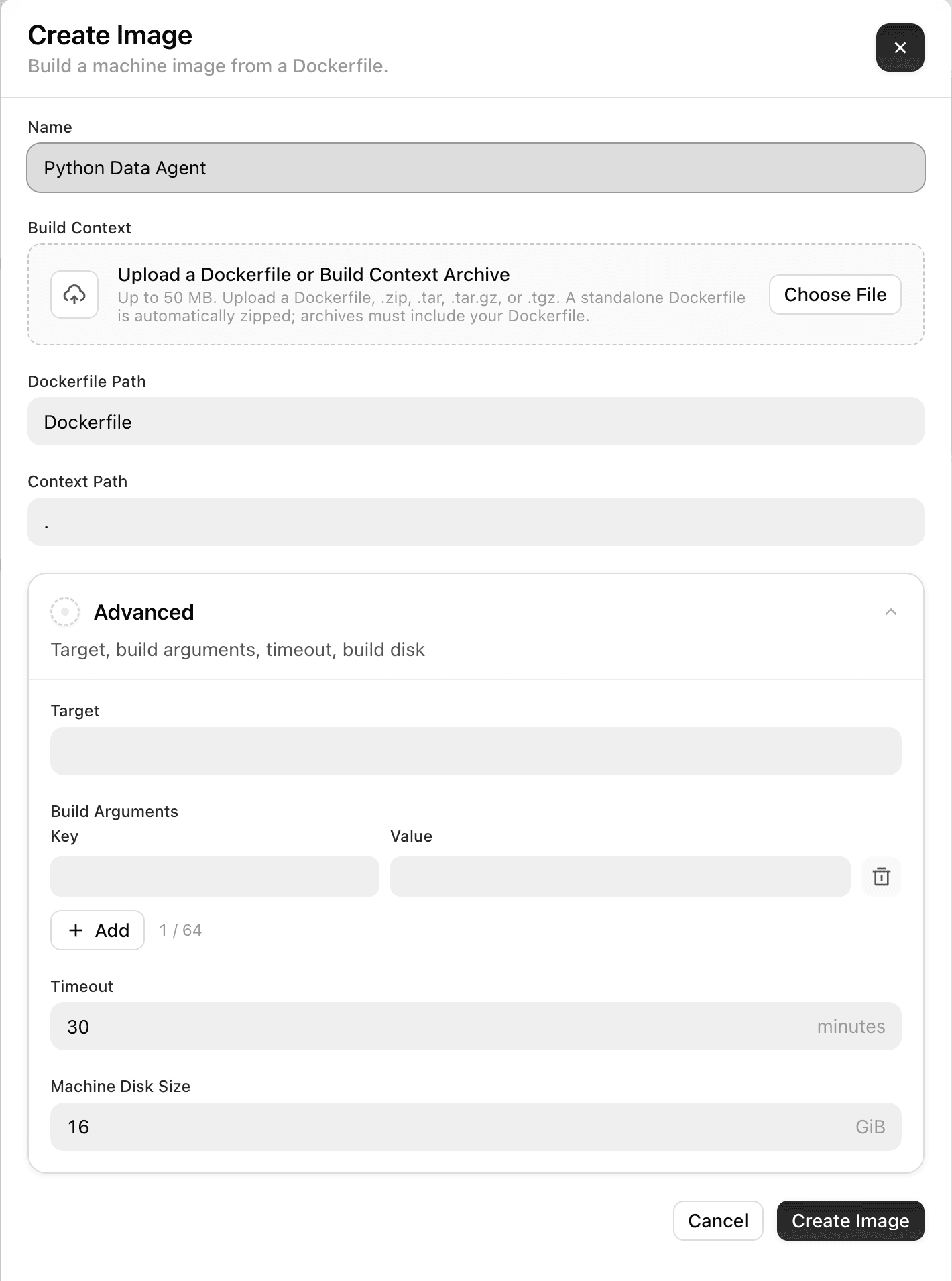
Click Create Image and fill in the form:
- Name: a name you'll recognize in lists.
- Build Context: a single Dockerfile, or a
.zip,.tar,.tar.gz, or.tgzarchive up to 50 MB. An archive must contain the Dockerfile and every file it copies. - Dockerfile Path and Context Path: where the Dockerfile and the build context sit inside the archive. They default to
Dockerfileand..
Under Advanced, you can set a build Target stage, up to 64 Build Arguments, a Timeout (30 minutes by default), and the Machine Disk Size, which is the root disk size of machines that boot from this version (16 GiB by default).
A build records the names of its build arguments but never their values.
Watch the build
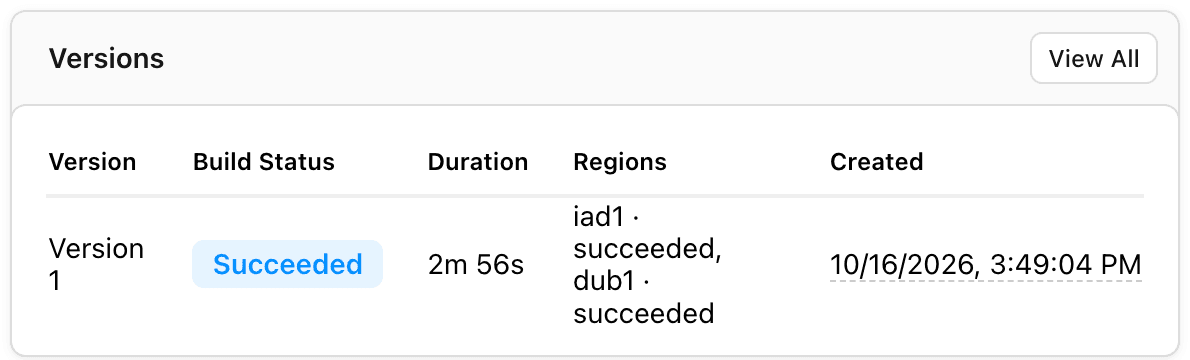
The image opens on its Versions tab. Each version shows its build status and the regions it's available in.
Open a version to follow the build log live.
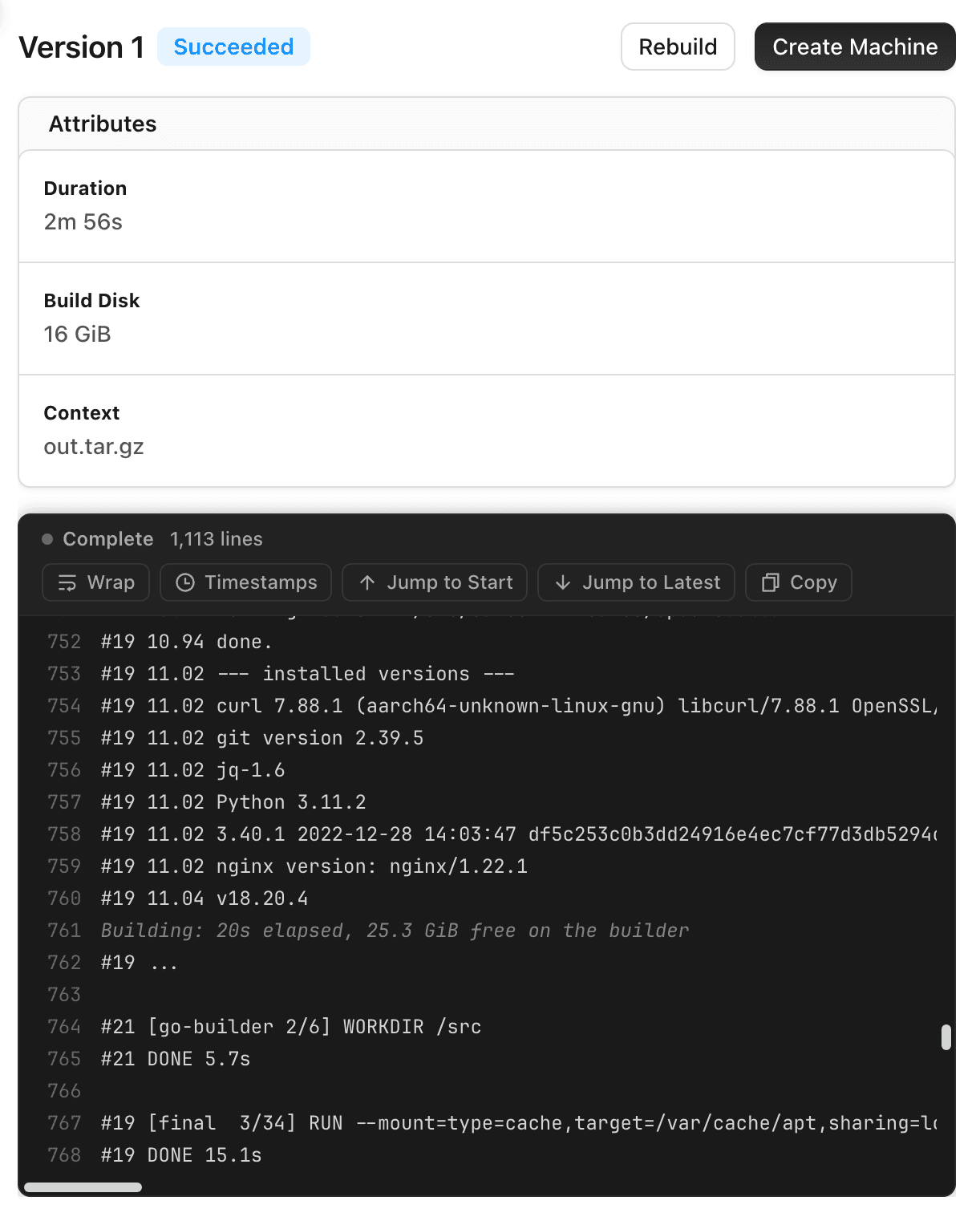
Create a machine
When the build succeeds, click Create Machine on the image or version page.
To ship changes, click New Version on the image page and upload a new build context. Rebuild on a version page builds the same context again as a new version.
Build with the CLI
Upload the build context
Pass a directory and the CLI zips it for you:
Save the file ID from the output as FILE.
Create the image and start a build
builds create also takes --dockerfile-path, --context-path, --target, --build-args '{"PYTHON_VERSION": "3.12"}', --timeout-seconds, and --disk-size-bytes.
Follow the build
Stop a build with image-builds cancel $BUILD. List an image's versions with images versions list $IMAGE.
Build with the SDK
Start builds from code to rebuild an image when your dependencies change. Upload the build context with the CLI first, then pass its file ID.
When a build fails, its failure field holds a code and a message, and the build log shows the Docker output.