Grant Workforce access
Use groups to control access to integrations and skills in Workforce.
Overview
Workforce groups let you give teams access to the integrations and skills they need. Group-based access is easier to maintain than separate grants for each person. This guide shows you how to create a group, assign it to accounts, and use it to control resource access.
What you'll learn
- How to create and assign groups
- How to add integrations and skills to Workforce
- How to control which groups can use a resource
Before you start
- Open Workforce from the dashboard
- Decide which people and resources the group should include
Create a group
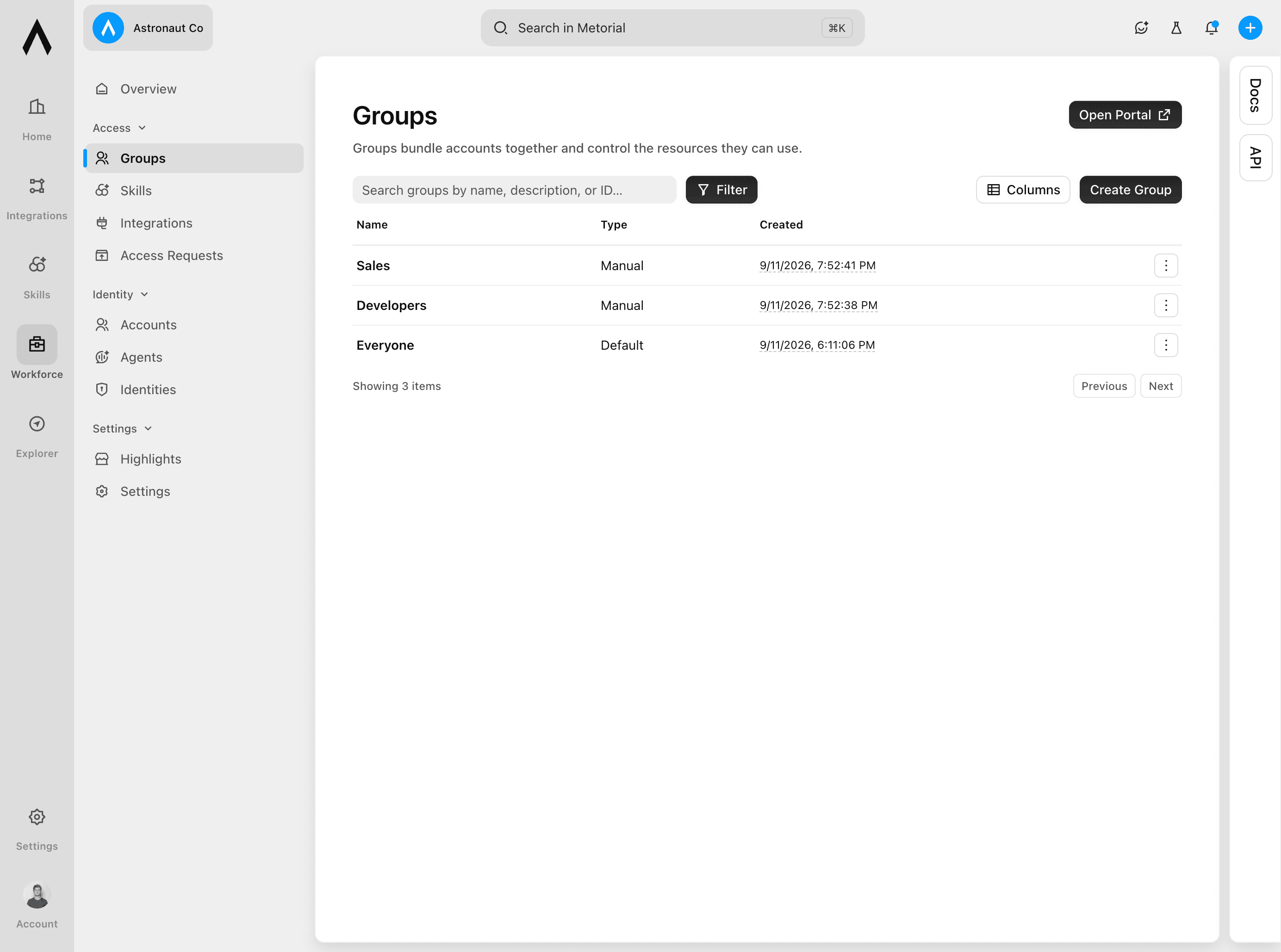
Open Groups
Under Access, select Groups. The page lists the groups that already exist.
Create the group
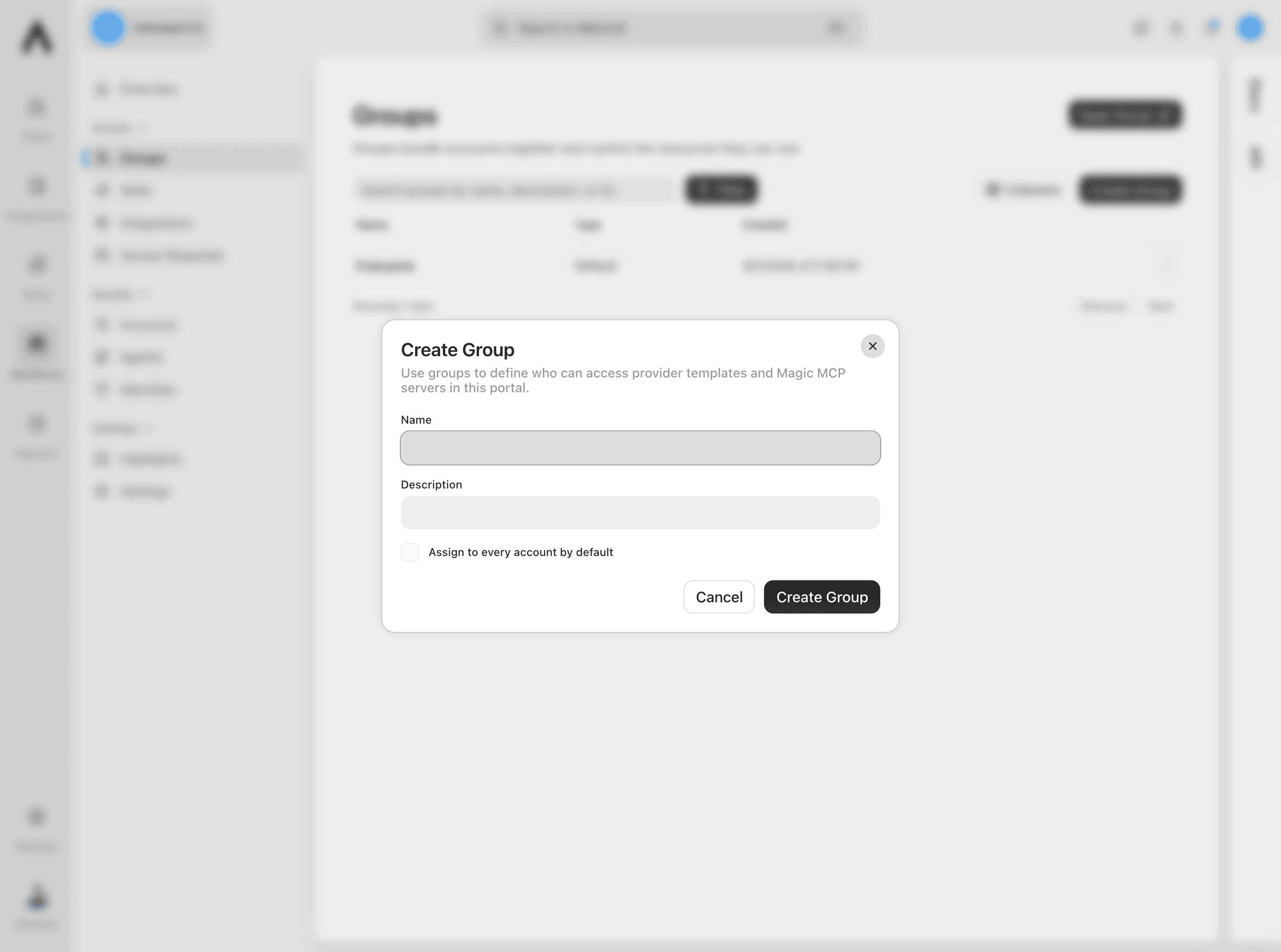
Select Create Group. Enter a clear name and an optional description, then select Create Group again.
Enable the default assignment option only if every new account should join this group automatically.
Assign the group to an account
Open the account's access settings
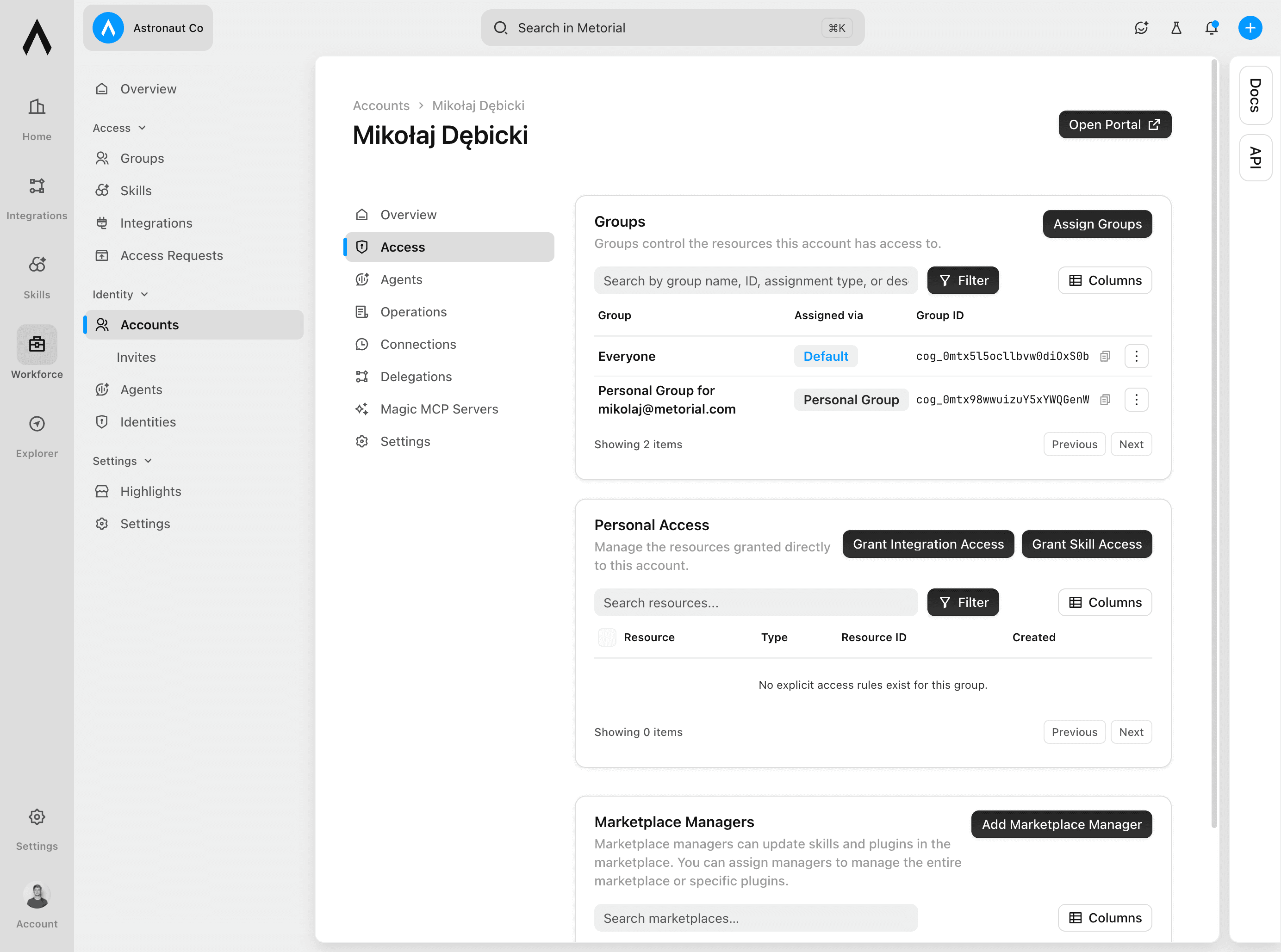
Under Identity, select Accounts. Select the account, then select Access. The Groups section shows the account's current group assignments.
Assign the group
Select Assign Groups, choose the group, and confirm the assignment. Use groups for shared access so permissions remain consistent across the team.
Add resources to Workforce
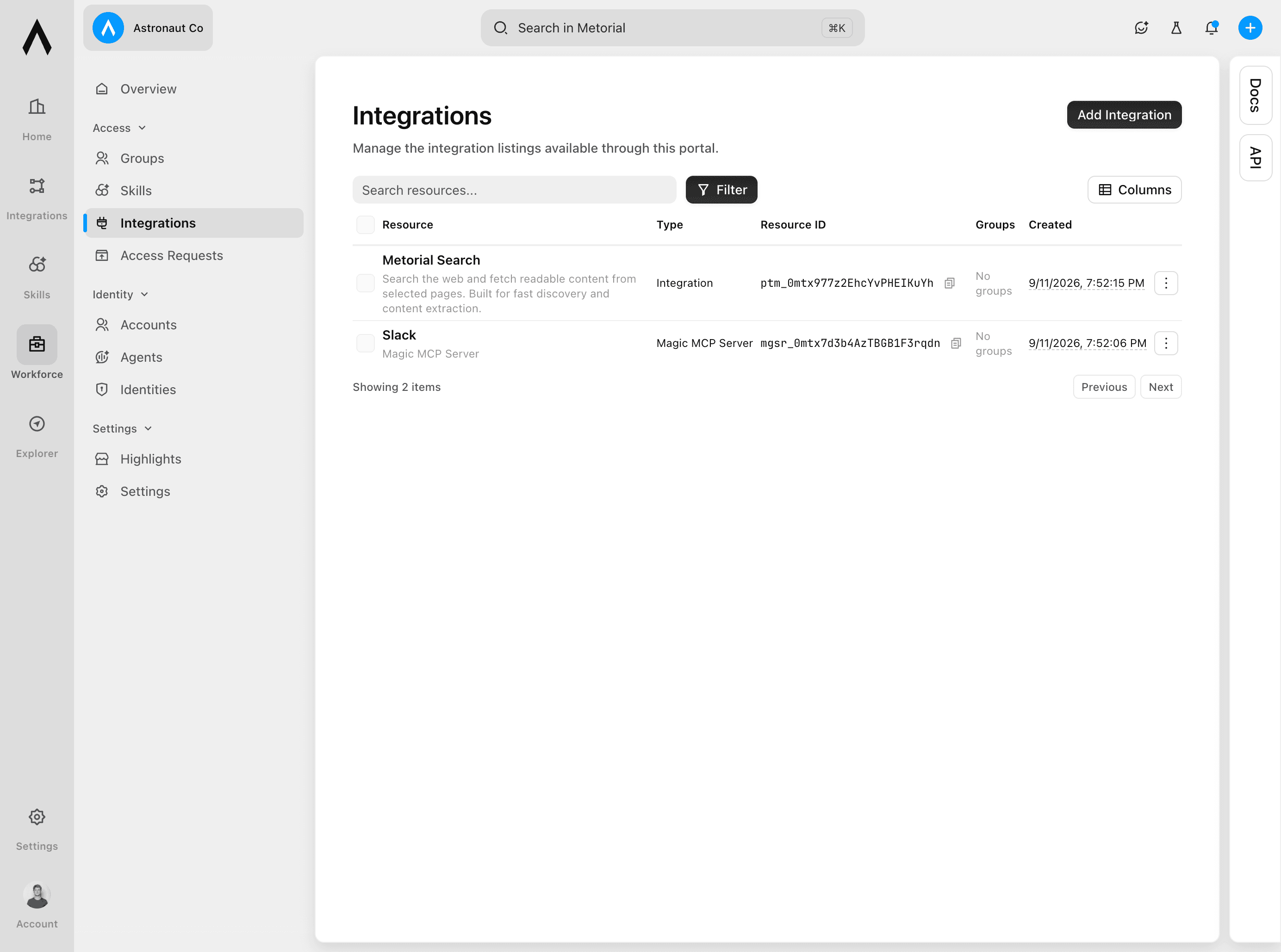
Add an integration
Under Access, select Integrations, then select Add Integration.
Choose New Integration to create and configure an integration. Choose Existing Integration to add a portal listing for an integration that already exists.
Add a skill
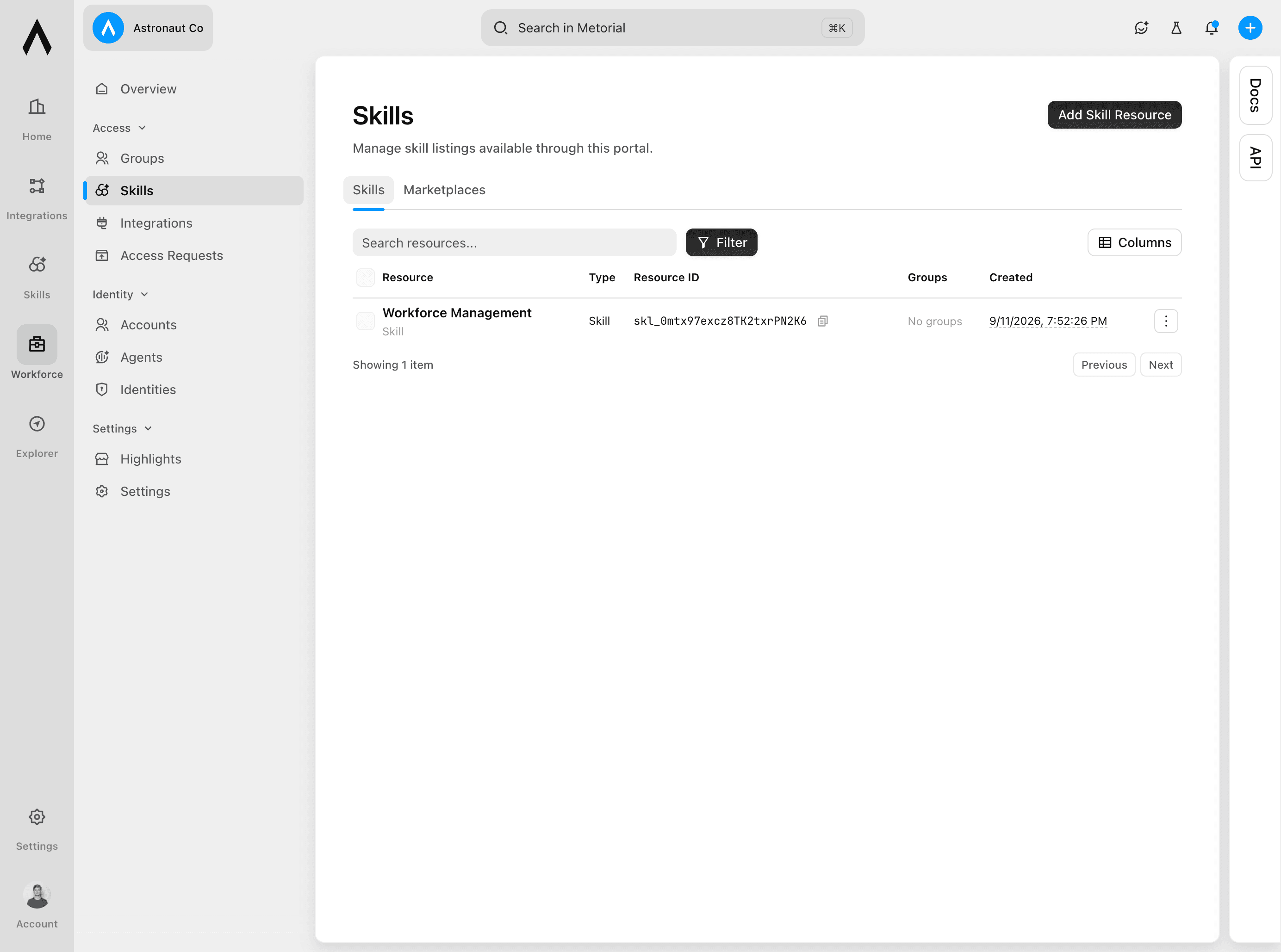
Under Access, select Skills, then select Add Skill Resource.
Choose New Skill to create a skill or skill group. Choose Existing Skill to publish a resource that already exists. Enter the required details and complete the setup.
Control access to a resource
Open the resource
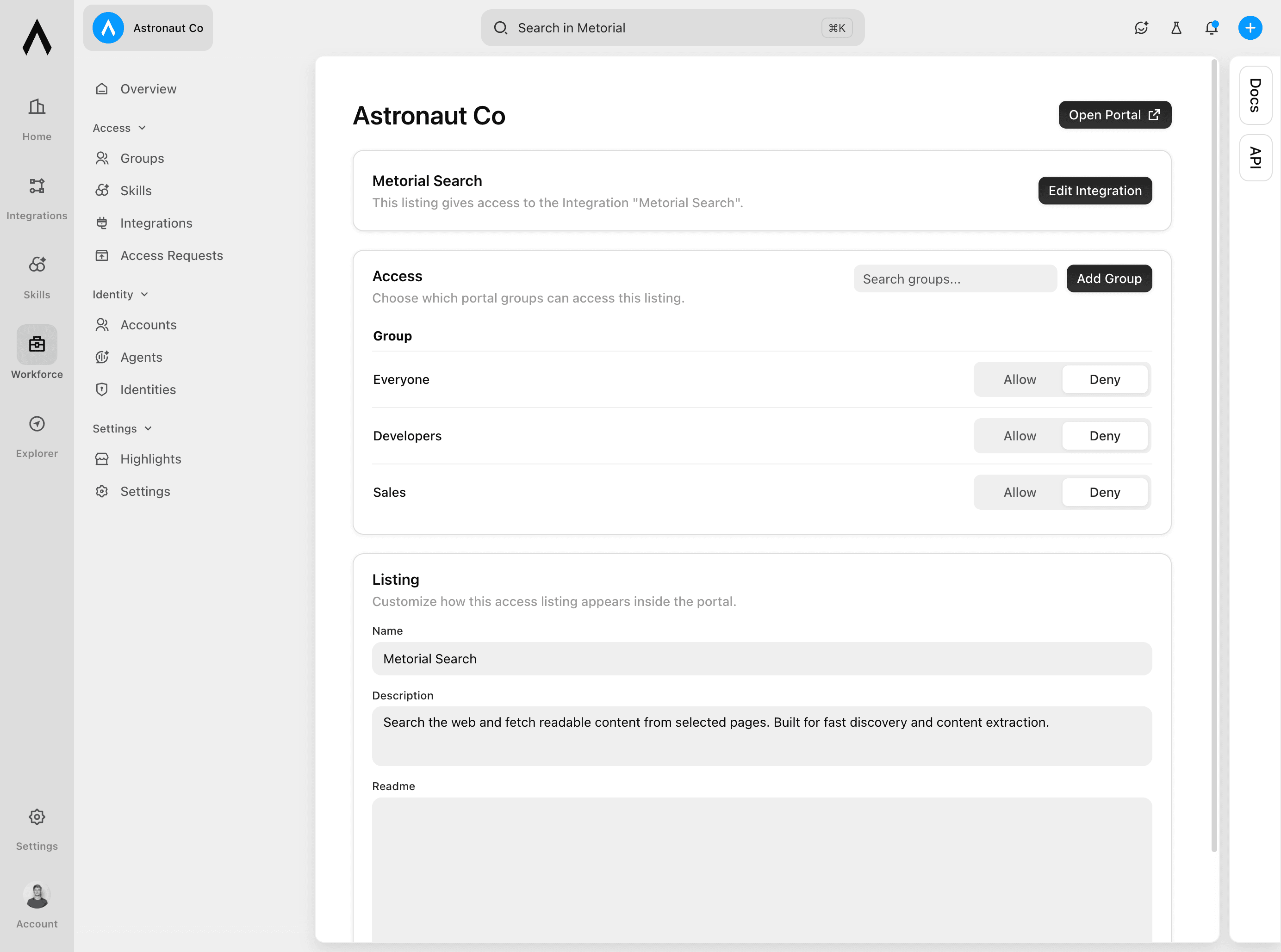
Under Access, select Integrations or Skills, then select the resource you want to manage. Both resource types use the same access controls.
Set group access
In the Access section, select Add Group and choose a group. Set the group to Allow or Deny, then select Save.