Inspect Workforce agents
Review agent details, tool calls, and connection activity in Workforce.
Overview
The Agents area shows which agent clients have connected to Workforce and what they have done. Use it to investigate a tool call, review a session, or check how an agent connected.
What you'll learn
- How to find and open an agent
- How to review the agent's tool calls
- How to inspect its connection history
Before you start
- Open Workforce from the dashboard
- Under Identity, select Agents
Review an agent
Find the agent
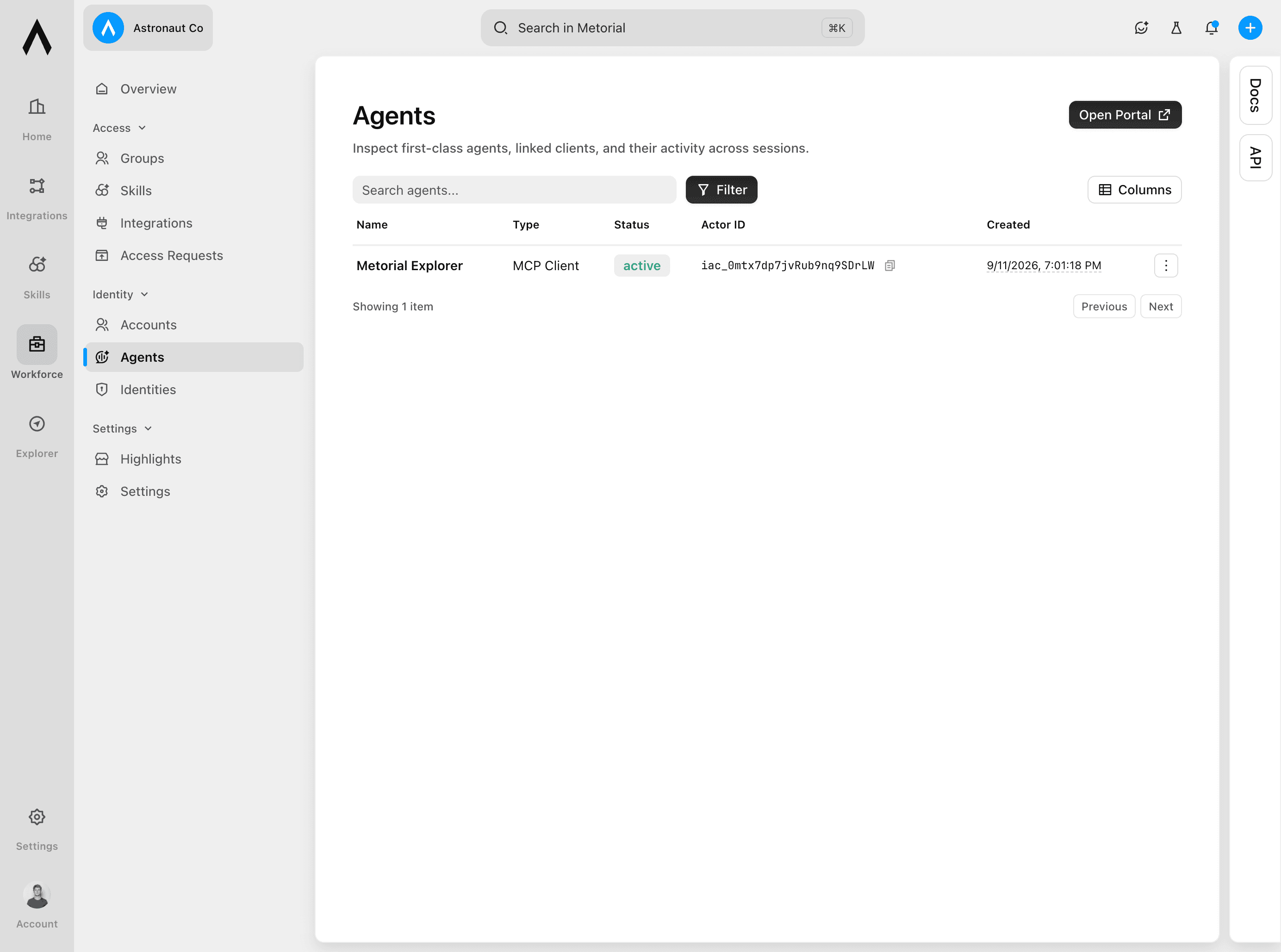
The Agents table shows each agent's name, type, status, linked actor, and creation time. Select the agent you want to inspect.
Review the overview
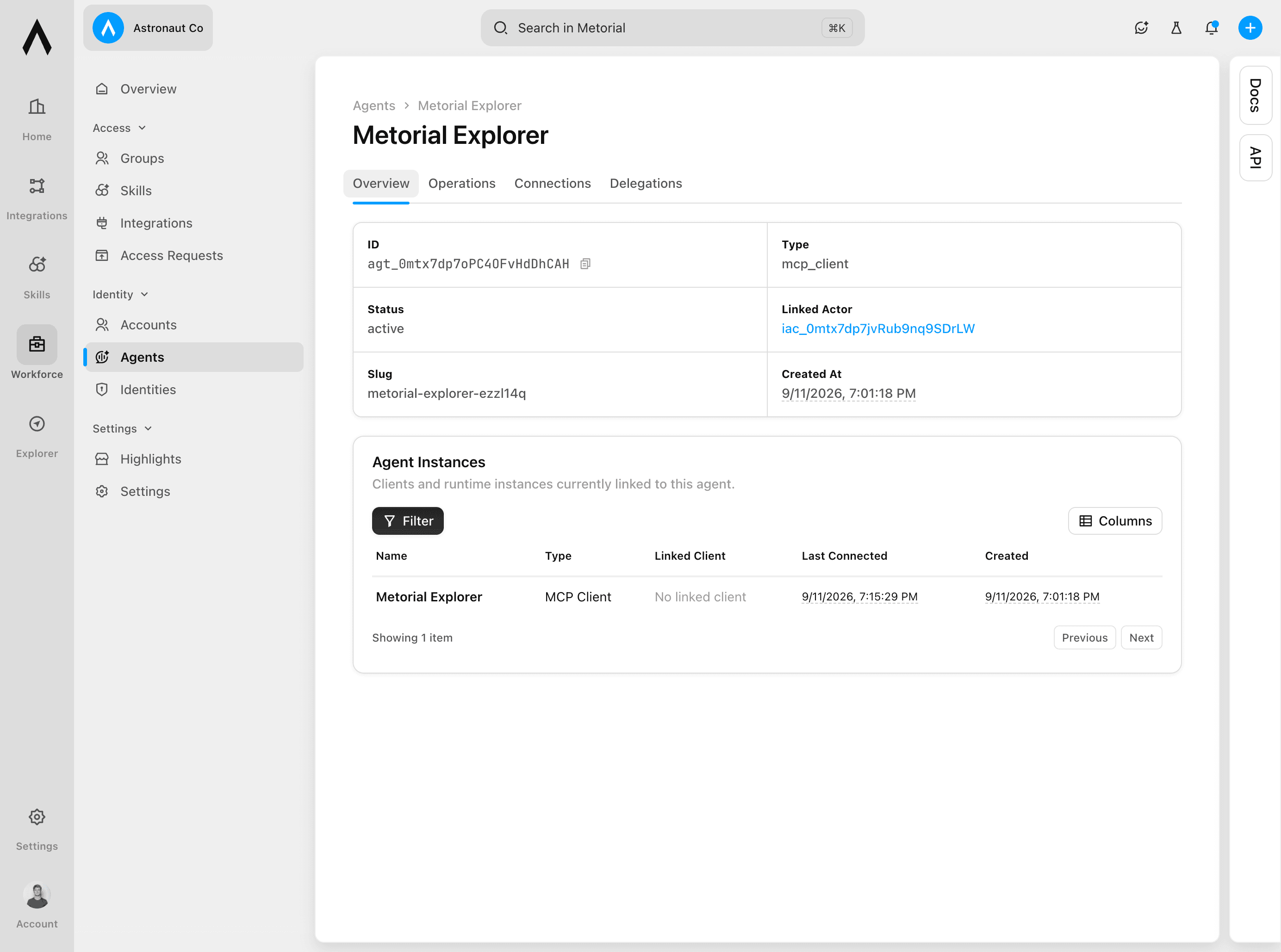
The overview identifies the agent and its linked actor. It also shows current or recent agent instances. Use these details to confirm that you opened the correct agent.
Review tool calls and connections
Inspect operations
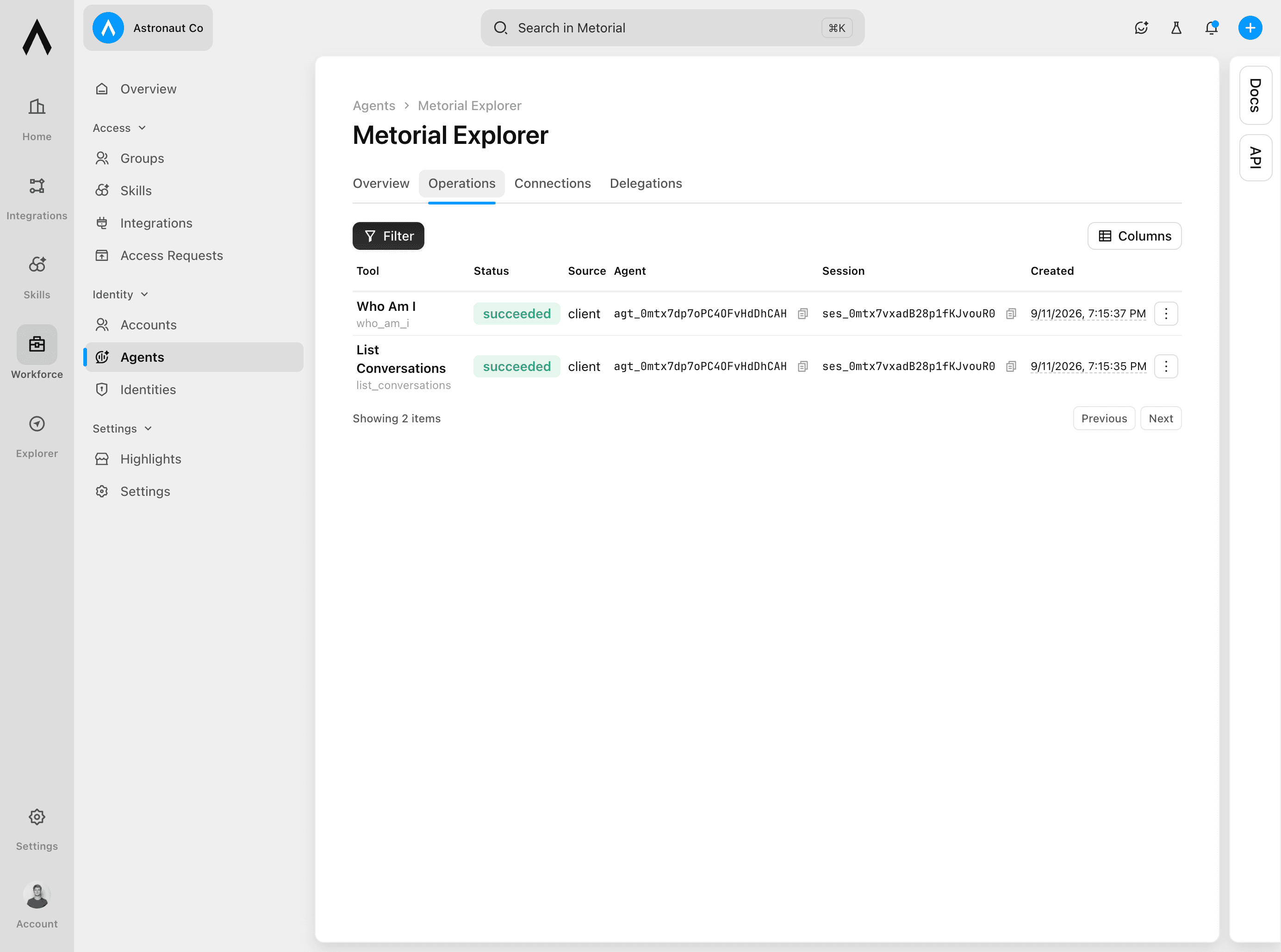
Select Operations in the agent navigation. Each row represents a tool call and shows its status, source, agent, session, and time. Select a row to inspect a specific call.
Inspect connections
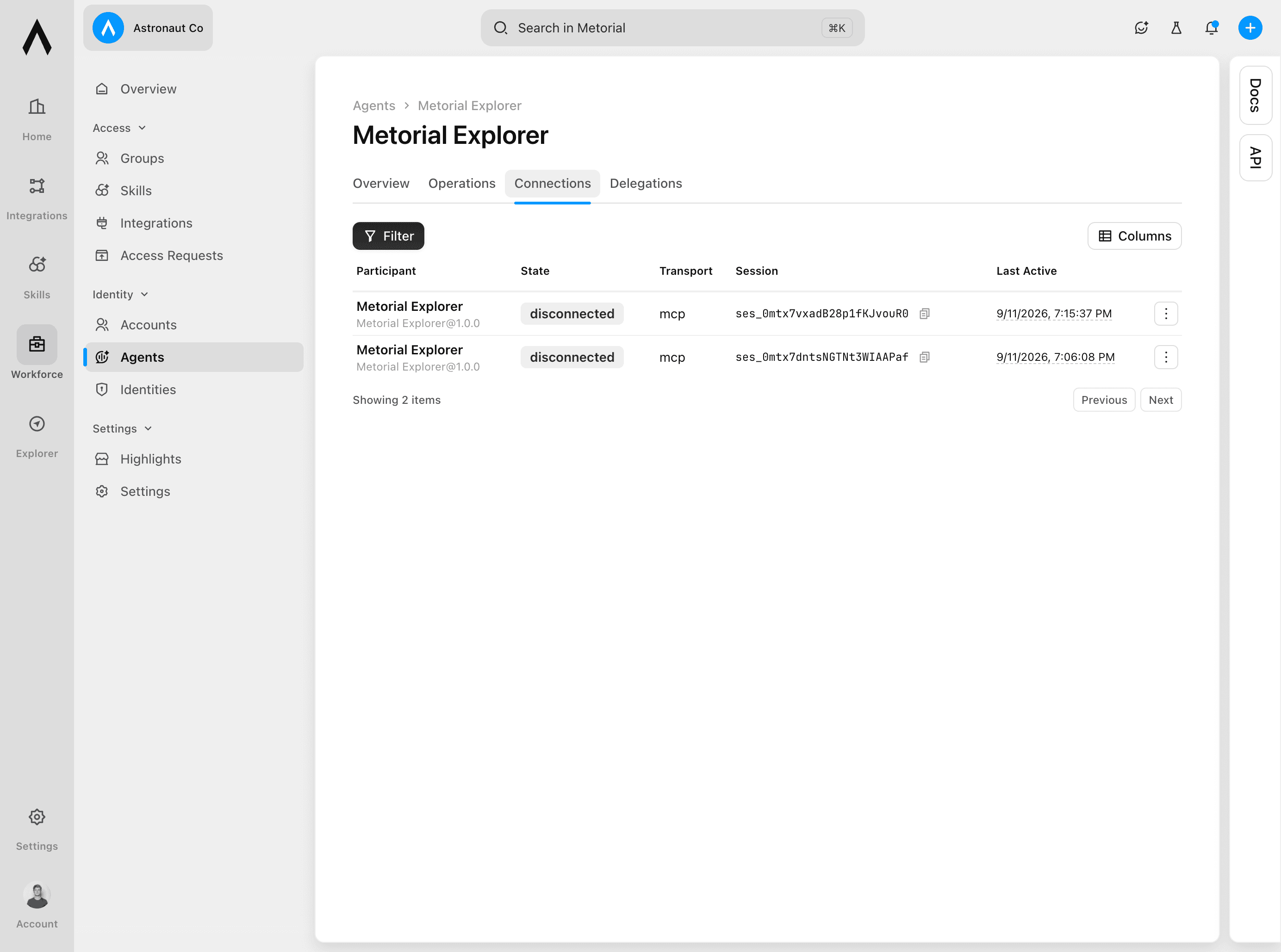
Select Connections. Review the participant, connection state, transport, session, and last active time to understand the agent's connection history.
Match activity to a connection
Start in Operations to find the tool call or session you want to investigate. Then open Connections and find the same session. Return to the overview if you need to confirm the agent or linked actor.