Manage Workforce accounts
Invite people, review their access, and inspect their Workforce activity.
Overview
Workforce accounts represent the people who can use your portal. From an account, you can review invitation status, manage access, and inspect activity. This guide shows you how to invite a person and manage their account after it is created.
What you'll learn
- How to invite a person to the portal
- How to review and update account access
- Where to find an account's servers, operations, and connections
Before you start
- Open Workforce from the dashboard
- Make sure you have permission to manage accounts and access
Invite a person
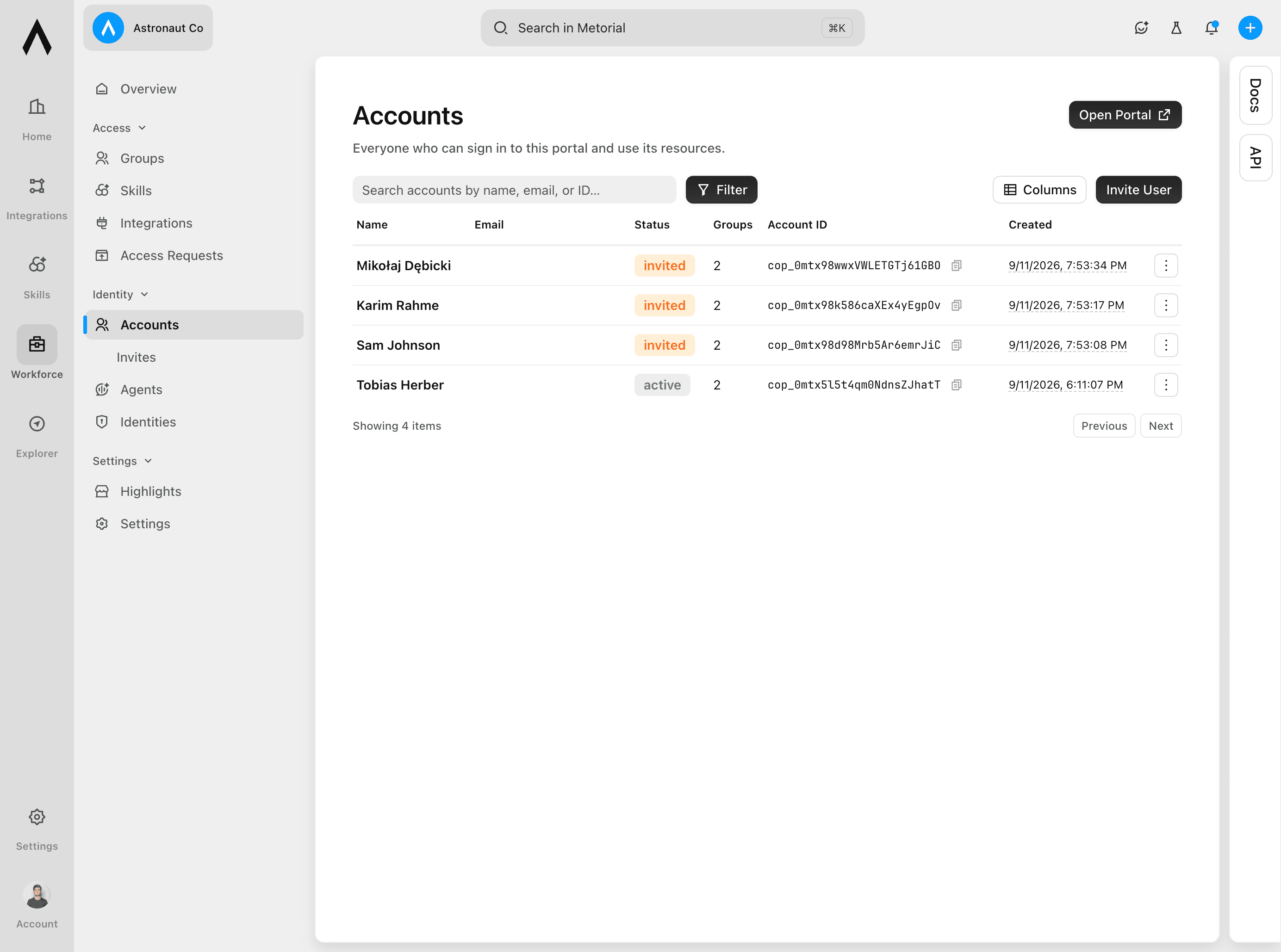
Open Accounts
Under Identity, select Accounts. The table shows each account's email address, invitation status, and number of assigned groups.
Start the invitation
Select Invite User in the top-right corner.
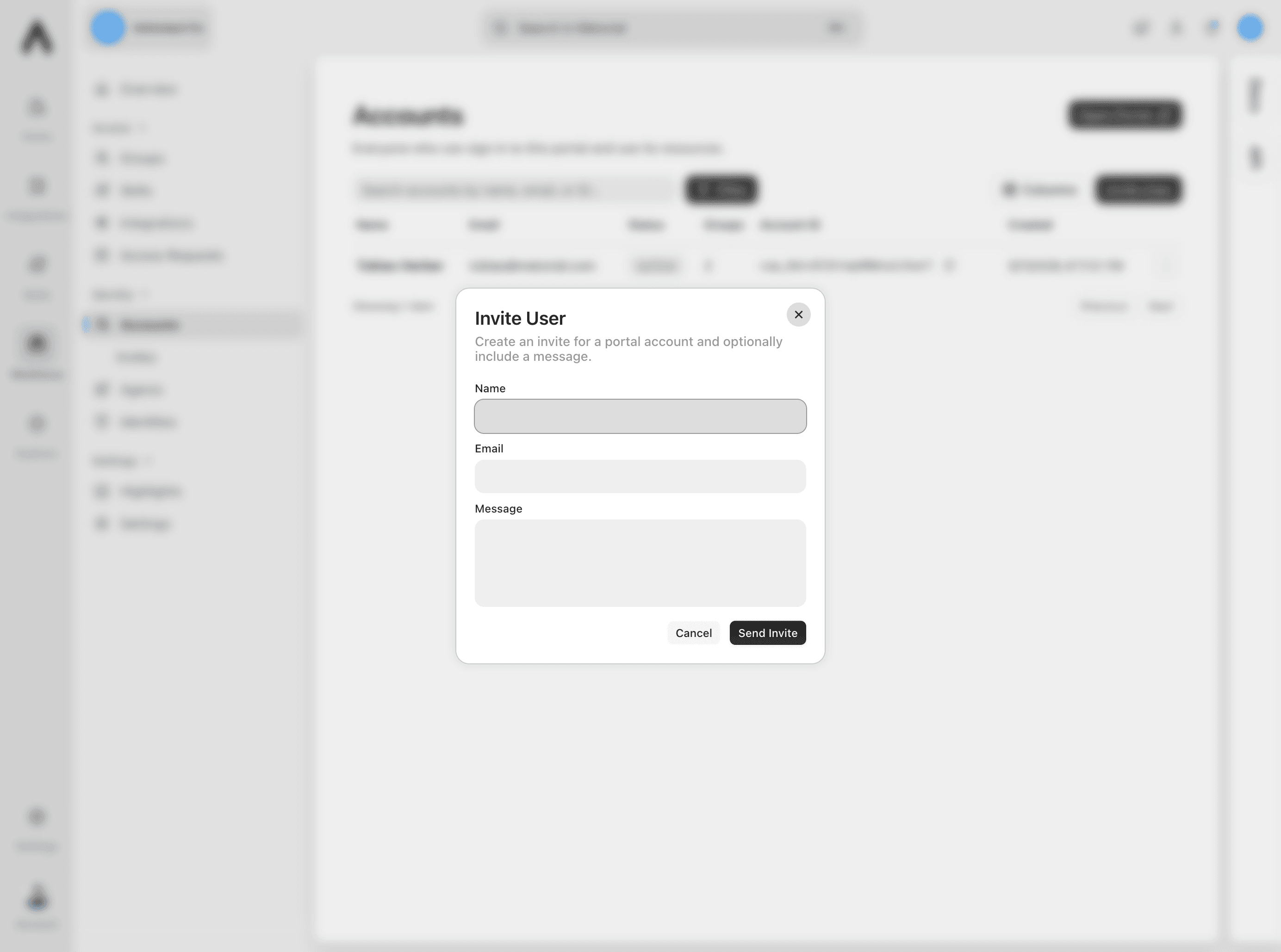
Enter the invitation details
Enter the person's Name and Email. Add a message if needed, then select Send Invite. The account appears with an invited status until the person joins.
Review and manage an account
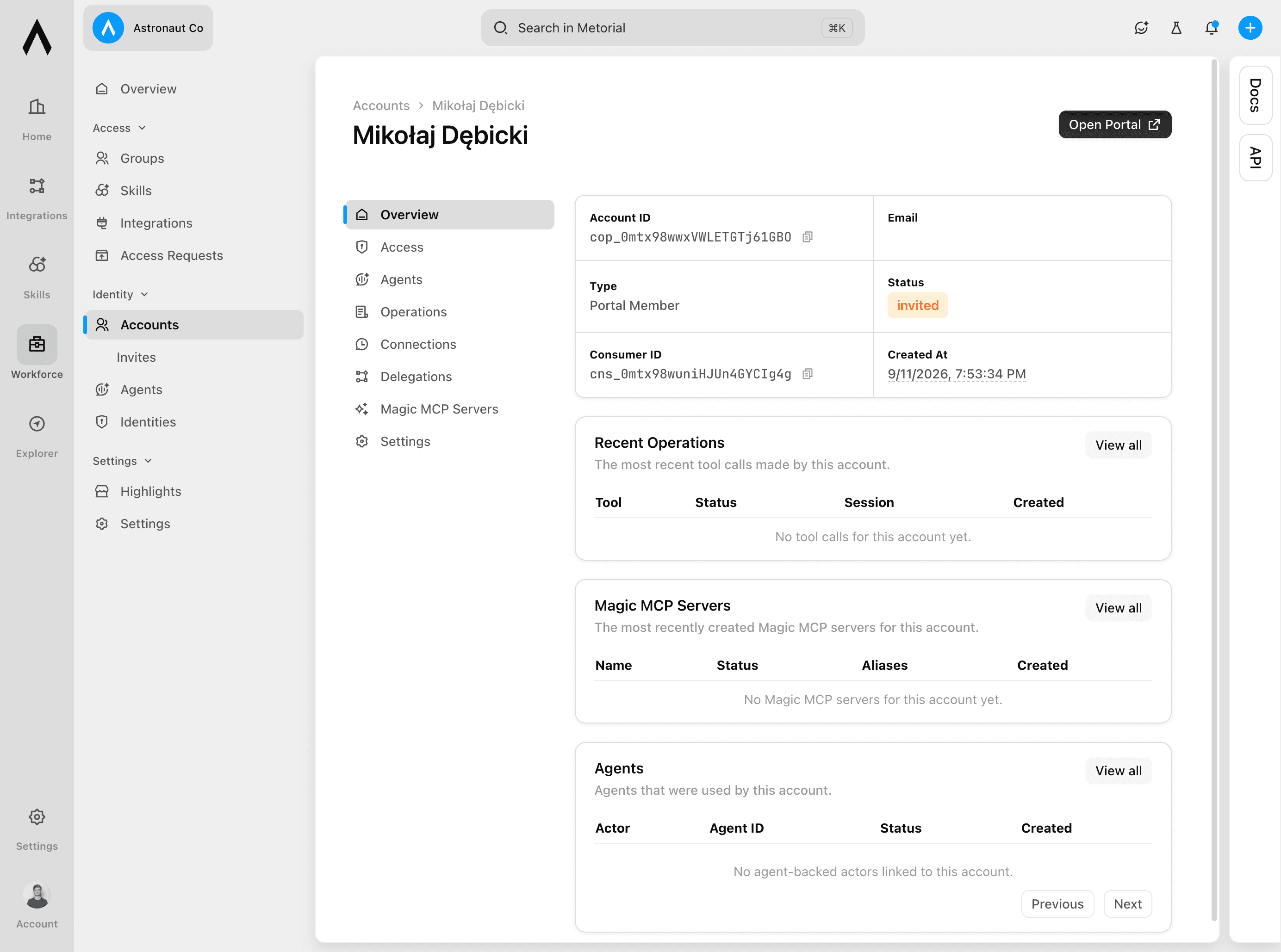
Open the account
From Accounts, select the person's name. The overview shows the account's details and recent activity.
Review access
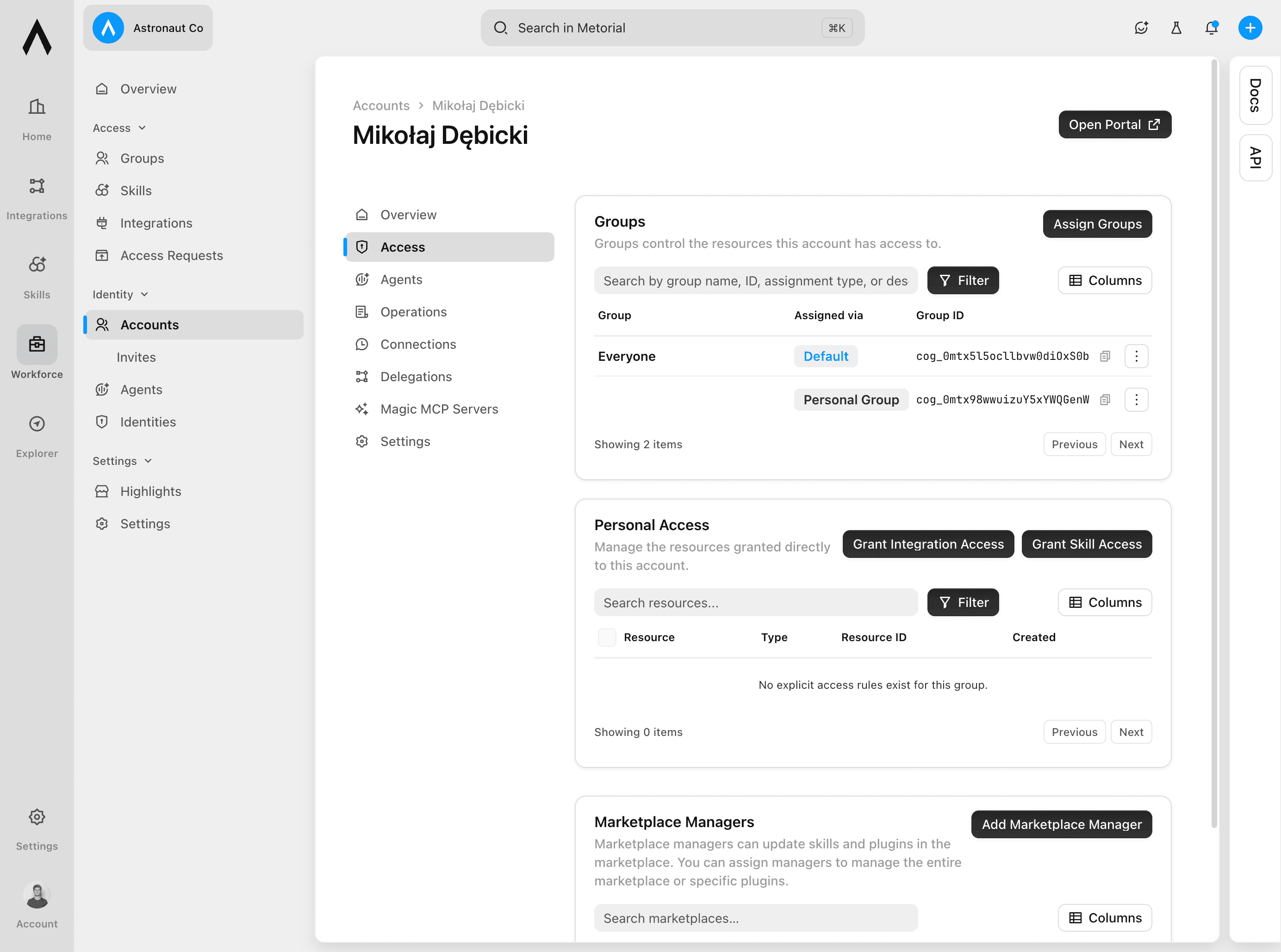
Select Access. Review the groups assigned to the account and any access granted directly to it.
Use Assign Groups to add the account to a group. Grant direct access to an integration or skill only when the person needs an exception that should not apply to a whole group.
Keep access up to date
Remove group assignments and direct grants when they are no longer needed. Use groups for shared access so permissions stay consistent and are easier to review.
Review account activity
Open the account
Under Identity, select Accounts, then select the account you want to review.
Review servers
Select Magic MCP Servers in the account navigation to see the servers created for the account.
Review operations
Select Operations to see the account's tool calls, including their status and session details.
Review connections
Select Connections to inspect connection activity and session details for the account.