

What you’ll learn:
- What Magic Skills are for
- How skills, groups, templates, and marketplaces fit together
- How skills appear in portals for users
What Skills Are For
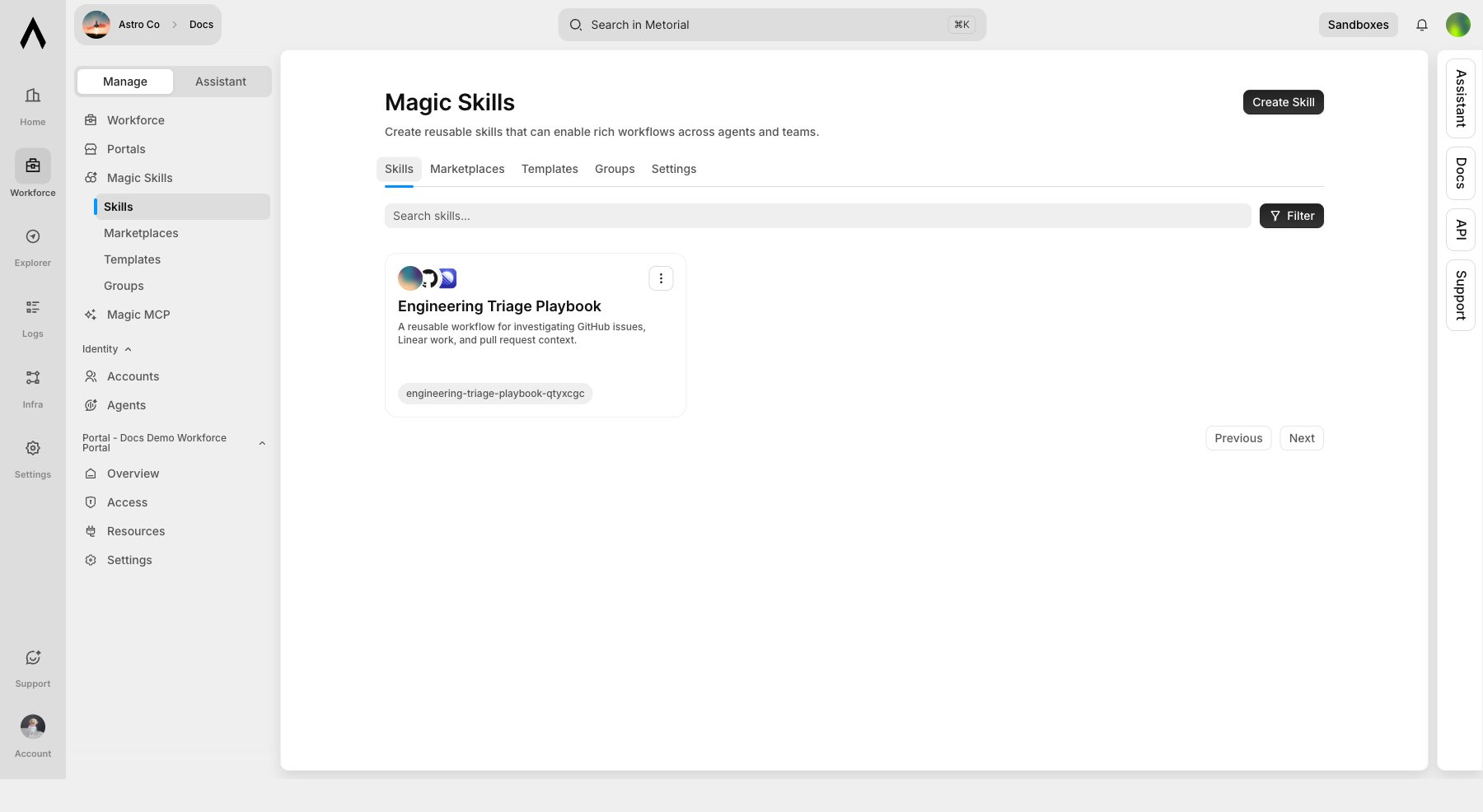
Use Magic Skills for work that should be repeatable, shareable, and governed:- support triage playbooks
- engineering review workflows
- customer handoff steps
- research and reporting tasks
- internal operations checklists
Concepts
Create A Skill
Create a skill with a clear name and description. The name should describe the job the user wants done, not the implementation detail behind it.
After a skill exists, add the files, agents, resources, and integrations it needs.
Connect Integrations
Skills become more useful when they can use approved integrations. A customer support skill might use Linear and GitHub; an operations skill might use Google Drive and Slack. Linked integrations appear on the portal skill card so users can understand what access the workflow uses.Skill Marketplaces
A skill marketplace is a curated library of skills and plugins that a team wants to make reusable. Use marketplaces when teams need one reviewed place to publish workflows instead of copying skill files between projects or clients. Marketplaces can be backed by a GitHub repository. Any change to a skill through Metorial is then automatically synced with the repo. This is a one-way sync from Metorial to GitHub, which is especially useful when non-technical teammates need to share skills without GitHub accounts. After a client that supports skills loads a marketplace skill, users can invoke it directly by name where the client supports that behavior, commonly with a slash command such as/skill-name.
Claude Code Skills
Learn how Claude Code discovers skills, where skills live, and how
/skill-name invocation works.Cursor Agent Skills
Learn how Cursor uses Agent Skills to package reusable knowledge, scripts, and commands.
Cursor Plugins
Learn how Cursor distributes skills, MCP servers, and related capabilities through plugins and marketplaces.
Publish And Share Skills
Skills can start from an admin in the dashboard or from a user in the portal. Use admin-published skills for approved workflows that should appear for a group. Use user-created skills when the person closest to the work wants to capture and share a workflow.Admin-published skills
Admins publish skills from the dashboard when a workflow should be available through a portal.1
Add a skill resource
Open the portal in the dashboard, add a skill resource, and choose the skill, template, or group that should appear for users.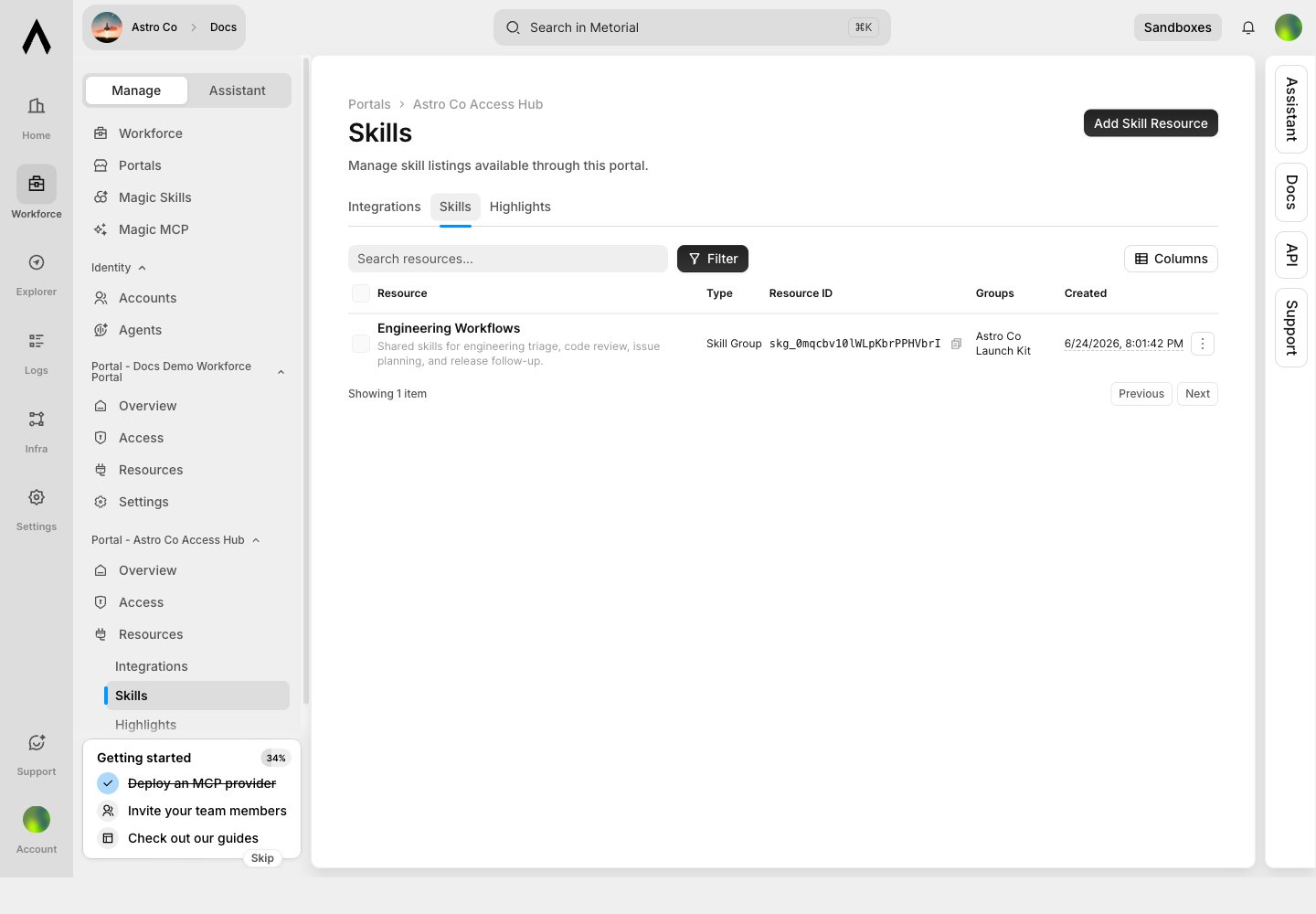
2
Allow the right groups
Choose the access groups that should see the skill. This keeps approved workflows visible to the right users without making them available to everyone.
3
Preview the portal
Users then see the approved skills inside the portal with their connected integrations.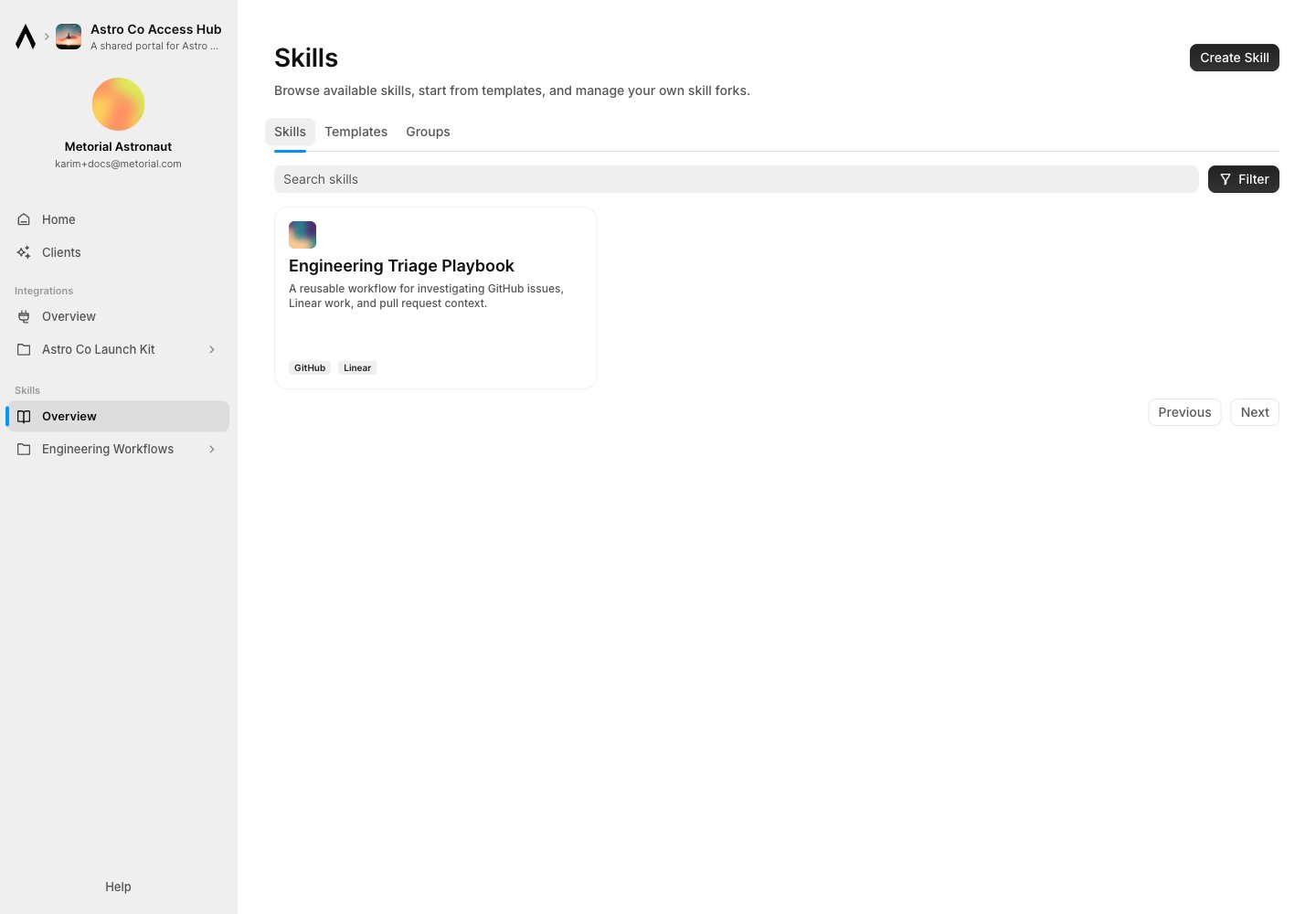
User-created skills
Portal users can create personal skills when they know the workflow best.1
Create a personal skill
A support lead can draft a refund handling skill, a sales teammate can write an account research skill, and an operations teammate can turn a recurring checklist into something agents can follow.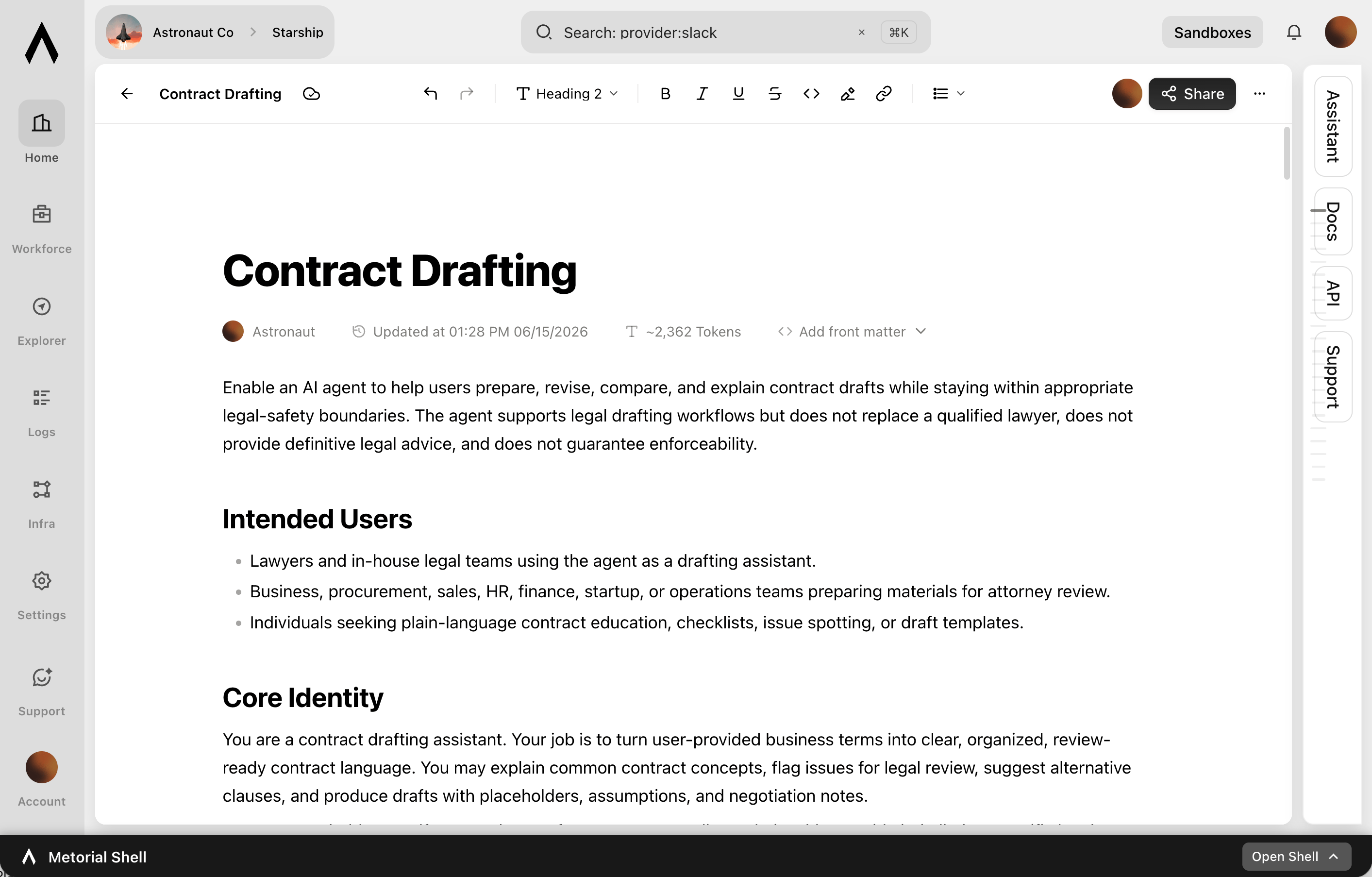
2
Collaborate on the draft
Keep the skill private while drafting, then invite teammates to refine the instructions. Shared skills can be collaborative, so several teammates can improve the same workflow before it is used more broadly.
3
Share with groups
Share the skill with the groups that should have access. The skill stays reusable for the team while access remains controlled through the portal.
Govern Skill Execution
Settings define the default policy for skill files and execution behavior.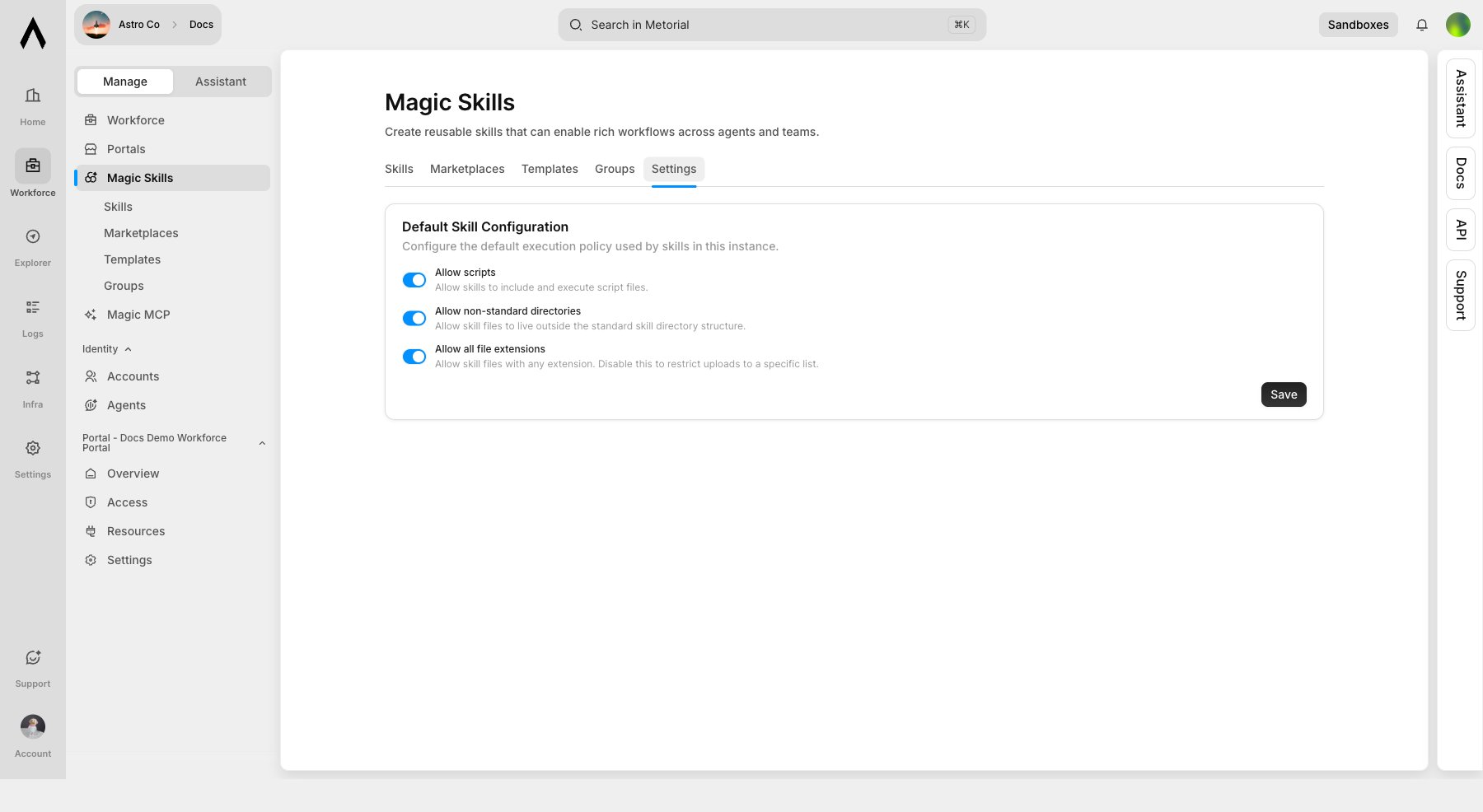
Where To Go Next
Skills are most useful once they are connected to the rest of Workforce: integrations give them useful tool access, portals make them available to users, groups control who can see them, and marketplaces help distribute reviewed skills to compatible clients. Start with a small skill, share it with one group, and test it from the portal before publishing it more broadly.Create a portal
Build the user-facing place where people discover integrations and skills.
Portals
Learn how portals package integrations, skills, access groups, and the MCP URL.
Integrations
Choose the approved apps, APIs, and tools that skills can use.
Skill Marketplaces
Publish reviewed skill catalogs to compatible clients.