Create an integration
Create a reusable integration and control which tools it can use.
An integration connects a provider to Metorial so you can reuse the same configuration across sessions and deployments. This guide shows you how to choose a provider, configure its authentication, and control which tools the integration can use.
What you'll learn
- How to create an integration
- How to configure authentication
- How to limit the available tools when needed
Before you start
- Choose the provider you want to connect
- Have any required authentication details ready
- Decide whether you need to limit the available tools
Create the integration
Open integrations
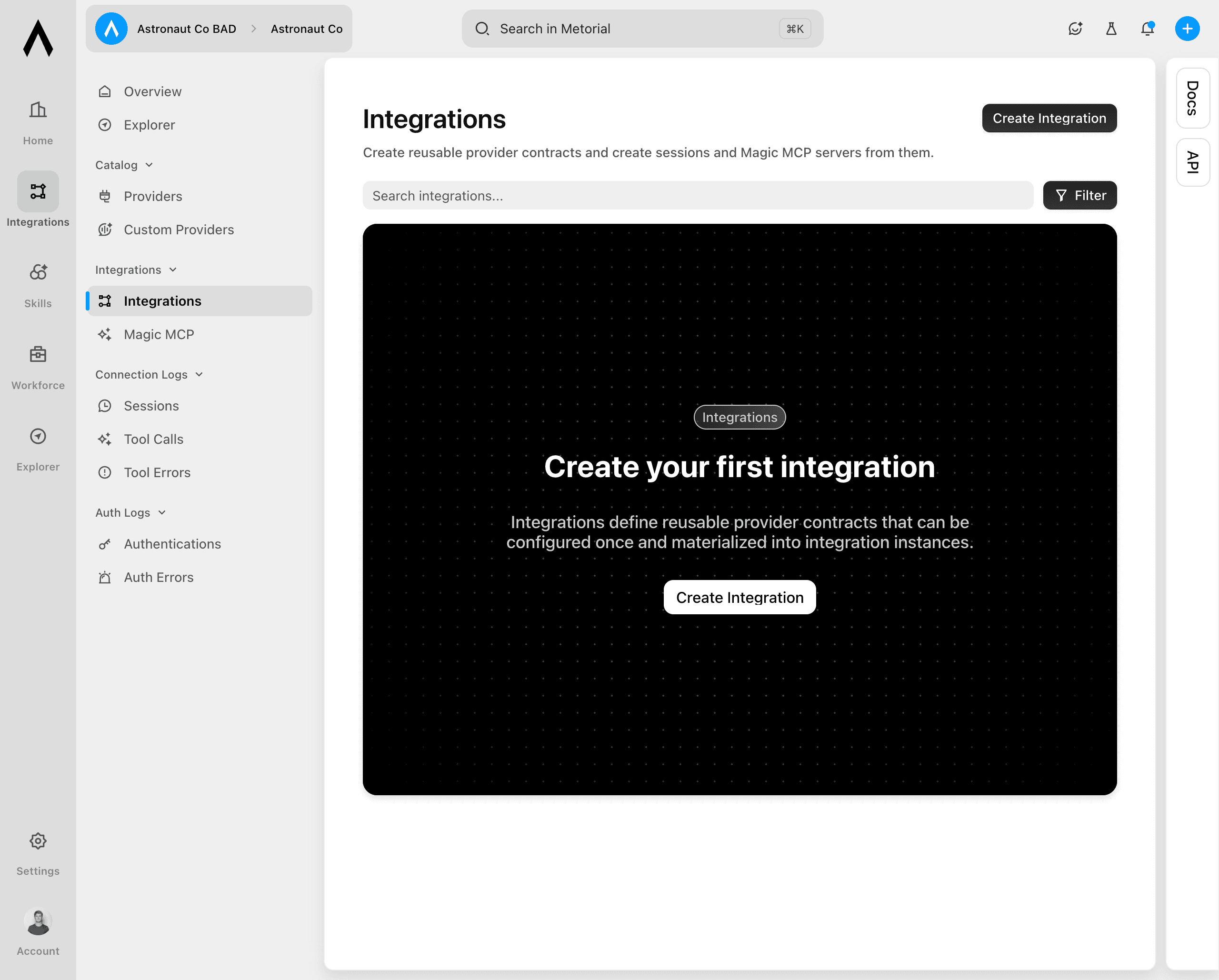
In the dashboard, open Integrations. Under Integrations, select Integrations again to open the list of configured integrations.
Start a new integration
Select Create Integration in the top-right corner. The setup window opens.
Select a provider
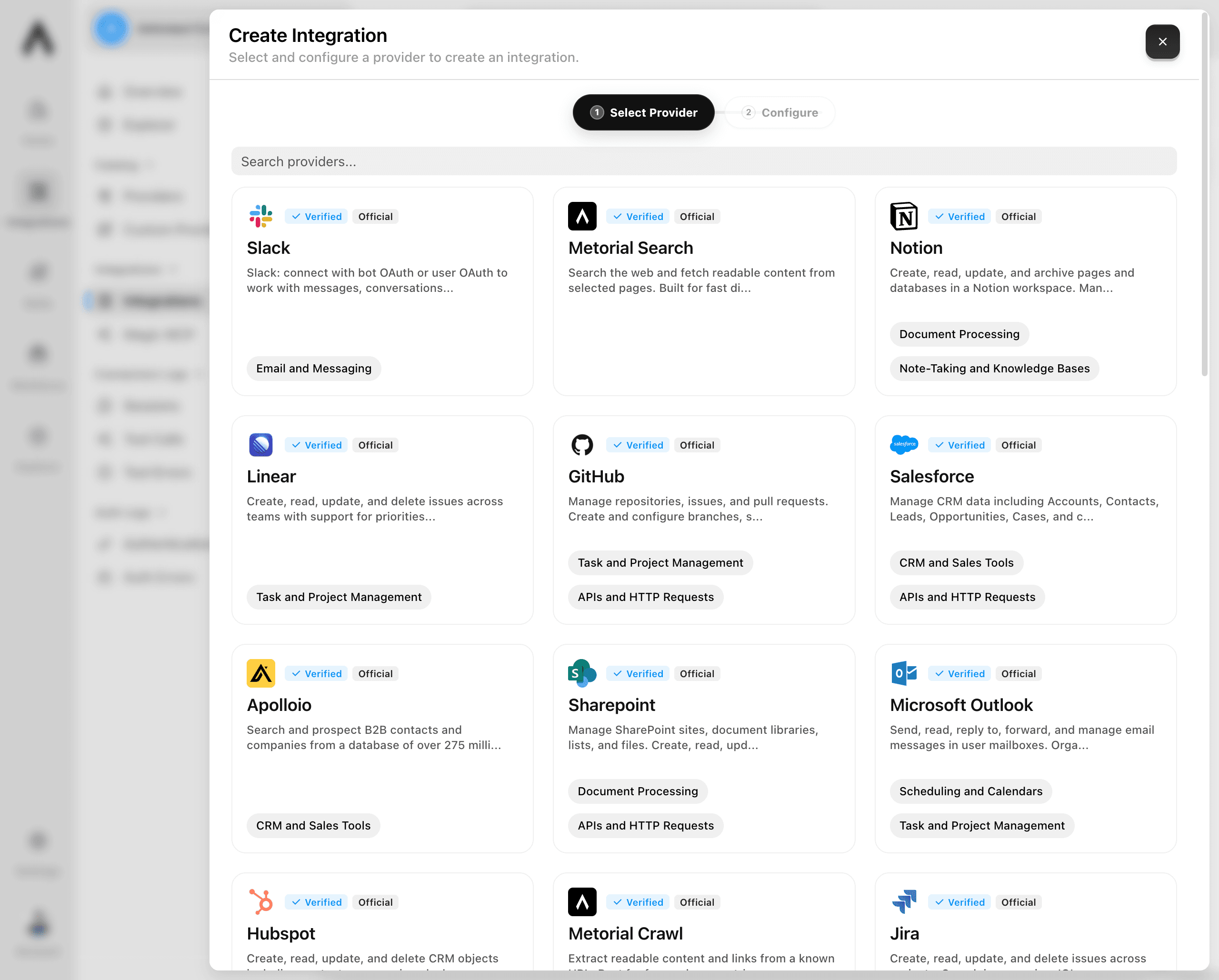
Choose the provider you want to connect. Use the search field if you do not see it in the list.
Configure authentication
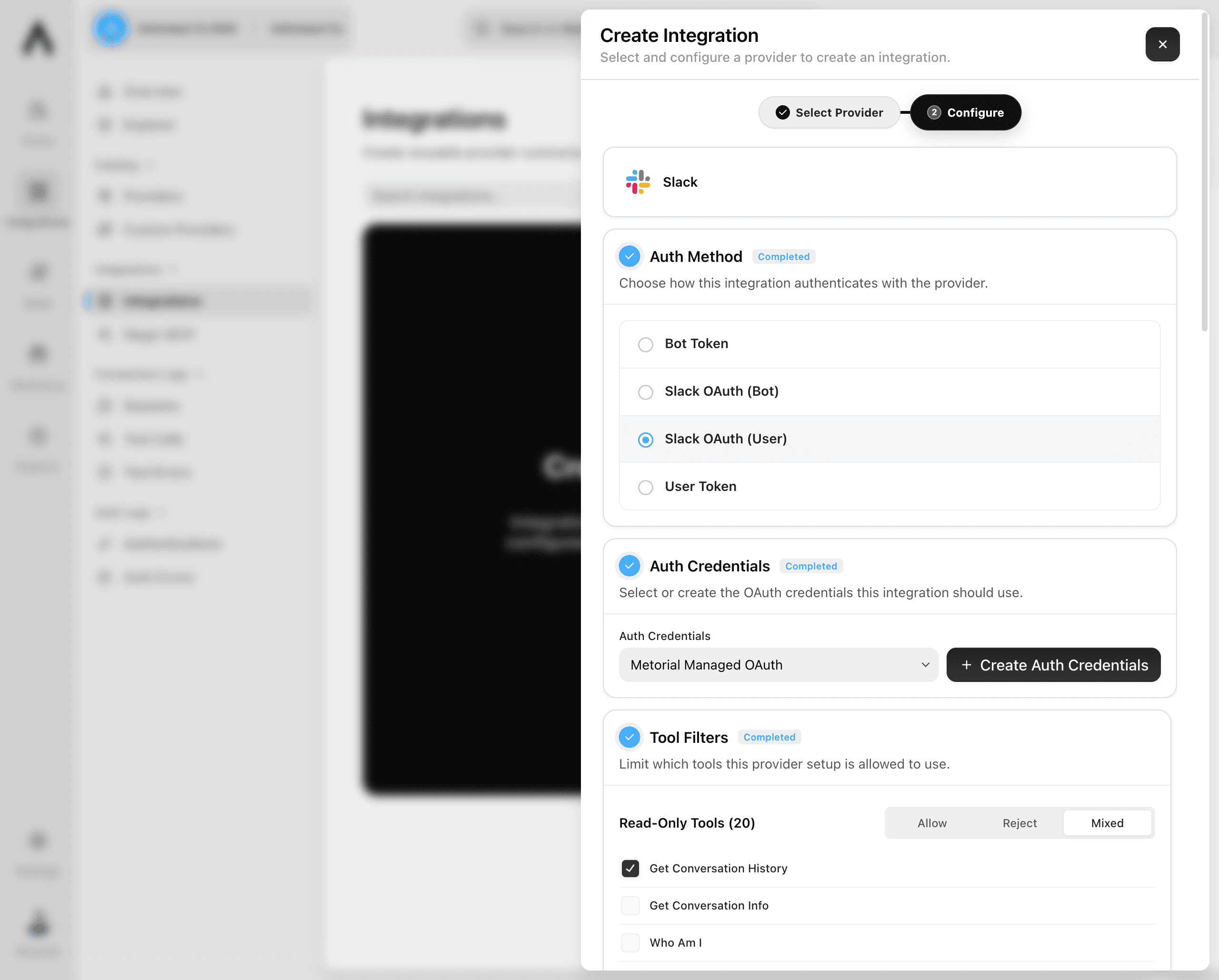
Under Auth Method, select the authentication method you want the integration to use. If the provider requires credentials, select or create the credentials for this integration.
Optional: limit the available tools
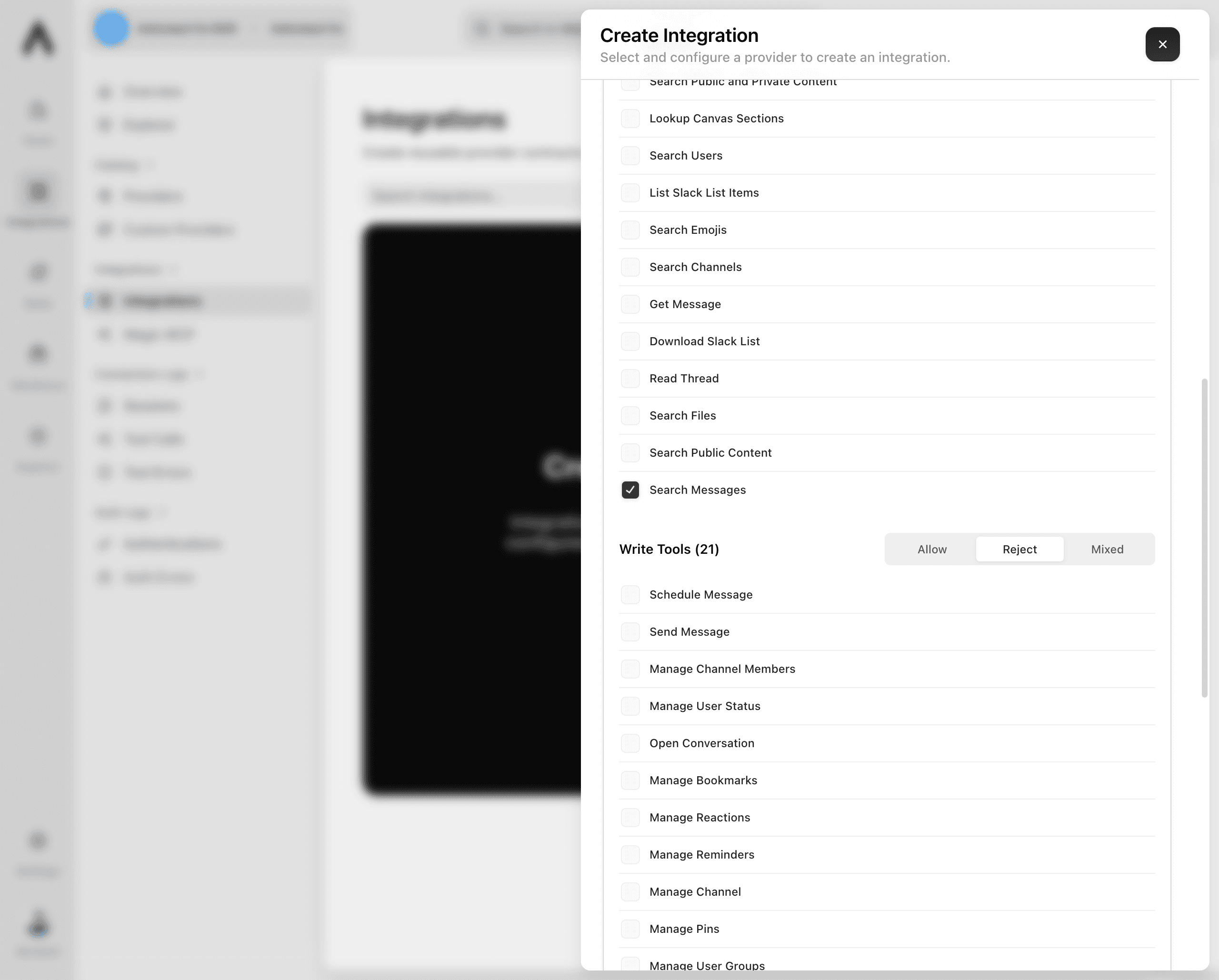
To limit the tools this integration can use, open Tool Filters. Set a tool group to Mixed, then select the tools you want to allow from that group.
You can set an entire tool group to Allow or Reject. Reject write or destructive tools if the integration does not need to change or delete data. If you do not need custom tool filters, keep the default settings.
Review and create the integration
Check the authentication method and credentials. If you changed the tool filters, review those settings too. Then select Create Integration.
The integration is now ready to use in sessions and deployments.