Link a remote MCP server
Connect a remote MCP server to Metorial.
Use a remote MCP server when the provider already offers an MCP endpoint. Metorial connects to it and you can use it like any other provider on Metorial. Connections are secure, auditable, and permissions and tool filters in Metorial apply like they do for any other provider.
What you'll learn
- How to link a remote MCP server
- How to check that it deployed successfully
Before you start
- Get the remote server URL
- Check whether the server uses Streamable HTTP or SSE
Link the server
Open remote MCP servers
In the dashboard, open Integrations. Under Custom Providers, select Remote MCP Servers.
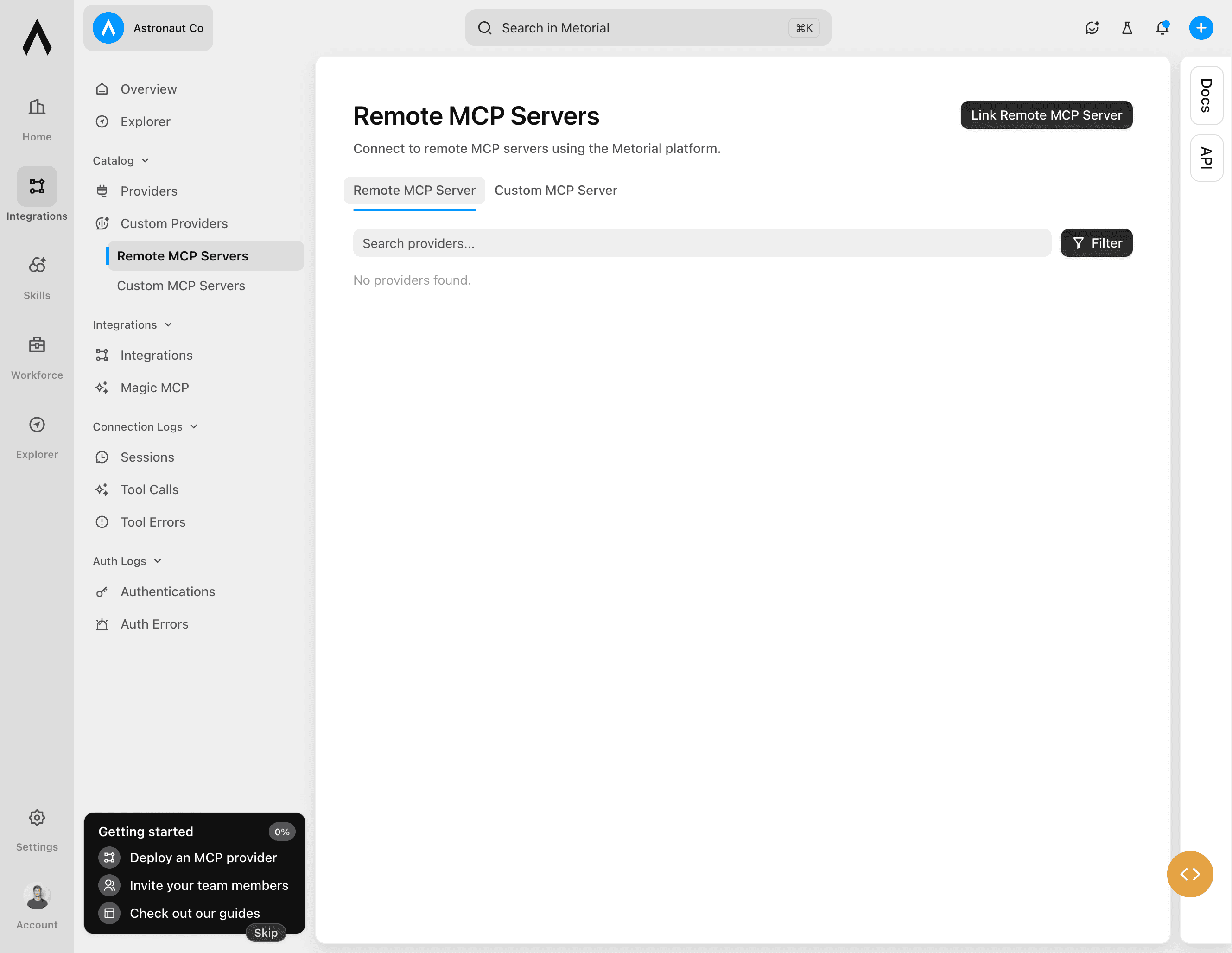
Link a remote MCP server
Enter the server details
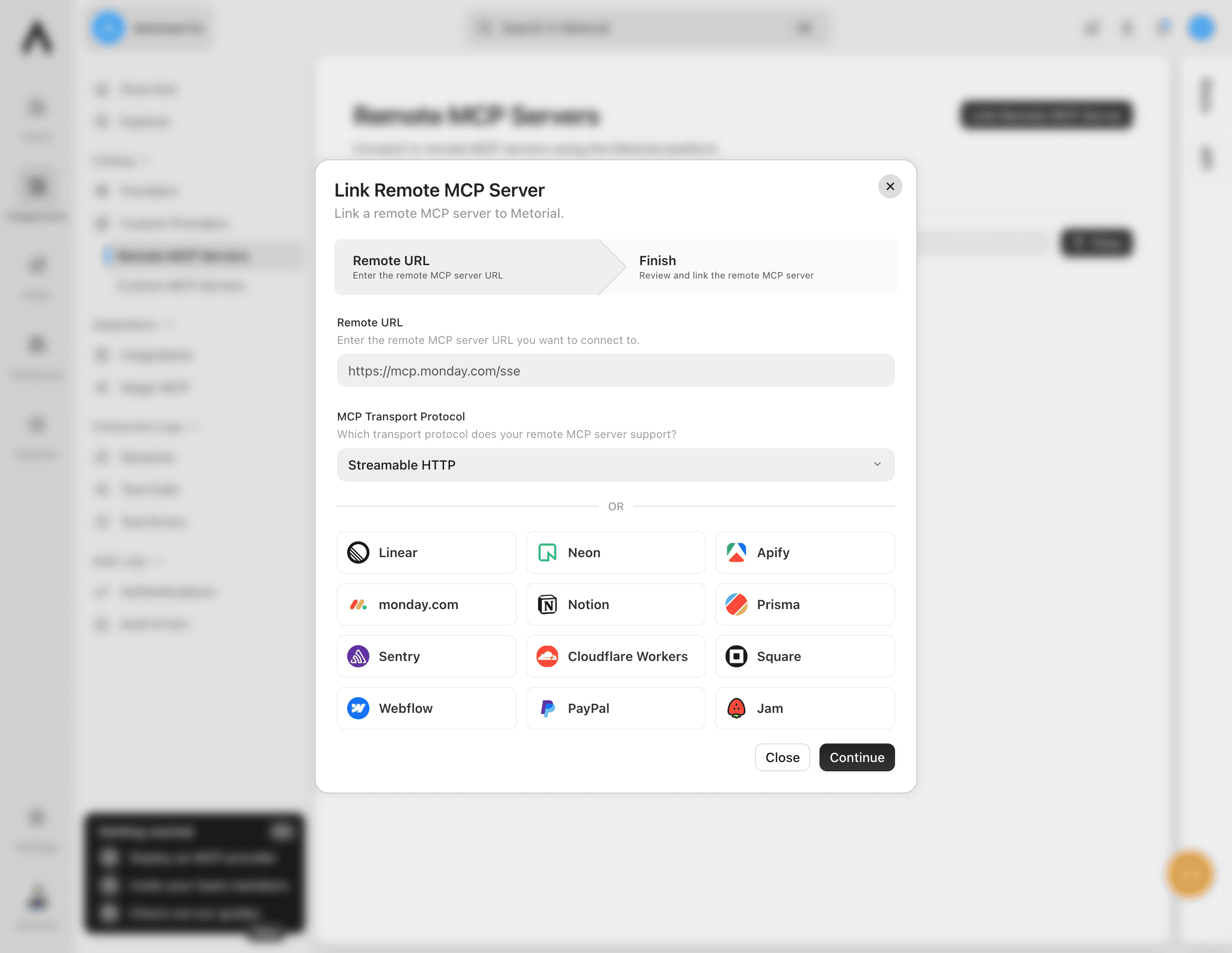
Enter the remote MCP server URL. Select the transport the server supports: Streamable HTTP or SSE. Then select Continue.
Name the provider
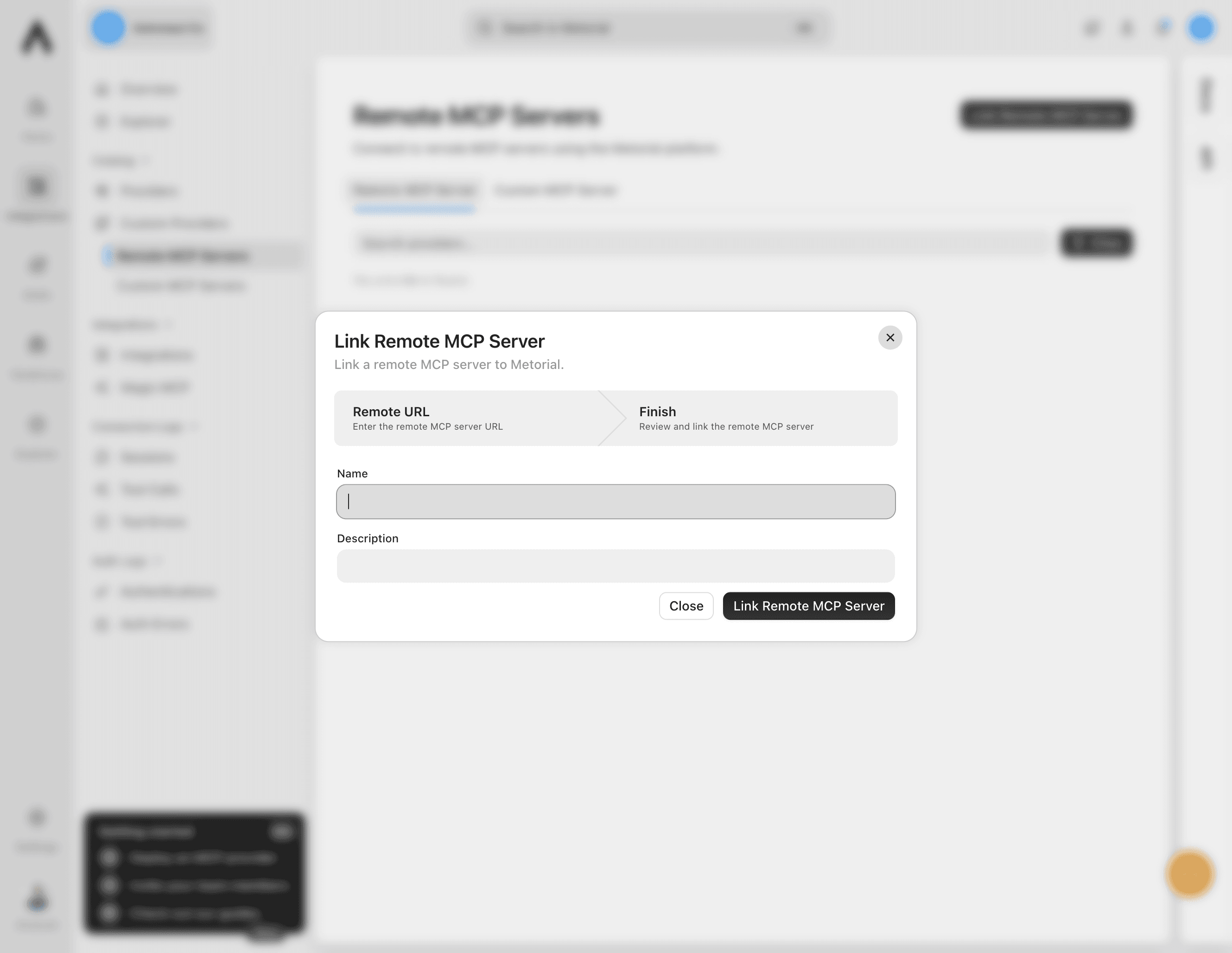
Enter a name and, if useful, a short description. Select Link Remote MCP Server.
Check the deployment
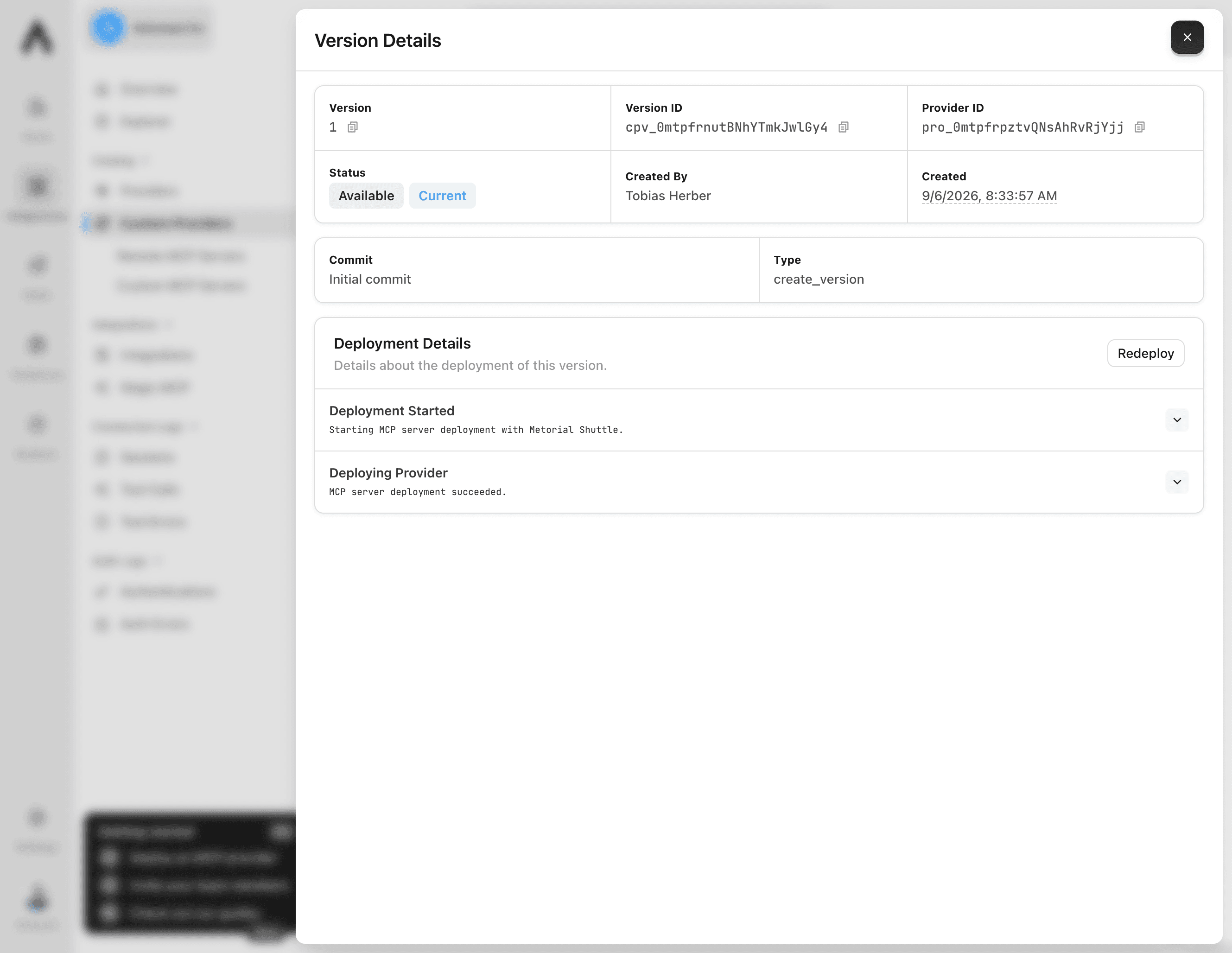
Metorial discovers the server and creates its first version. In Version Details, wait for the status to show Available and Current. The deployment log should say that the MCP server deployment succeeded.
Info
Linking a server might not ask you to authenticate. If the server protects its tools, complete authentication when the connection flow asks for it.