Use Metorial Explorer
Connect a provider and test its tools in Metorial Explorer.
Metorial Explorer lets you review and call a provider's tools from the dashboard before you add them to a workflow. In this guide, you will connect a provider, open the manual tool interface, and make a safe test call.
What you'll learn
- How to connect a provider to Metorial Explorer
- How to review a provider's available tools
- How to call a tool manually and check its result
Before you start
- Choose the provider you want to test
- Make sure you have any authentication details the provider requires
- Start with a read-only tool when possible
Connect a provider and call a tool
Open Explorer
In the Metorial dashboard, select Explorer in the left navigation. Explorer opens with a list of providers.
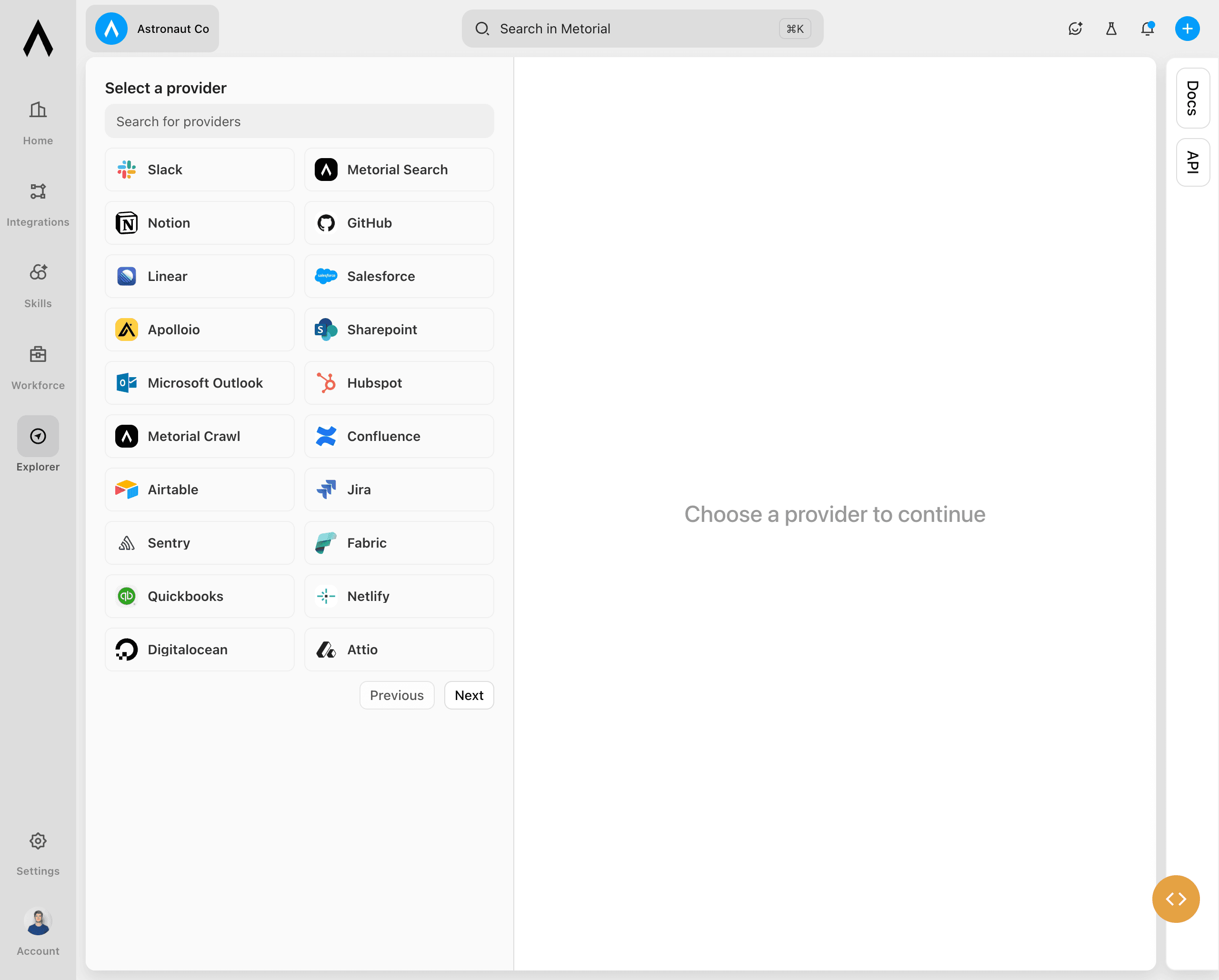
Select a provider
Select the provider you want to test. The connection page shows any setup required before you can open Explorer.
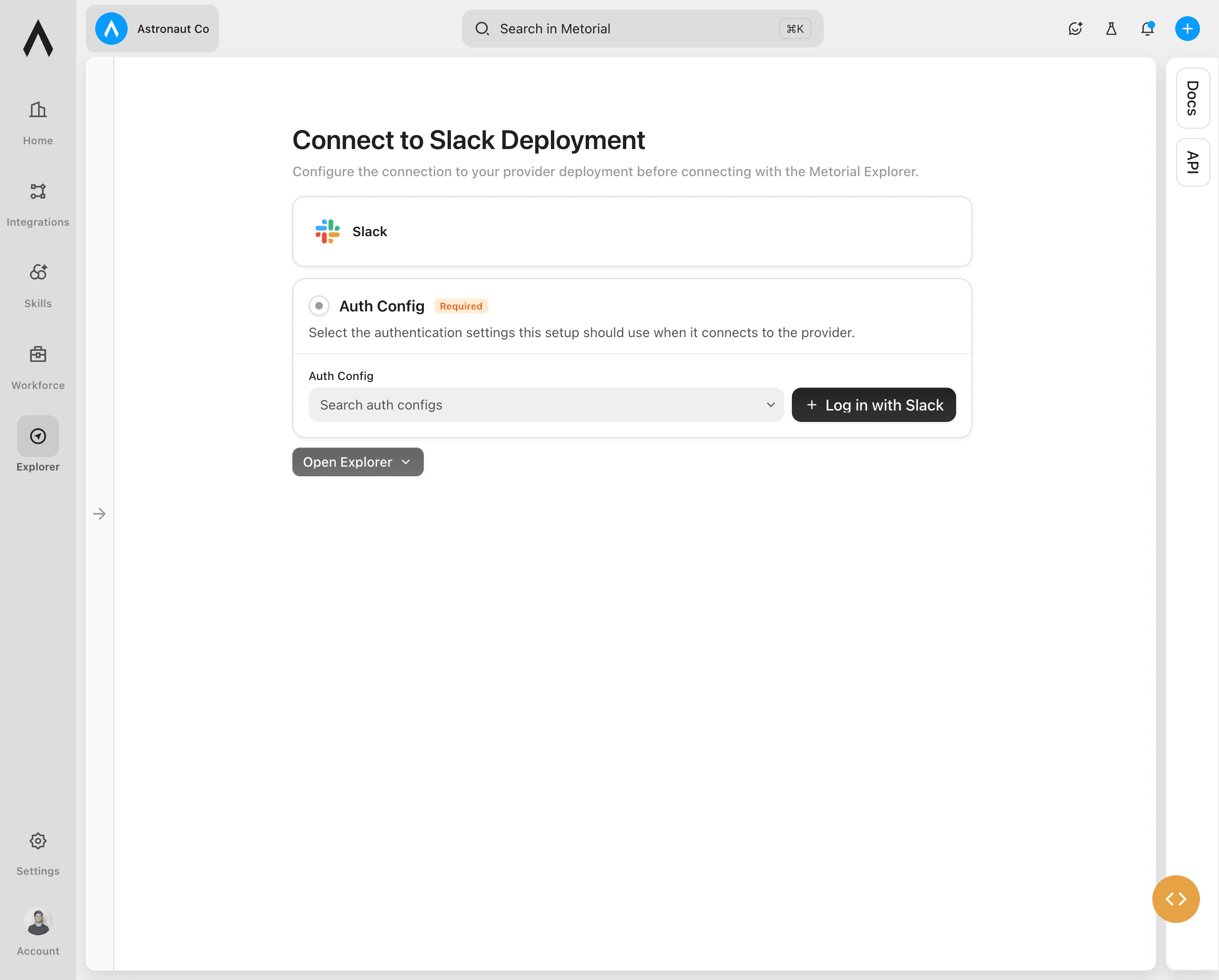
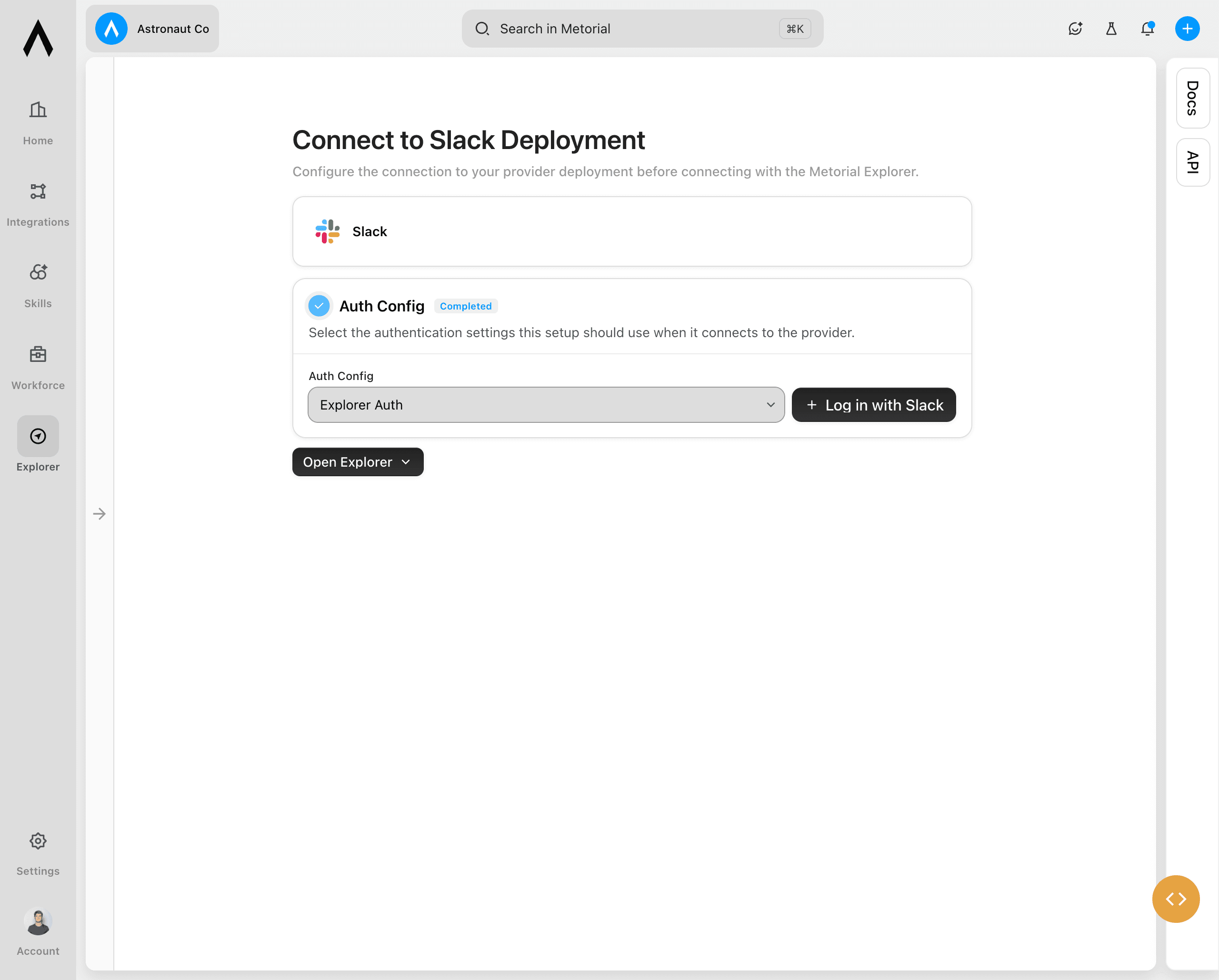
Complete the connection settings
Choose an existing authentication configuration if the provider requires one. To connect a different account, use the login option instead.
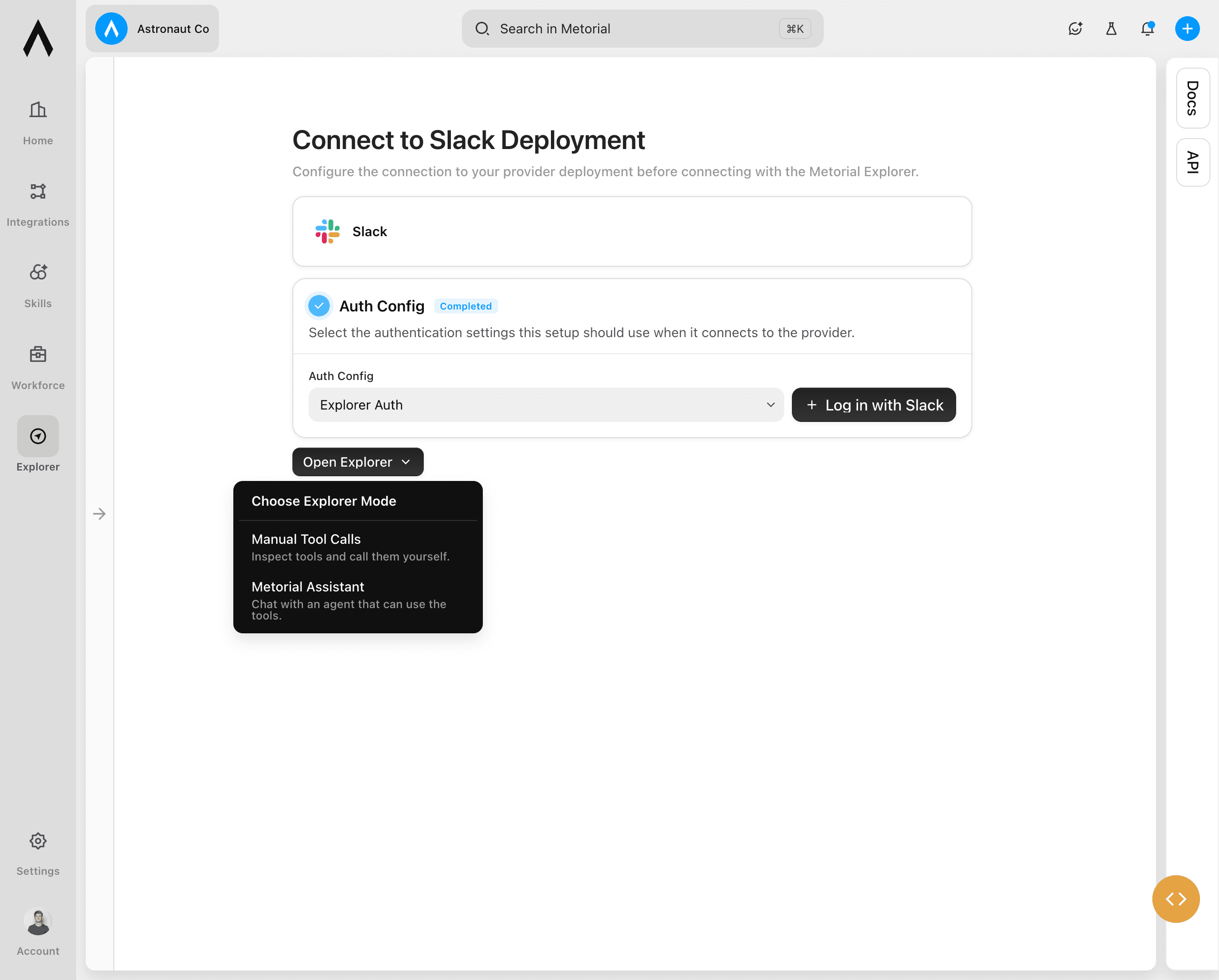
Open Manual Tool Calls
Select the arrow next to Open Explorer, then select Manual Tool Calls. This mode lets you review the provider's tools and call them directly.
Choose a tool
Find a tool in the list and open it. Read its description and instructions, then review any required inputs. Start with a read-only tool when you are testing a new connection.
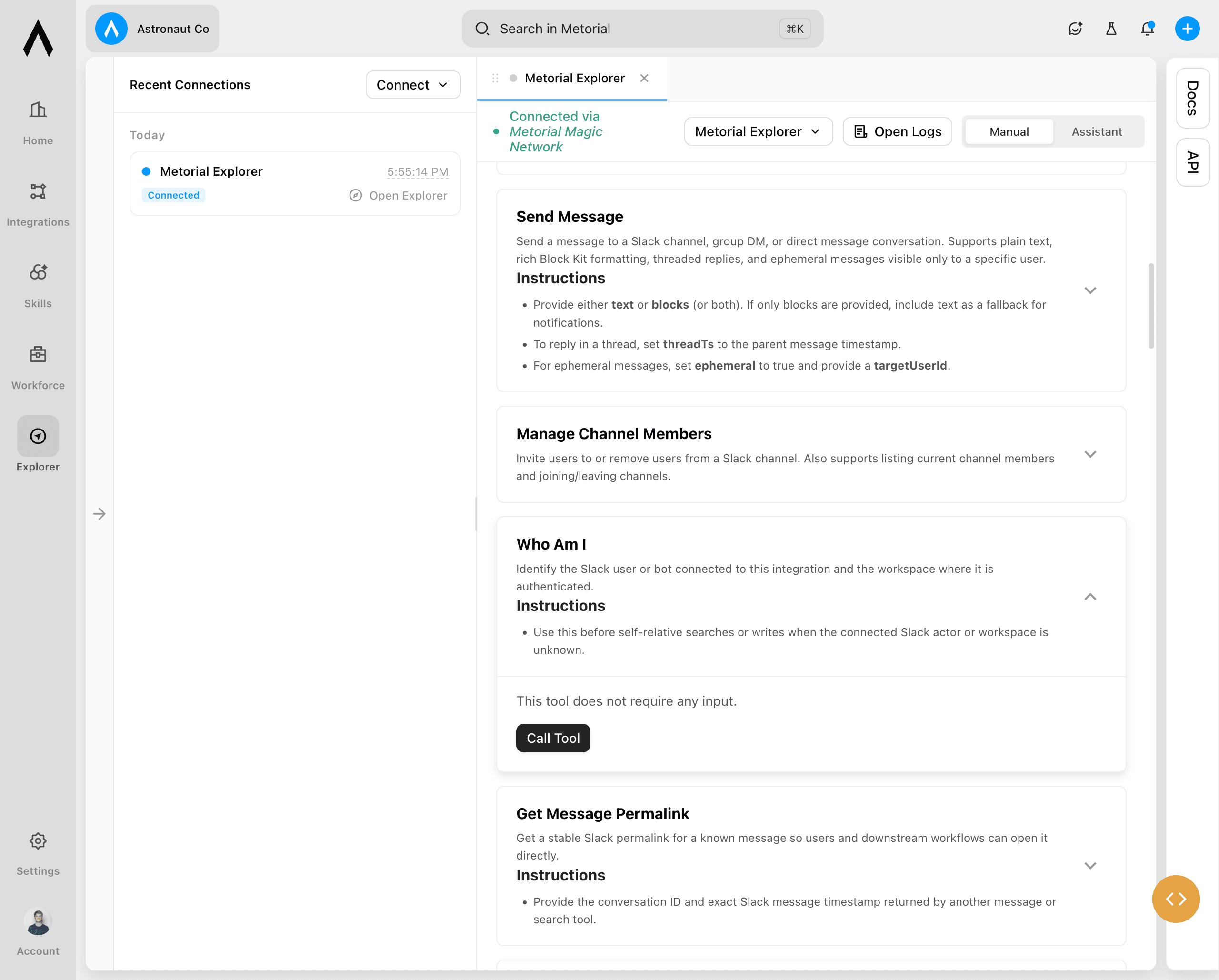
Call the tool
Enter any required inputs, then select Call Tool. Review the result to confirm that the provider is connected and the tool returned the expected information.
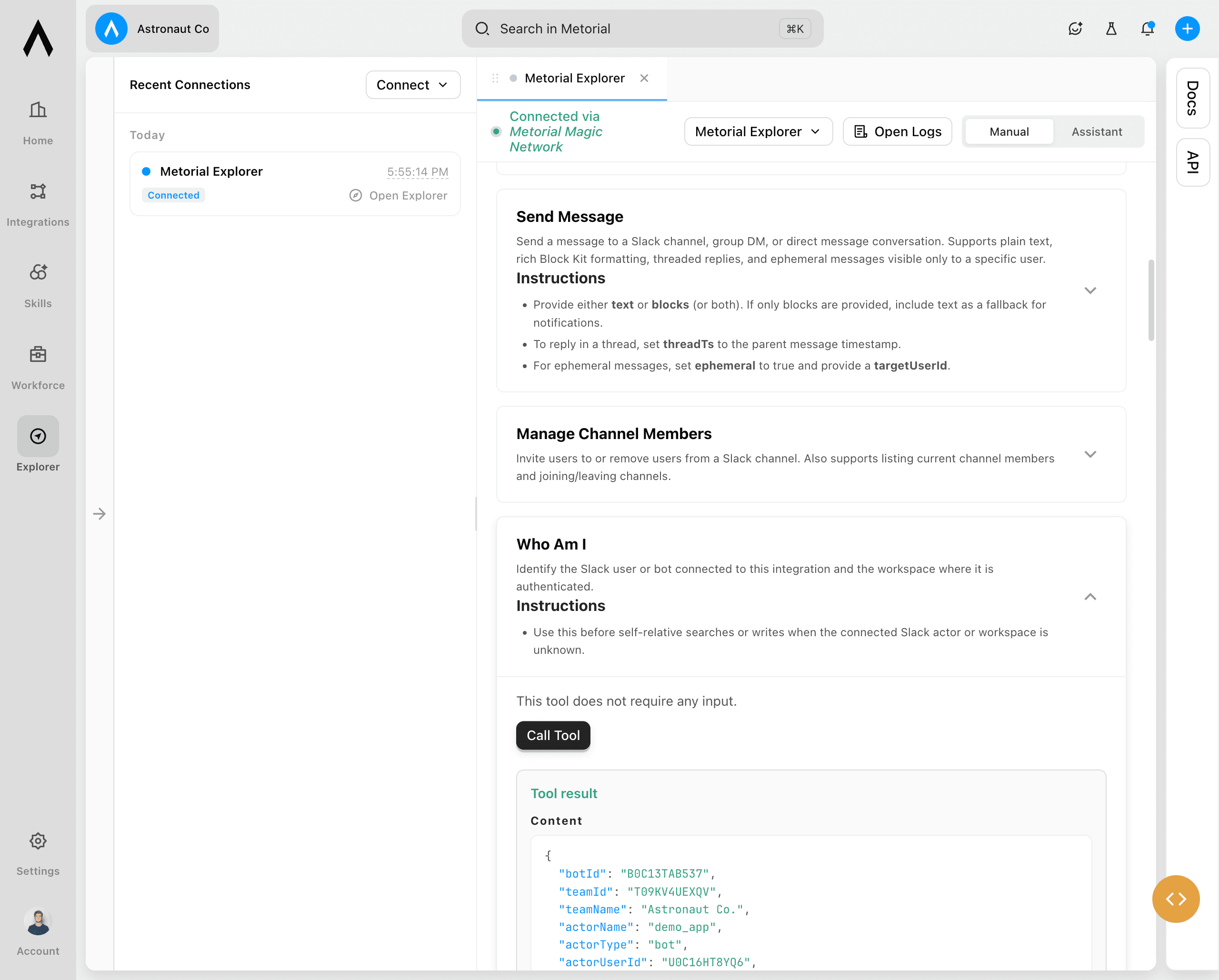
Next steps
Use the tool list to explore other tools from the same provider. Before you call a tool that changes data, review its instructions and inputs so you understand what it will do.