Set up a Magic MCP server
Create a Magic MCP server and check it in Metorial Explorer.
A Magic MCP server gives you a hosted MCP endpoint for a provider. Metorial manages the server and makes the provider's tools available through one connection. In this guide, you will choose a provider, configure the server, create it, and check its tools in Metorial Explorer.
What you'll learn
- How to create a Magic MCP server
- How to configure its authentication and tool access
- How to open the server in Metorial Explorer
Before you start
- Choose the provider you want the server to use
- Have any required authentication details ready
- Decide whether you need to limit the available tools
Create the server
Open Magic MCP
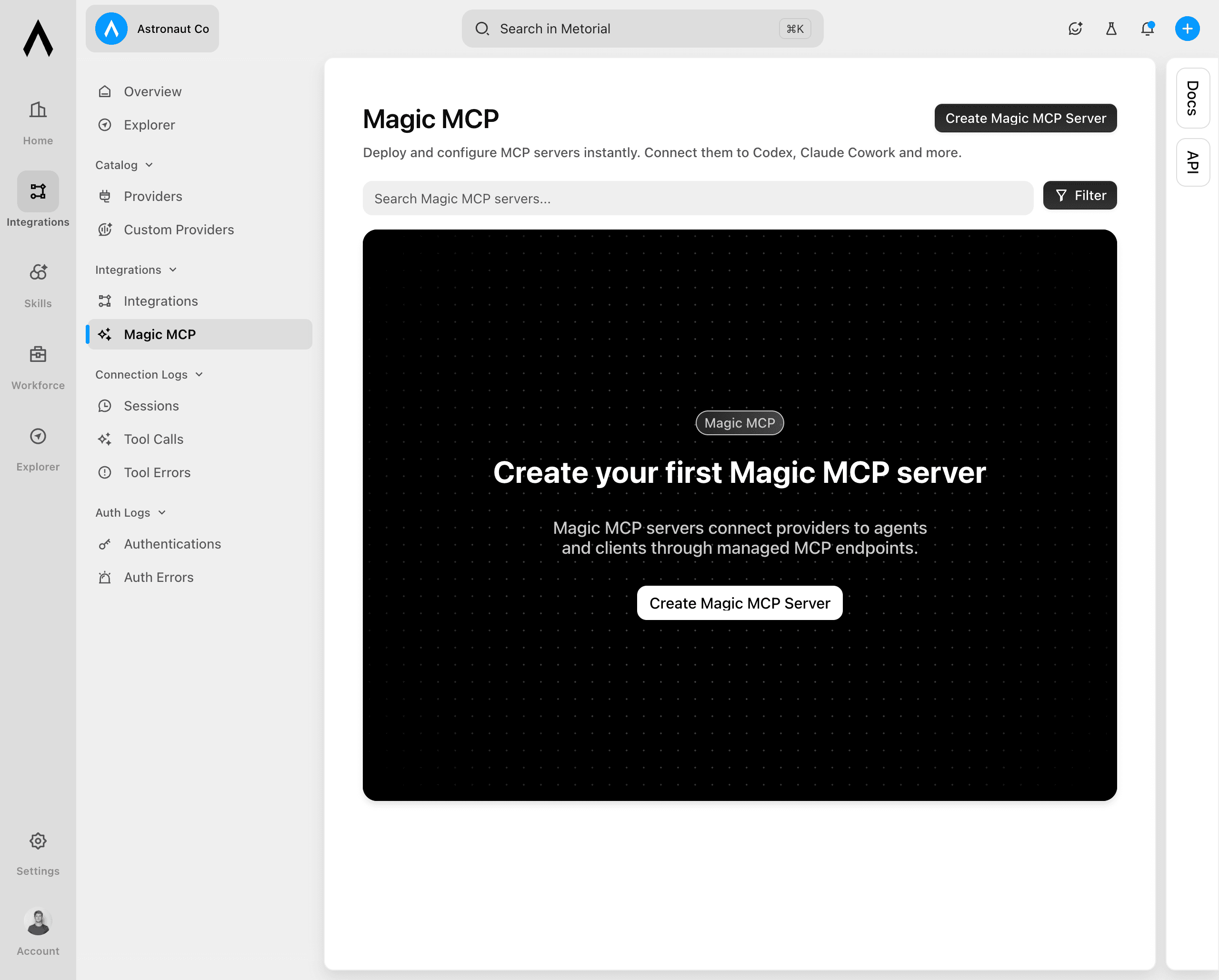
Under Integrations, select Magic MCP. Then select Create Magic MCP Server.
Select a provider
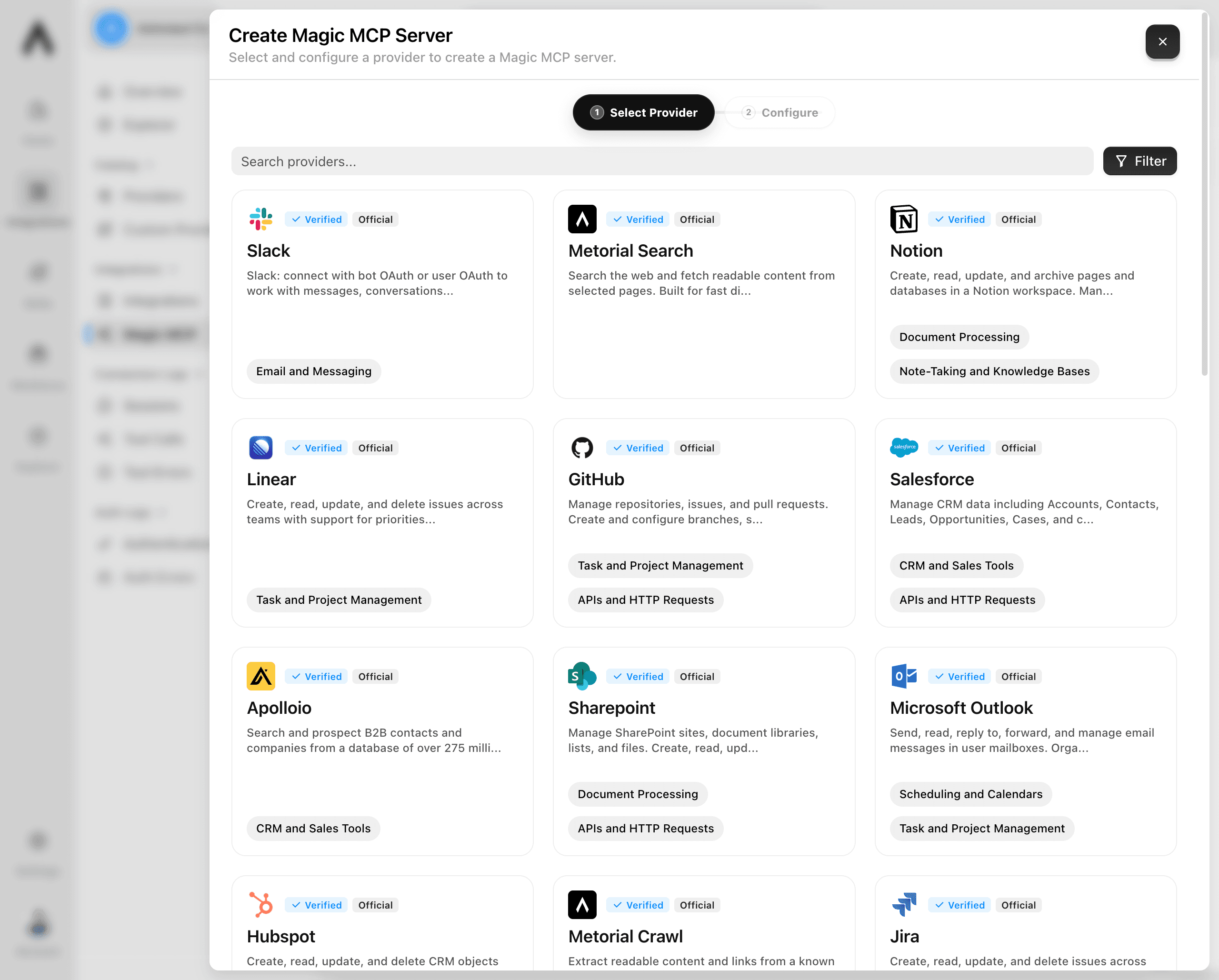
Choose the provider whose tools you want to make available. Use the search field if you do not see it in the list.
Configure the server
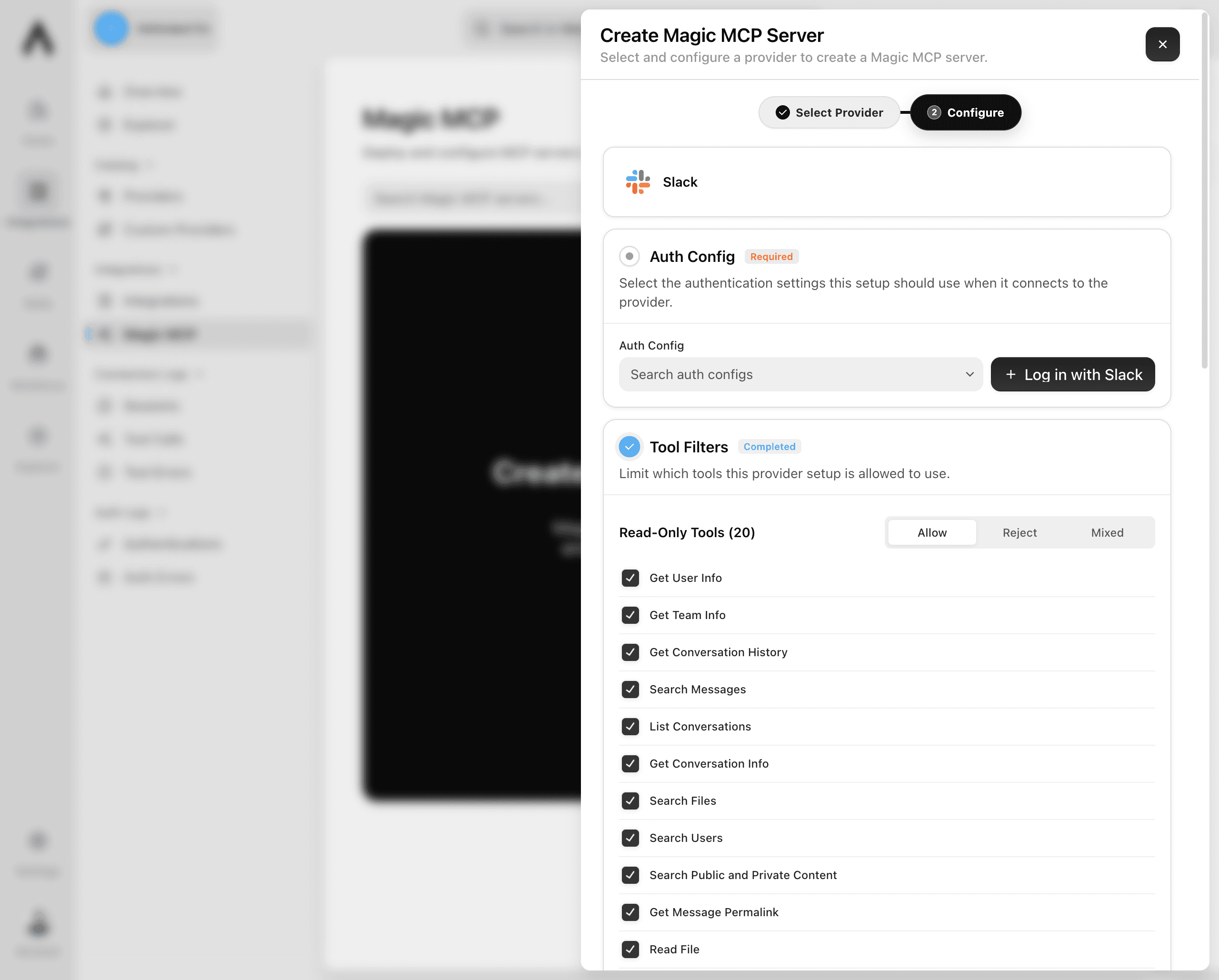
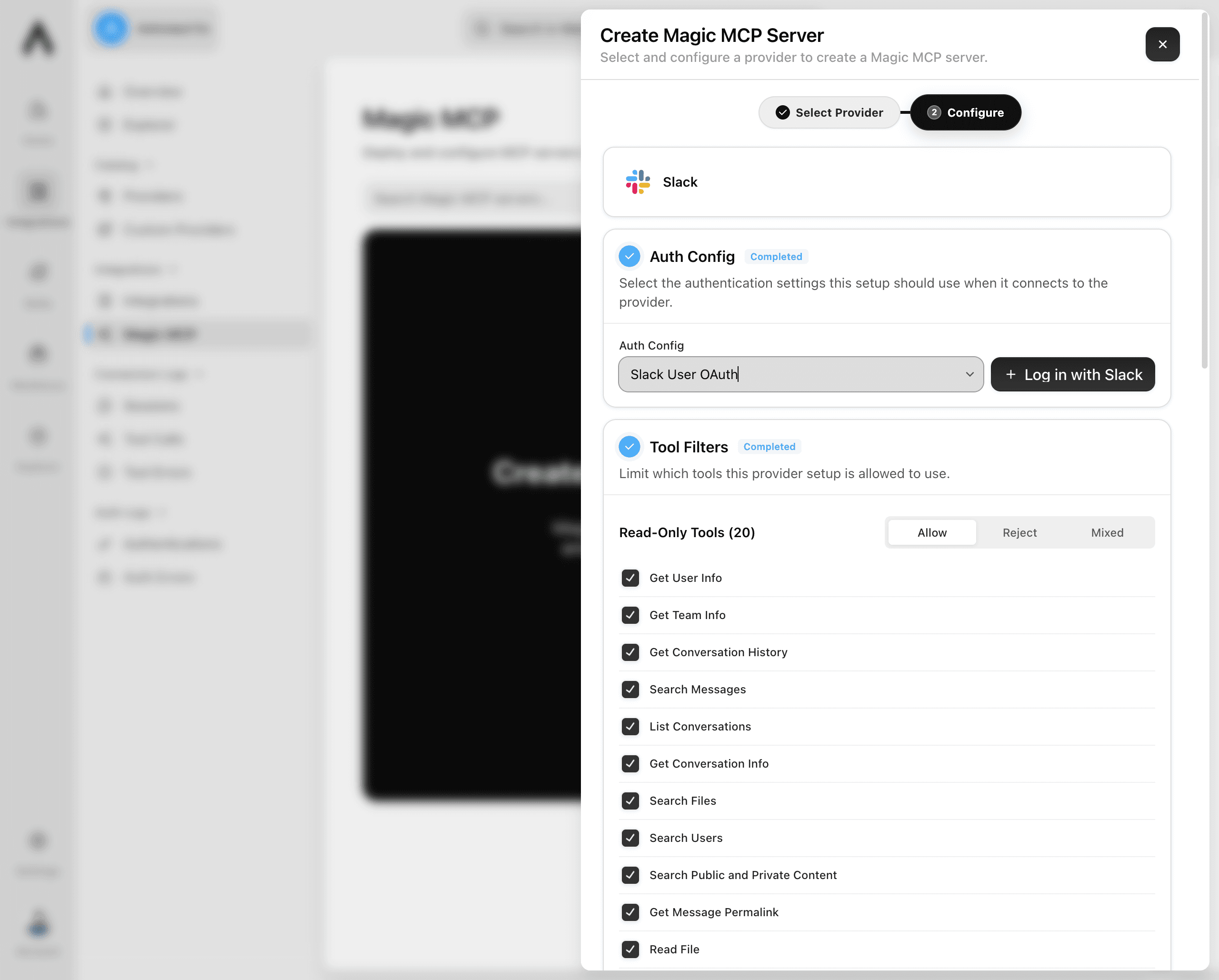
Review the available settings. If the provider requires authentication, open Auth Config to choose how the server should connect.
Choose an authentication configuration
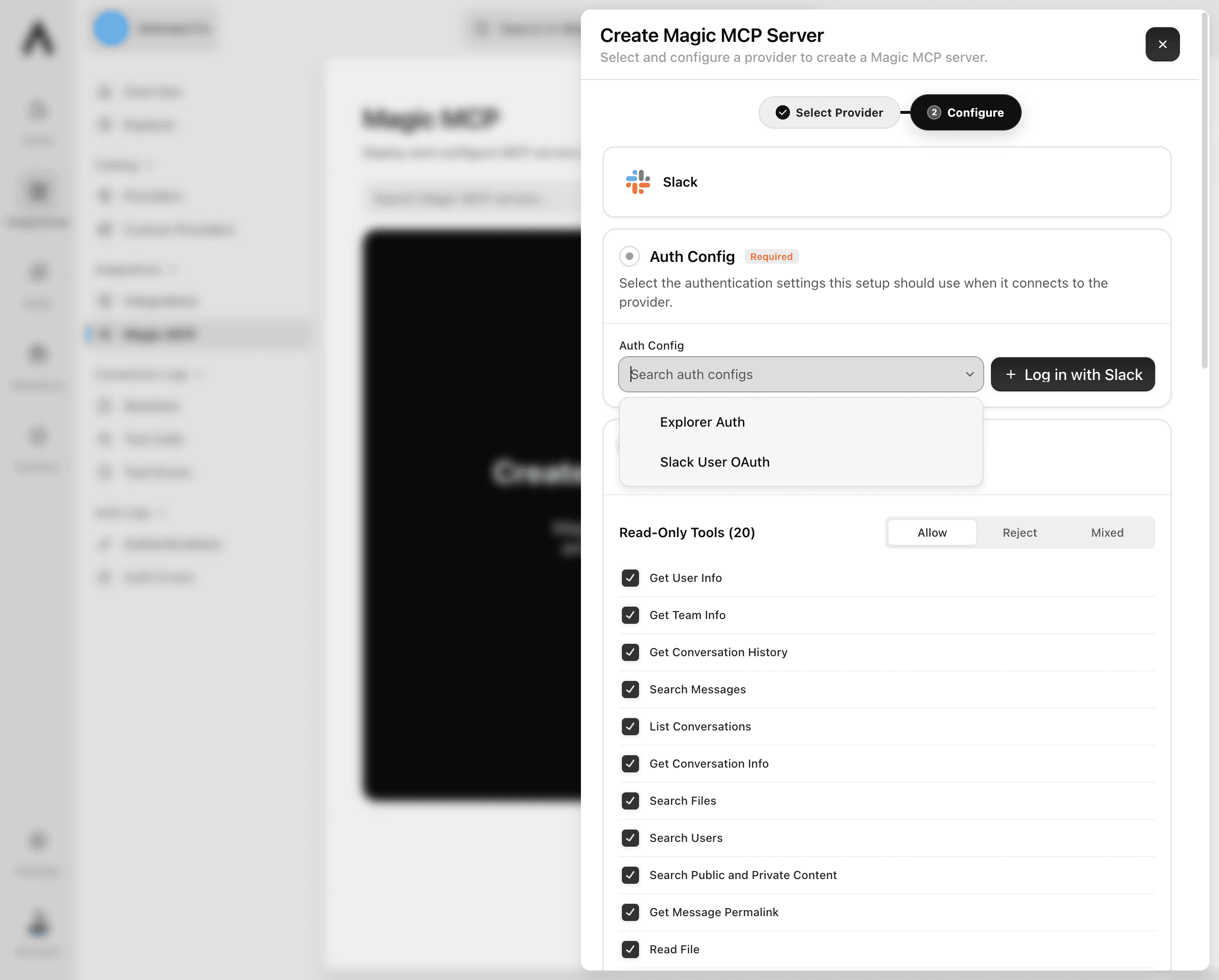
Select an existing authentication configuration, or use the available sign-in or setup option to create one. The choices depend on the provider and your project.
Review tool access
Check that the authentication setting is complete. Open Tool Filters if you need to limit which tools the server can use. Otherwise, keep the default tool settings.
Create the Magic MCP server
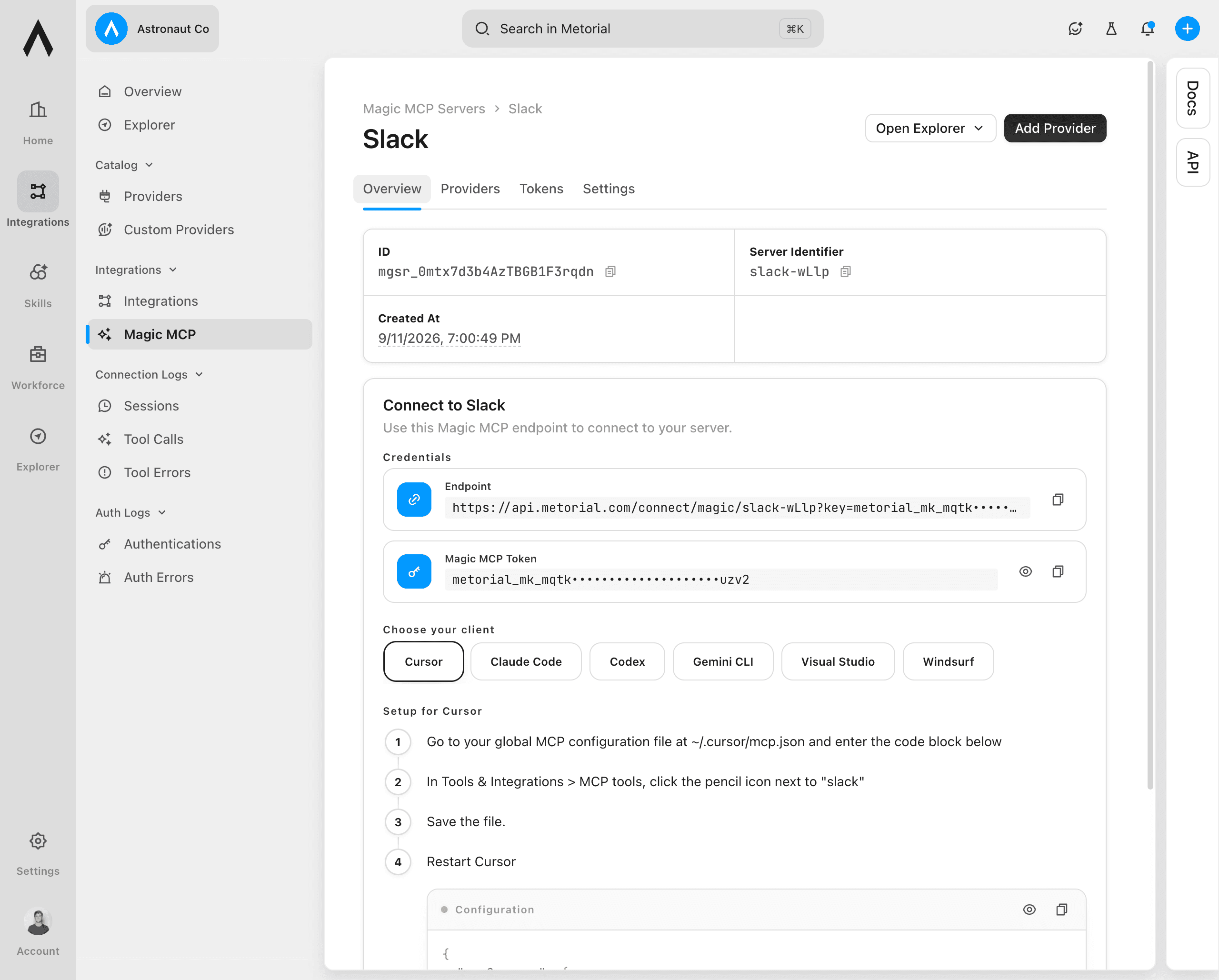
Select Create Magic MCP Server. Metorial creates the server and opens its overview page. This page shows the server endpoint and connection options.
Keep the endpoint and its access token private.
Check the server in Explorer
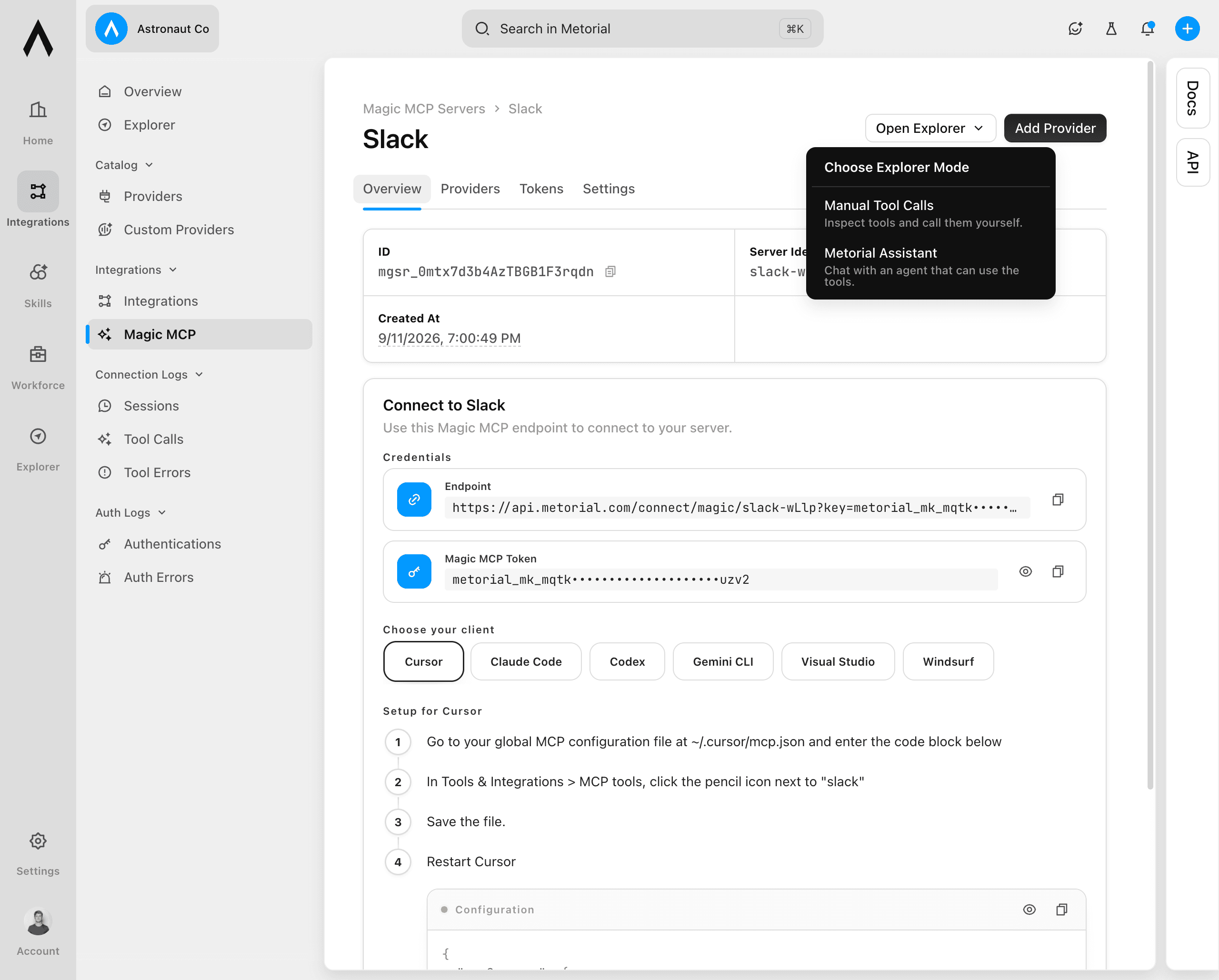
Open Manual Tool Calls
On the server overview, open the menu next to Open Explorer and select Manual Tool Calls.
Review the available tools
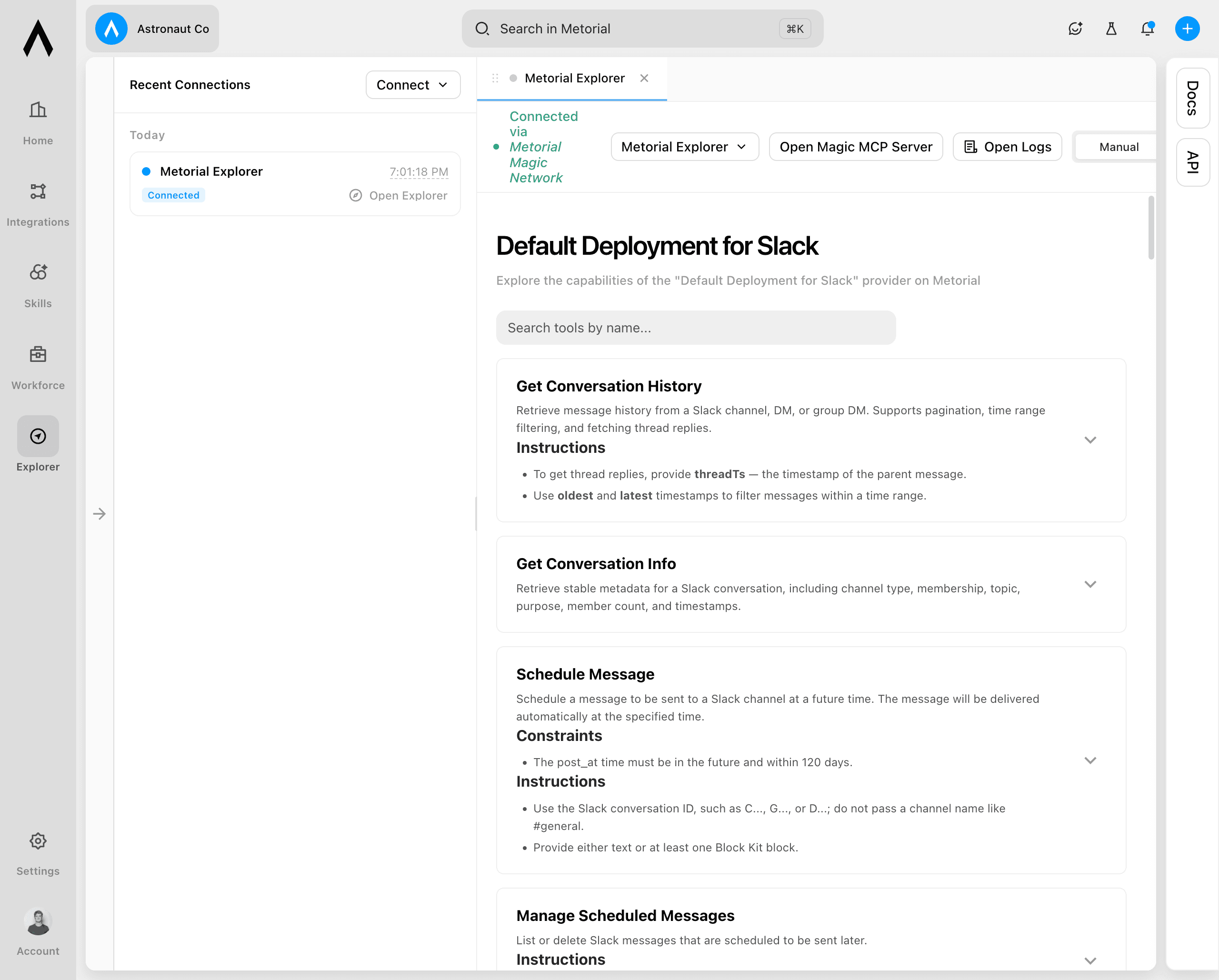
Explorer opens in manual mode. Search the tool list or select a tool to review its description and inputs. You can call a tool here to confirm that the server works.
Start with a read-only tool when possible. Review a tool carefully before you run one that creates, changes, or deletes data.
Your Magic MCP server is now ready to connect to an MCP client or use in Metorial.