

What you’ll learn:
- How users authenticate into a portal
- How the portal home page presents approved resources
- How to verify integrations and skills from the employee view
- Complete Workforce Concepts
- Complete Create A Portal
Open The Portal
Open the portal URL and complete the configured authentication flow. If email verification or SSO is enabled, test the same path your users will use.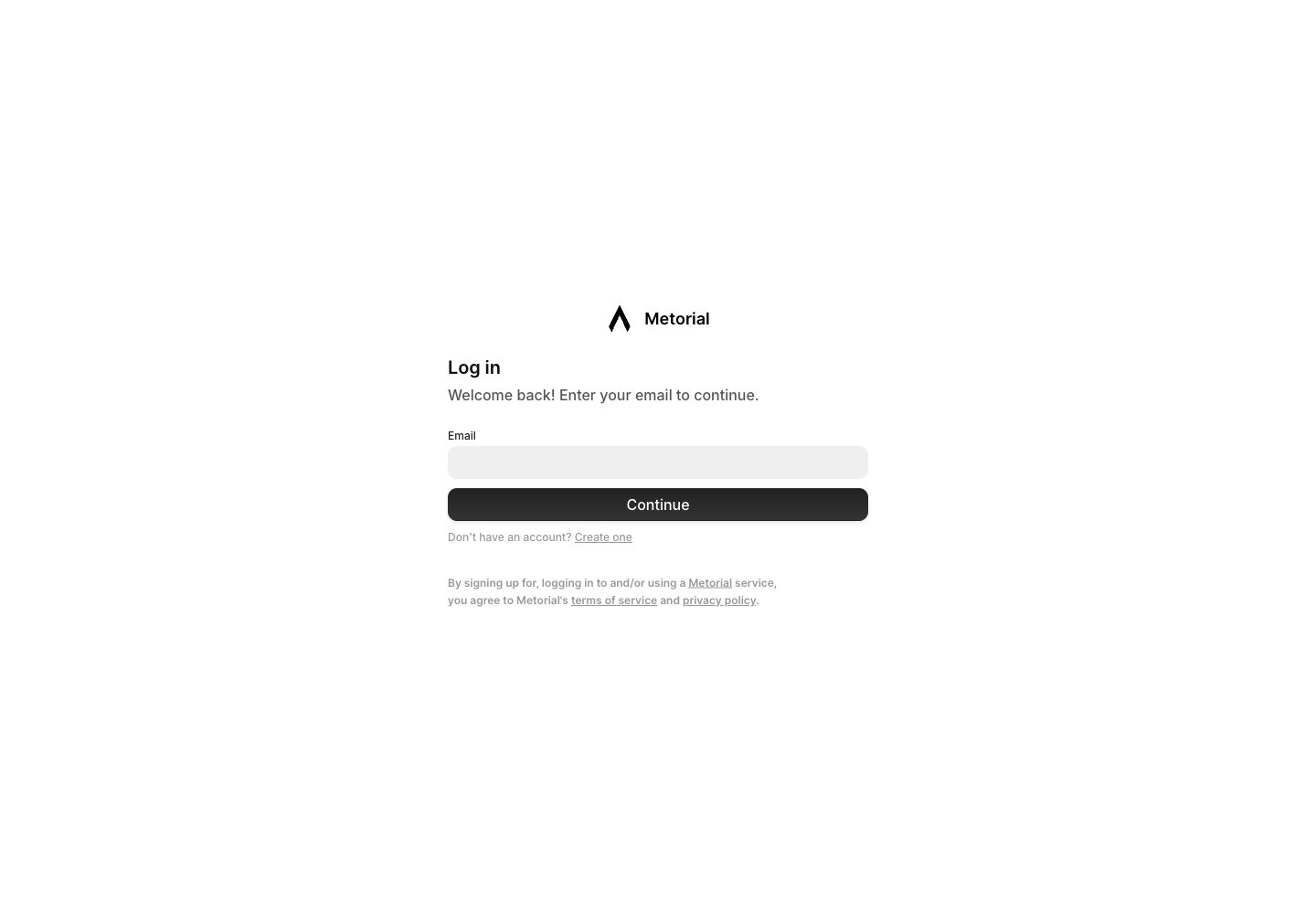
Review The Home Page
The portal home page should make the approved resources obvious. The Magic MCP URL is a standard MCP connection URL that employees can paste into an AI client or agent. When they connect, the client can use the integrations the employee has connected through the portal, and the connection can filter that access down further for the specific client or workflow. The home page should also show highlighted resources, available integrations, and shared skills.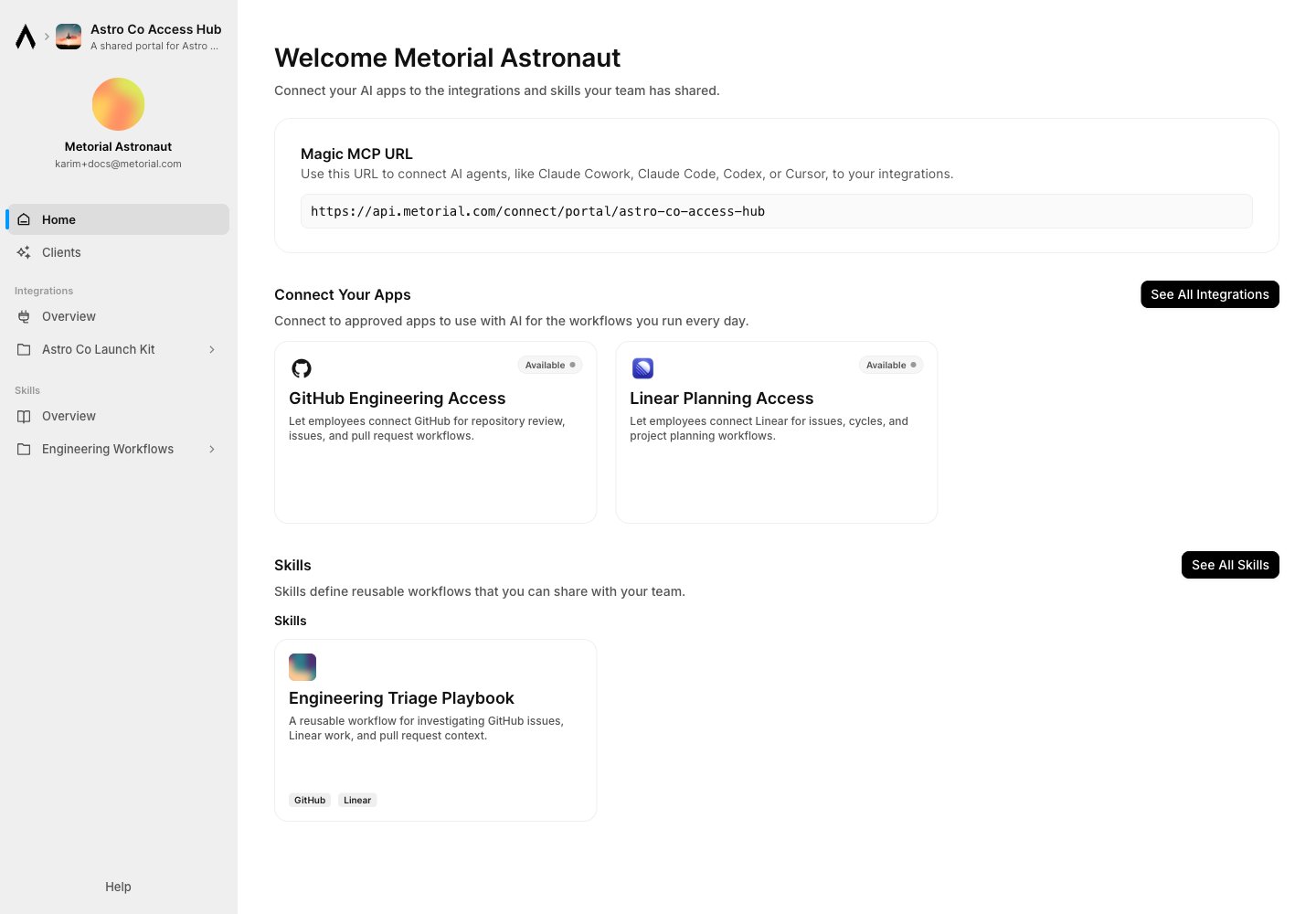
Check Integrations
Open the integrations view and confirm the right tools are visible. Resources that require user credentials should make the connection state clear.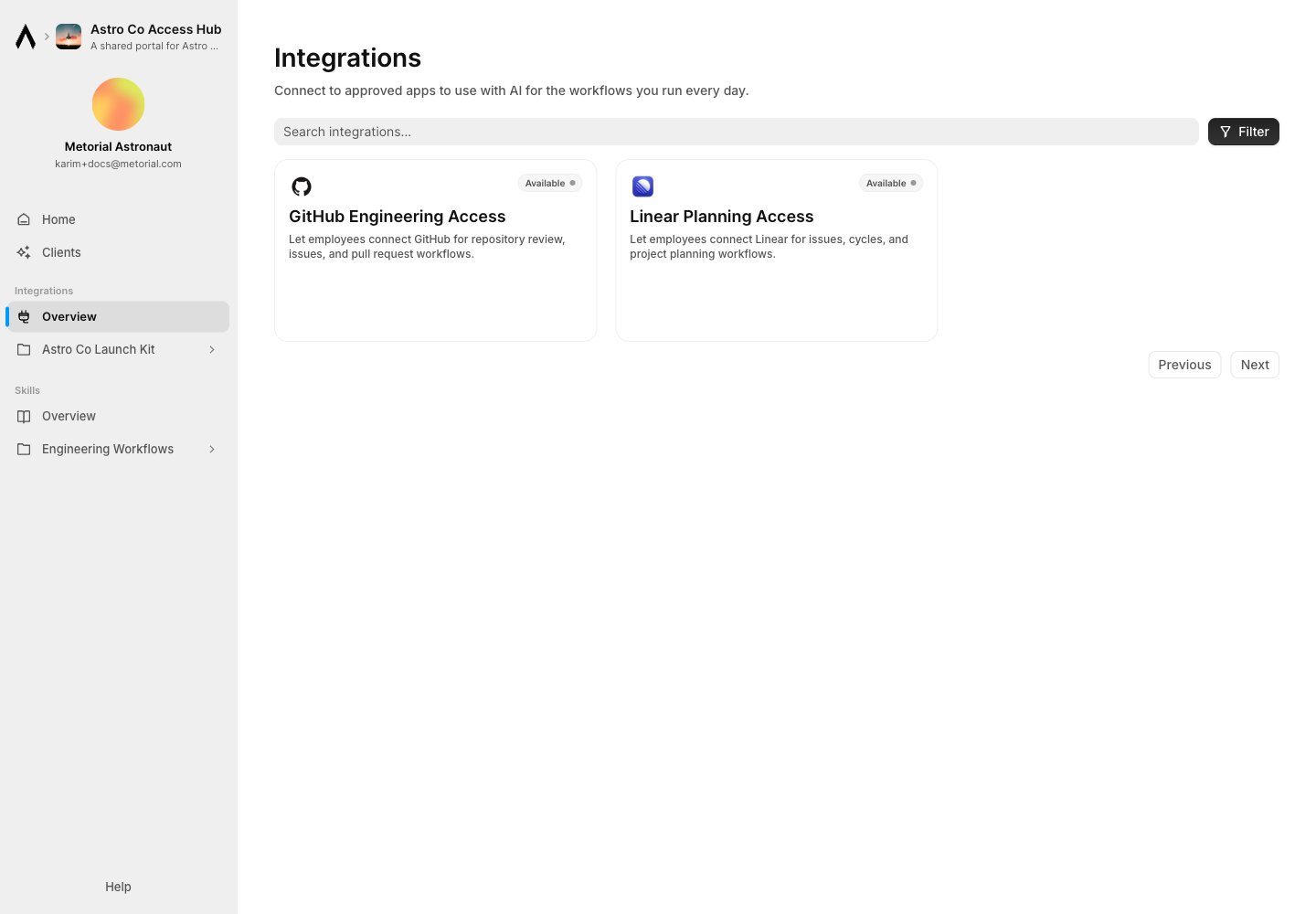
Check Skills
Open the skills view and confirm the published skills appear with the integrations they use. If a skill is missing, return to the portal admin resource settings and verify the access group is allowed.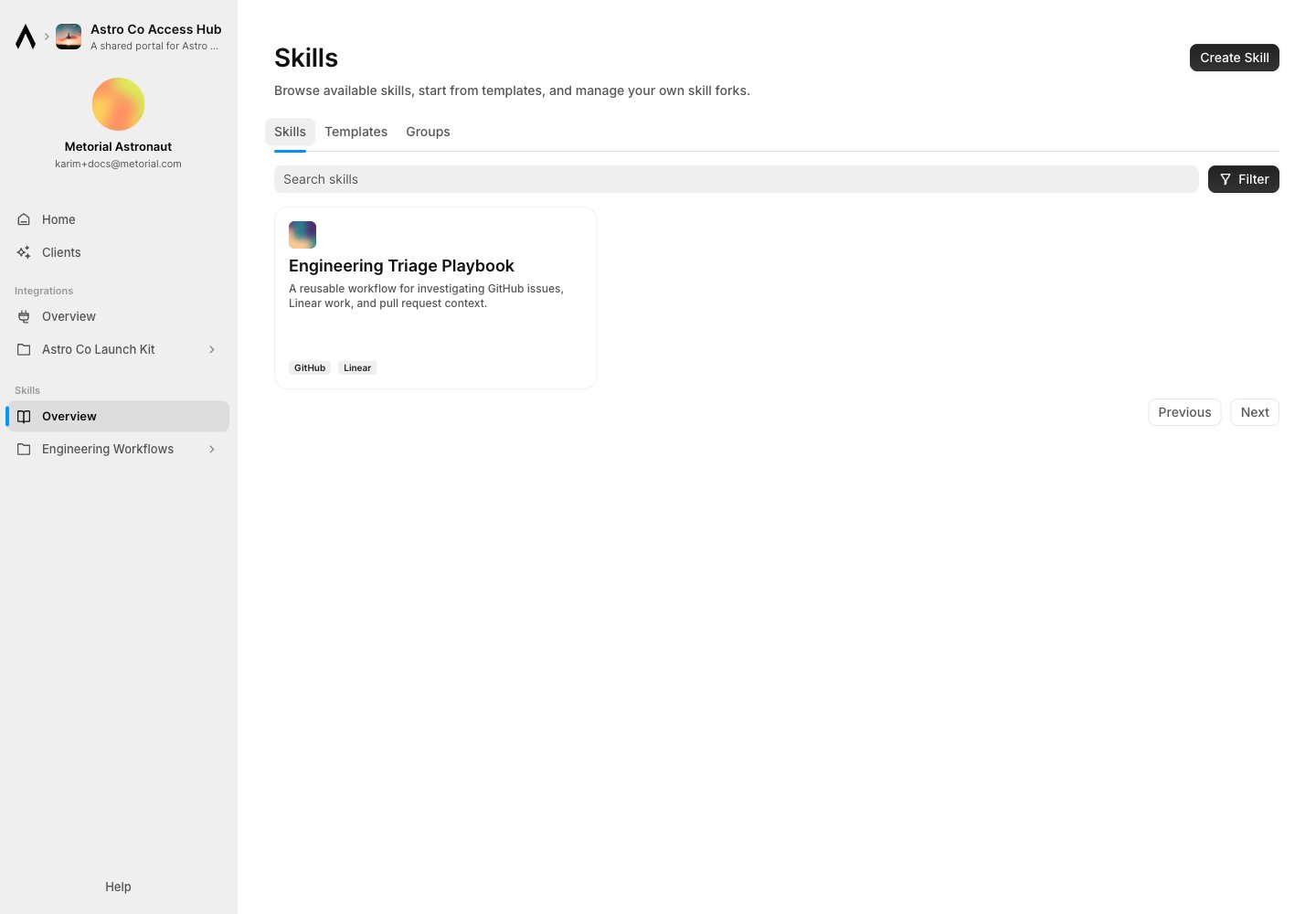
What’s Next?
Once the portal looks right from the employee side, review activity and operational logs.Next Up: Review Activity
Monitor access, sessions, tool calls, provider runs, and auth events.